
Where to Update Order Defaults?
Step-by-step instructions for configuring Orders Defaults within Pharmacy Defaults in SiCompounding.
Overview
The Orders Defaults section within Pharmacy Defaults controls how orders behave throughout their lifecycle. This includes default field values, automation behaviors, and order-level business rules that impact dispensing, fulfillment, shipping, billing, and compliance.
Important: Pharmacy Settings must be completed before using any other area of SiCompounding. Orders Defaults directly affect automation, workflow efficiency, and regulatory controls.
Step-by-Step Instructions
Navigation Path
- Click the FileMaker Pro icon to open FileMaker.
- When FileMaker opens, locate the large menu bar on the left side of the window.
- Click SiCompounding (near the top of the menu).
- In the next window, several icons appear across the middle of the screen.
- Click Pharmacy to open the Pharmacy Dashboard.
- From the blue sidebar menu on the left, select Settings (located at the bottom).
- Under General Settings, select Pharmacy Defaults.
- From the dropdown list, choose Orders.
Orders Defaults Sections
Within the Orders Defaults screen, you can configure:
- Default Field Values
- Automation Defaults
- Default Behaviors
Each section should be reviewed carefully, as these settings define system-wide order handling.
Default Field Values
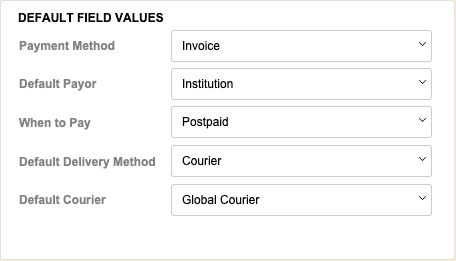
Default Field Values determine how new orders are pre-populated when created.
Payment Method
Select the default payment method using the popup value list:
- Cash
- Check
- Credit
- Credit Card
- Invoice
- Reader
Default Payor
Select who is responsible for payment:
- Institution
- Patient
- Physician
- Study Partner
When to Pay
- Postpaid
- Prepaid
Default Delivery Method
- Courier
- Pickup
- Shipping Carrier
Default Carrier
- Select a carrier from the dropdown value list.
Automation Settings
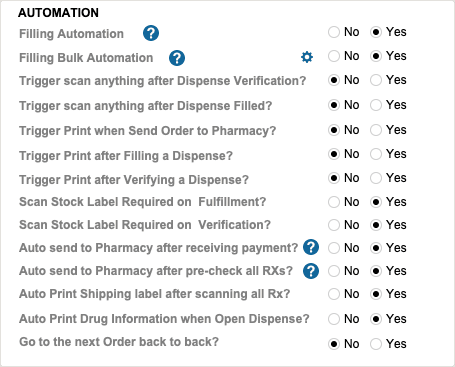
All automation options are configured as Yes / No and control how orders progress automatically through dispensing and fulfillment steps.
Filling Automation
- Filling Automation (Yes | No)
When enabled, scanning the stock bottle during dispensing triggers:
- Validation of the selected inventory lot
- Printing of the prescription label
- Setting the dispense record status to Filled
Filling Bulk Automation
- Filling Bulk Automation (Yes | No)
When enabled, users can select multiple Ready to Fill dispenses at the Filling Station.
Optional Action (gear icon):
- Print Order Label (Yes | No)
Triggered sequence:
- Validate inventory lot selection
- Print prescription label
- Print order label (if selected)
- Set dispense record status to Filled
Additional Automation Triggers
- Trigger Scan Anything after Dispense Verification (Yes | No)
- Trigger Scan Anything after Dispense Filled (Yes | No)
- Trigger Print when sending Order to Pharmacy (Yes | No)
- Trigger Print after filling a Dispense (Yes | No)
- Trigger Print after verifying a Dispense (Yes | No)
- Scan Stock Label required on Fulfillment (Yes | No)
- Scan Stock Label required on Verification (Yes | No)
Order Routing & Printing Automation
-
Auto-send to Pharmacy after receiving payment (Yes | No)
Intended for payment-link workflows. Once payment is received, SiCompounding evaluates whether intervention is required and automatically moves the order to In Pharmacy.
-
Auto-send to Pharmacy after pre-check all RXs (Yes | No)
Intended for B2B API orders. After all RXs are pre-checked, the order is automatically moved to In Pharmacy if no intervention is required.
-
Auto-print Shipping Label after scanning all RXs (Yes | No)
-
Auto-print Drug Information when opening Dispense (Yes | No)
-
Go to the next Order back-to-back (Yes | No)
Default Behaviors
Default Behaviors define required actions, validations, and optional steps during order processing. All options are Yes / No.
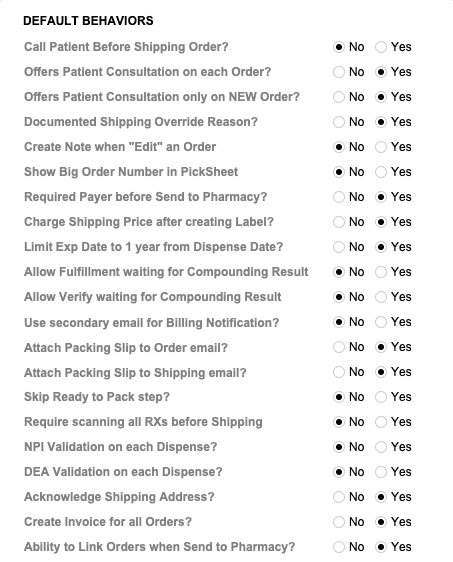
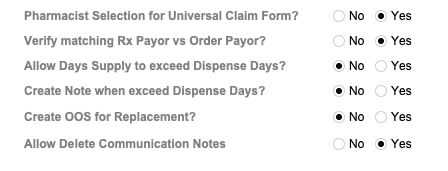
Pharmacy Settings (System Foundation)
Pharmacy Settings provide the foundational templates and defaults required for system operation. These settings must be completed before using other areas of SiCompounding.

Best Practice: Enter all available and required data for each section and subsection to ensure proper system behavior, compliance, and reporting across SiCompounding.
Summary
Configuring Orders Defaults ensures consistent order handling, efficient automation, and compliance across dispensing, fulfillment, and shipping workflows in SiCompounding.