
Setting Up Compounding Defaults?
Configure default compounding behaviors, automation, and verification rules used throughout SiCompounding.
Overview
Compounding Defaults define how SiCompounding creates, validates, and verifies compounding orders. These settings directly affect automation, pharmacist verification requirements, sub-batch handling, and final unit controls. Proper configuration is critical to ensure efficiency, compliance, and patient safety.
Step-by-Step Instructions
Navigation Path
Follow the steps below to access Compounding Defaults:
- Click the FileMaker Pro icon to open FileMaker.
- When FileMaker opens, locate the large menu bar on the left side of the window.
- Select SiCompounding (near the top of the menu).
- In the next window, click Pharmacy from the icons displayed across the middle of the screen. This opens the Pharmacy Dashboard.
- From the blue sidebar menu on the left, select Settings (located at the bottom).
- Under General Settings, select Pharmacy Defaults.
- From the dropdown list, choose Compounding.
- In the Settings section, click Edit to make changes.
Compounding Settings
Create Compounding from Order
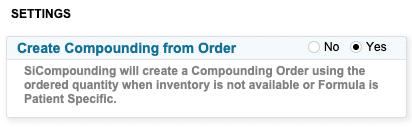
Create Compounding from Order: Yes | No
-
When enabled, SiCompounding will automatically create a Compounding Order using the ordered quantity when:
- Inventory is not available, or
- The formula is patient-specific.
SiCompounding SureIntelligence
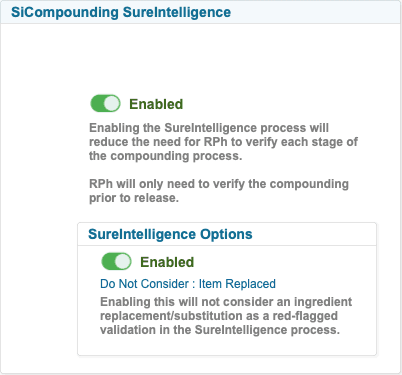
SureIntelligence Status
SureIntelligence: Enabled | Disabled (slider)
- Enabling SureIntelligence reduces the need for a pharmacist (RPh) to verify each individual stage of the compounding process.
- The RPh will only be required to verify the compounding prior to release.
SureIntelligence Options
SureIntelligence Options: Enabled | Disabled (slider)
Do Not Consider: Item Replaced
- When enabled, ingredient replacement or substitution will not be treated as a red-flagged validation during the SureIntelligence process.
Sub-Batch Options
Single Sub-Batch Options
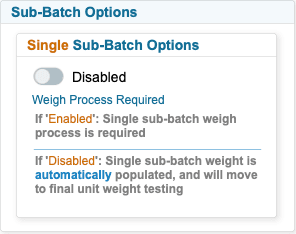
Single Sub-Batch Options: Enabled | Disabled (slider)
Weigh Process Required
- Enabled: A single sub-batch weigh process is required.
- Disabled: The single sub-batch weight is automatically populated and the process advances directly to final unit weight testing.
Ingredient Verification
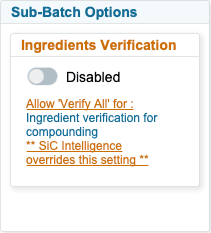
Ingredients Verification: Enabled | Disabled (slider)
- Allows use of Verify All for ingredient verification during compounding.
- Note: SiCompounding Intelligence overrides this setting when applicable.
Final Units Option
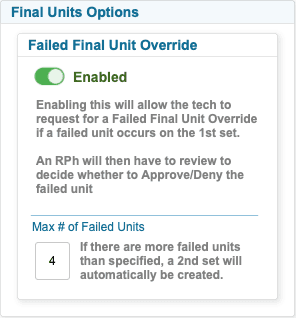
Failed Final Unit Override
Failed Final Unit Override: Enabled | Disabled (slider)
- When enabled, technicians may request a Failed Final Unit Override if a failed unit occurs during the first set.
- A pharmacist (RPh) must review the request and either Approve or Deny the failed unit.
Maximum Number of Failed Units
Max # of Failed Units: Enter a numeric value
- If the number of failed units exceeds the specified limit, a second testing set will automatically be created.
Saving Changes
Once configuration is complete:
- Click Save to apply changes.
- Click Cancel to discard any changes made.
Pharmacy Settings (System Foundation)
Pharmacy Settings provide the foundational templates and defaults required for system operation. These settings must be completed before using other areas of SiCompounding.

Best Practice: Enter all available and required data for each section and subsection to ensure proper system behavior, compliance, and reporting across SiCompounding.
It is critical to input all available and required data for every section and subsection to ensure proper system behavior, automation accuracy, and regulatory compliance.