
Printing Options for What?
Step-by-step guide to configure printing options for inventory and compounding labels in SiCompounding.
Printing Options for What?
Label printing requires high-resolution technology to ensure text is legible, durable, and compliant with FDA regulations. Labels must be durable enough to remain readable throughout a product's lifecycle, which includes transit, storage, and consumer use.
Overview
Printing Options in SiCompounding allow you to configure label printing settings for two distinct types of pharmacy labels:
- Inventory Labels — For tracking medications, supplies, and equipment.
- Compounding Stock Labels — For sterile and non-sterile compounded medications.
Label requirements vary depending on the product type:
- Prescription drugs
- Over-the-counter (OTC) medications
- In-patient hospital use
Proper setup of printing options ensures accurate tracking, compliance with regulations, and quality output.
Step-by-Step Instructions
Navigation Path
- Click the FileMaker Pro icon to open FileMaker.
- On the next window when FileMaker opens, you will see a large menu bar on the left side of the window. Click on SiCompounding (near the top).
- The next window will have several icons across the middle of the window. Click on Pharmacy to open the Dashboard.
- There is a blue sidebar menu on the left. Select Settings (located at the bottom).
- After the Physician/Patient Portal, select Printing Options.
Printing Options Window
The Printing Options window contains two main sections with various label size options and Yes/No toggles to enable or disable printing for each size.
1. Inventory Labels
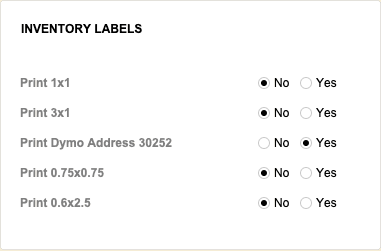
Pharmacy inventory labels include a wide variety of label sizes for tracking medications, supplies, and equipment. Configure which label sizes to print:
| Label Size | Print Option (Yes/No) |
|---|---|
| 1X1 | Yes | No |
| 3X1 | Yes | No |
| Dymo Address | Yes | No |
| 0.75X0.75 | Yes | No |
| 0.6X2.5 | Yes | No |
2. Compounding Stock Labels
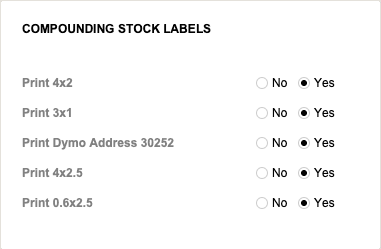
Sterile and non-sterile compounded medications require specific information on their labels to ensure patient safety and compliance with regulations. Configure which label sizes to print:
| Label Size | Print Option (Yes/No) |
|---|---|
| 4X2 | Yes | No |
| 3X1 | Yes | No |
| Dymo Address | Yes | No |
| 4X2.5 | Yes | No |
| 0.6X2.5 | Yes | No |
Configuration Steps
- In the Printing Options window, locate the section (Inventory Labels or Compounding Stock Labels).
- For each label size, toggle Yes to enable printing or No to disable printing.
- Repeat for all desired label sizes in both sections.
- Click Save to apply your printing preferences.
Best Practices
- Select label sizes that match your printer and workflow requirements.
- Ensure high-resolution printing is enabled for FDA compliance and legibility.
- Test label output with different sizes before deploying to production.
- Regularly review and update printing options as your inventory or compounding needs change.
- Configure all necessary label sizes to avoid printing delays or missing label options during pharmacy operations.
Pharmacy Settings (System Foundation)
Pharmacy Settings provide the foundational templates and defaults required for system operation. These settings must be completed before using other areas of SiCompounding.

Best Practice: Enter all available and required data for each section and subsection to ensure proper system behavior, compliance, and reporting across SiCompounding.
This completes the guide for Printing Options in SiCompounding.