
Changes to Provider | Patient Portal?
Step-by-step guide to updating settings for the Provider and Patient Portals in SiCompounding.
Changes to Provider | Patient Portal?
Overview
Provider Portal — An online platform that allows healthcare providers to manage patient prescriptions, track prior authorizations, access clinical information, and handle administrative tasks like claims and referrals for specific health plans.
The Patient Portal enables patients to interact with their prescriptions, communicate with providers, and manage their own healthcare information.
Step-by-Step Instructions
Navigation Path
- Click the FileMaker Pro icon to open FileMaker.
- On the next window when FileMaker opens, you will see a large menu bar on the left side of the window. Click on SiCompounding (near the top).
- The next window will have several icons across the middle of the window. Click on Pharmacy to open the Dashboard.
- There is a blue sidebar menu on the left. Select Settings (located at the bottom of the blue sidebar).
- After the Finances section, select Physician / Patient Portal.
Portal Settings
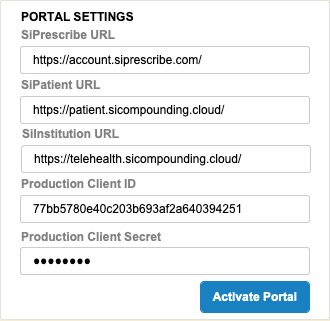
In this section, enter your credentials and then click Activate Portal:
| Field | URL/Value |
|---|---|
| SiPrescribe URL | https://account.siprescribe.com/ |
| SiPatient URL | https://patient.sicompounding.cloud |
| SiInstitution URL | https://telehealth.sicompounding.cloud |
| Production Client ID | <Your Client ID> |
| Production Client Secret | <Your Client Secret> |
After entering all credentials, click the Activate Portal button to enable the portals.
Notifications
Order's Notification Email — Use the slider to activate. Enter the email address that will receive order notifications.
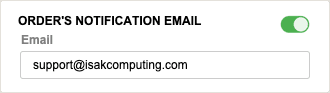
- Email: support@isakcomputing.com (or your preferred email address)
Portal Feature Toggles
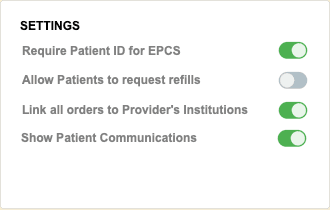
Use the sliders to enable or disable the following features:
| Feature | Description |
|---|---|
| Require Patient ID for EPCS | Electronic Prescribing of Controlled Substances - requires patient identification |
| Allow Patients to Request Refills | Enables patients to submit refill requests through the portal |
| Link All Orders to Provider's Institutions | Associates all orders with the provider's designated institutions |
| Show Patient Communications | Displays patient communication options and messages in the portal |
Portal Dashboard Configurations
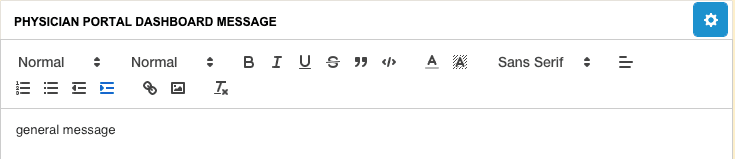
Physician Portal Dashboard Message — Click the blue Gear (settings) icon to open the Rich Text Editor Configurator and customize the dashboard message.
Best Practices
- Test all portal features in a non-production environment before deploying to live providers and patients.
- Keep Client ID and Client Secret credentials secure and updated.
- Regularly review notification email settings to ensure orders are routed to the correct inbox.
- Enable Patient ID for EPCS to comply with federal regulations for controlled substance prescribing.
- Document which features are enabled for auditing and compliance purposes.
Pharmacy Settings (System Foundation)
Pharmacy Settings provide the foundational templates and defaults required for system operation. These settings must be completed before using other areas of SiCompounding.

Best Practice: Enter all available and required data for each section and subsection to ensure proper system behavior, compliance, and reporting across SiCompounding.
This completes the guide for Configuring the Provider and Patient Portal in SiCompounding.