
Bins and Bags Setup?
Step-by-step guide for configuring Bins and Bags in SiCompounding to simplify prescription dispensing with pre-barcoded storage.
Overview
Bin/Bag functionality allows your pharmacy to assign and release prescriptions to pre-barcoded bins or bags. When enabled, this system improves workflow efficiency and accuracy in dispensing prescriptions.
Step-by-Step Instructions
Navigation Path
- Click the FileMaker Pro icon to open FileMaker.
- From the left-hand menu, click SiCompounding.
- In the main window, select Pharmacy to open the Dashboard.
- From the blue sidebar, select Settings.
- Scroll below Printing Options and select Bins/Bags Setup.
Bins/Bags Setup Window
The window is divided into two main sections:
Enable Bin/Bag Functions
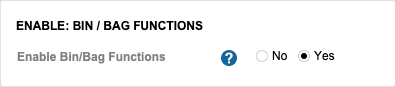
- Yes / No toggle to activate or deactivate the functionality.
- When active, the system enables assigning and releasing prescriptions to pre-barcoded bins/bags.
Bin/Bag List View
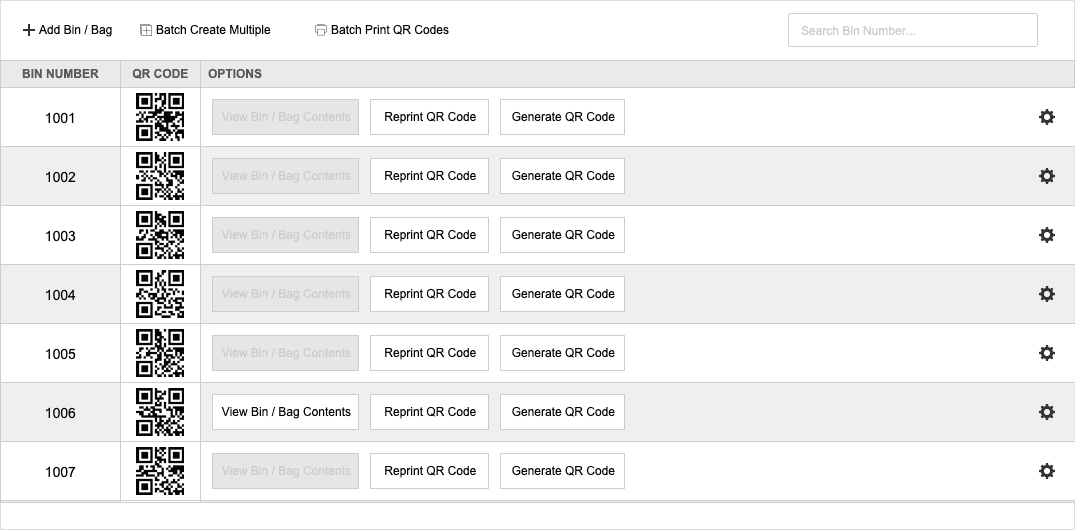
- Displays a list of Bin Numbers and QR Codes (Enabled = Yes).
- Add Bin/Bag button: create a single new Bin/Bag record.
- Batch Create Multiple: create multiple Bin/Bag records at once. A dialog will ask for the number of bins/bags to create.
- Batch Print QR Codes: print multiple QR codes by specifying a range of bins/bags:
- Starting # → Ending # → click Start
- Example: Starting #: 1115, Ending #: 1118 prints 4 Bin/Bag QR code pages.
- Click All to print a QR code page for every bin/bag.
- Search: search by Bin Number using the search bar in the upper right corner (press Enter/Return to execute).
Column Options
- View Bin/Bag Contents: grayed out if no prescriptions have been added; otherwise, click to view contents.
- Reprint QR Code: prints a replacement sheet of the QR code to attach to a prescription.
- Generate QR Code: generates a QR code for a new or existing bin/bag.
Row Actions (Settings Icon)
Click the gear icon at the end of a row to access:
- Delete: opens a Deletion Confirmation dialog.
Use DELETE to confirm deletion of the bin/bag record, otherwise click CANCEL.
Pharmacy Settings (System Foundation)
Pharmacy Settings provide the foundational templates and defaults required for system operation. These settings must be completed before using other areas of SiCompounding.

Best Practice: Enter all available and required data for each section and subsection to ensure proper system behavior, compliance, and reporting across SiCompounding.
This completes the guide for Bins and Bags Setup in SiCompounding.
Printing Options for What?
Step-by-step guide to configure printing options for inventory and compounding labels in SiCompounding.
What is in Communications Templates?
Step-by-step guide to creating, editing, and managing communication templates in SiCompounding for patients, physicians, or internal use.