
What is in Communications Templates?
Step-by-step guide to creating, editing, and managing communication templates in SiCompounding for patients, physicians, or internal use.
Overview
Communication Templates are pre-designed letters, notes, or messages used for communications with patients, physicians, or other recipients. Templates can be added or modified to standardize communication and improve workflow efficiency. Each template can include dynamic fields populated with company or patient information.
Step-by-Step Instructions
Navigation Path
- Click the FileMaker Pro icon to open FileMaker.
- From the left-hand menu, click SiCompounding.
- In the main window, select Pharmacy to open the dashboard.
- From the blue sidebar, select Settings.
- Scroll below Bins/Bags Setup and select Communications → Templates from the dropdown.
Communications Templates Window
The Communications Templates window displays a list of templates with the following columns:
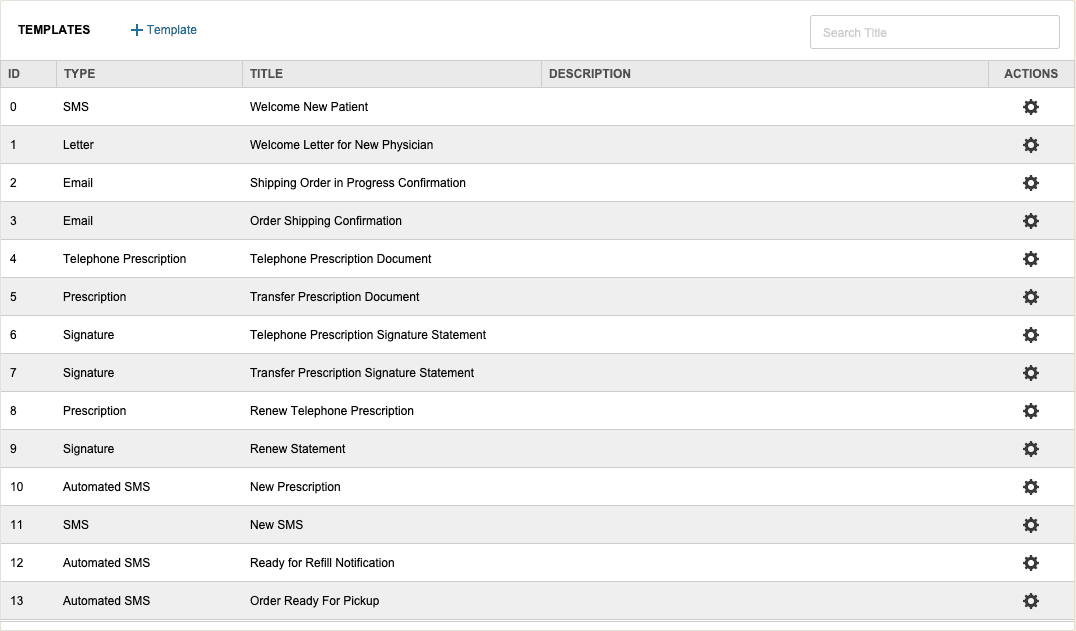
| Column | Description |
|---|---|
| ID | Unique identifier related to the template type and title |
| Type | Template type (e.g., SMS, Letter, Email) |
| Title | Title or name of the document |
| Description | Details about the document |
| Actions | Gear icon to access Edit and Change Logs options |
From here, you can:
- Add a new template using the + Template button
- Edit existing templates
- Search for templates by title
- View change logs for audit purposes
Searching Templates
- Use the Search bar in the upper-right corner to search by template Title.
- Press Enter/Return to execute the search and display results.
Create a New Template
- Click the + Template button to create a new template.
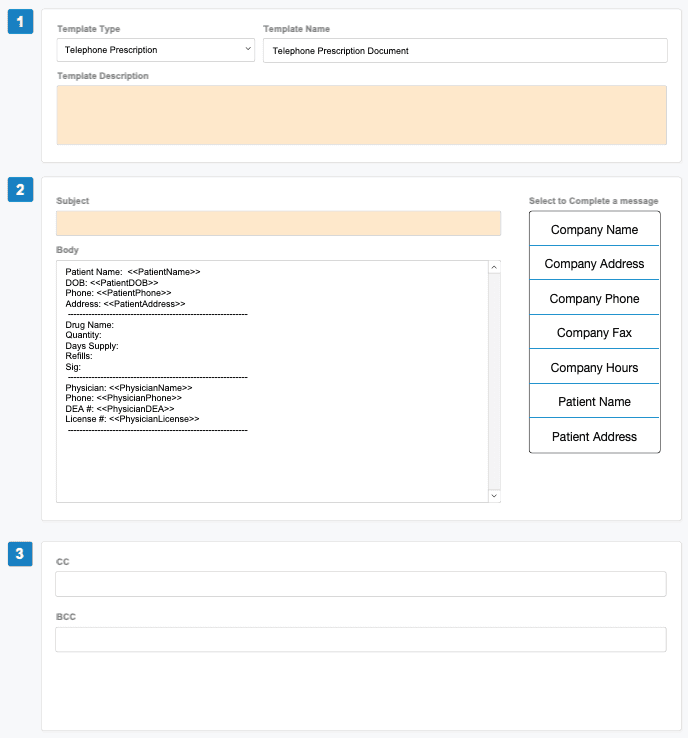
Section 1 – Template Information
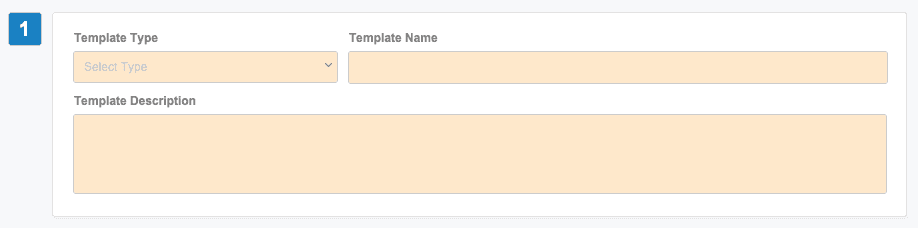 Enter the following information:
- Template Type (dropdown) — Choose template type such as SMS, Letter, Email, etc.
- Template Name — Name or title of the template.
- Template Description — Details about the template's purpose.
Section 2 – Message Content
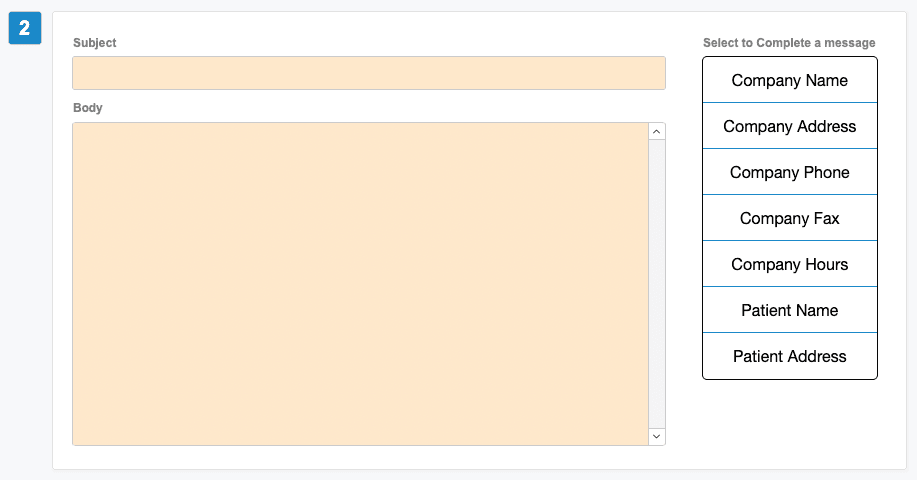 Enter the following information:
- Subject — Subject line for the message.
- Body — Main message content.
Complete a Message — Use these pick list buttons to insert dynamic fields into your template:
- Company Name
- Company Address
- Company Phone
- Company Fax
- Company Hours
- Patient Name
- Patient Address
Section 3 – Recipients
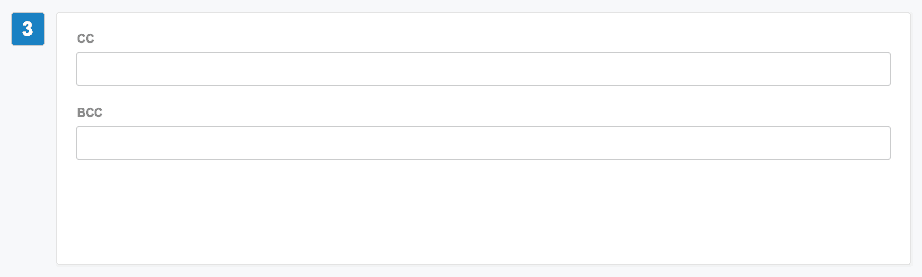 Enter the following information:
- CC — Carbon copy recipient email address(es).
- BCC — Blind carbon copy recipient email address(es).
- Click Save after all data has been entered and changes are complete.
Template Actions (Gear Icon)
Click the gear (settings) icon in the Actions column to access:
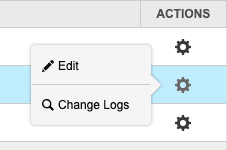
Edit
- Opens the Communications Templates window.
- Make necessary changes to the template fields.
- Click Save after all data has been entered and changes are complete.
Change Logs
- Opens the Record Modification Log window.
- Displays all changes made to that template.
- Click the X in the upper-right corner to close the log window.
Best Practices
- Use clear and descriptive template names and titles to make them easy to find.
- Include all relevant dynamic fields to ensure templates populate with current data.
- Test templates before deploying to live communications.
- Review change logs regularly to track modifications and maintain audit compliance.
Pharmacy Settings (System Foundation)
Pharmacy Settings provide the foundational templates and defaults required for system operation. These settings must be completed before using other areas of SiCompounding.

Best Practice: Enter all available and required data for each section and subsection to ensure proper system behavior, compliance, and reporting across SiCompounding.
This completes the guide for Communications Templates in SiCompounding.
Bins and Bags Setup?
Step-by-step guide for configuring Bins and Bags in SiCompounding to simplify prescription dispensing with pre-barcoded storage.
How can I update Notifications?
Manage and update notification settings in SiCompounding, including editing notification content and viewing change logs.