
Maintaining System Alerts?
Step-by-step guide to manage and maintain system alerts in SiCompounding for compliance, safety, and quality control.
Overview
System Alerts are automated notifications that ensure drug safety, quality, and regulatory compliance. They notify users of potential issues ranging from immediate safety hazards to regulatory deficiencies. Maintaining these alerts helps pharmacies manage risk and maintain operational compliance.
Step-by-Step Instructions
Navigation Path
- Click the FileMaker Pro icon to open FileMaker.
- From the left-hand menu, click SiCompounding.
- In the main window, select Pharmacy to open the dashboard.
- From the blue sidebar, select Settings.
- Scroll below Bins/Bags Setup, select Communications → Alerts from the dropdown.
Alerts System Window
The window displays a list of alerts including:

- Name - Notification subject
- Description - Notification description details
- Alert Type - e.g., Notification, Alert…
- Active - √ Box
- Actions - Clicking the gear icon displays two options:
- Edit - Modify the alert settings.
- Change Logs - View the record modification log.
Editing a System Alert
- Click the gear (settings) icon next to the alert you want to modify.
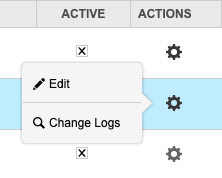
- Select Edit to open the Alert Settings window.
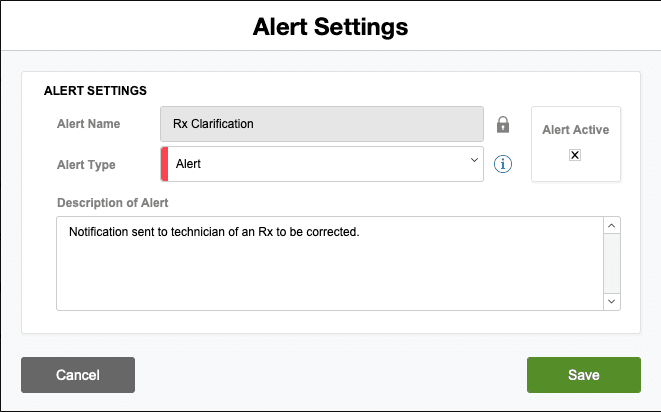
- Update the following fields as needed:
- Alert Type (dropdown)
- Description of Alert
- Alert Active (√ box to activate/deactivate)
- Click Save to apply changes.
Viewing Change Logs
- Click the gear (settings) icon next to the alert.
- Select Change Logs to open the Record Modification Log.
- Review the list of changes made to the alert settings.
- Click the X in the upper-right corner to close the window.
Pharmacy Settings (System Foundation)
Pharmacy Settings provide the foundational templates and defaults required for system operation. These settings must be completed before using other areas of SiCompounding.

Best Practice: Enter all available and required data for each section and subsection to ensure proper system behavior, compliance, and reporting across SiCompounding.
This completes the guide for Maintaining System Alerts in SiCompounding.