
What's in Pharmacy Integrations?
Step-by-step guide to access and configure system integrations in SiCompounding for pharmacies.
What's in Pharmacy Integrations?
The Pharmacy Integrations section in SiCompounding allows you to connect with third-party systems to streamline operations, ensure compliance, and enhance workflows. These integrations include prescription monitoring, lab services, pharmacy automation, patient-reported outcomes, and independent pharmacy services.
Step-by-Step Instructions
Navigation Path
- Click the FileMaker Pro icon to open FileMaker.
- In the left-hand menu, click SiCompounding (near the top).
- In the main window, click Pharmacy to open the Dashboard.
- In the blue sidebar menu on the left, select Settings (located at the bottom).
- After the Communications section, select Integrations.
Available Integrations
PMP Clearinghouse

Purpose: A centralized data repository that collects and validates dispensing data for controlled substances, reporting to state Prescription Monitoring Programs (PMPs). It serves as a portal for dispensers to report dispensed controlled substance prescriptions to the state PMP.
Setup Steps:
- Click Connect or Edit.

- SFTP Account Creation:
- Login at: https://pmpclearinghouse.net.
- Navigate to
Account → SFTP Details. - If an SFTP account was not created during registration, click the button to create one.
- Enter the following details:
- SFTP Hostname
- SFTP Username
- SFTP Password
- Click Set to create the account.
Pharmetric Laboratory

Purpose: An FDA-registered, ISO 17025 accredited analytical lab specializing in microbiology testing for pharmaceutical and compounding pharmacies.
Setup Steps:
- Click Connect or Edit.
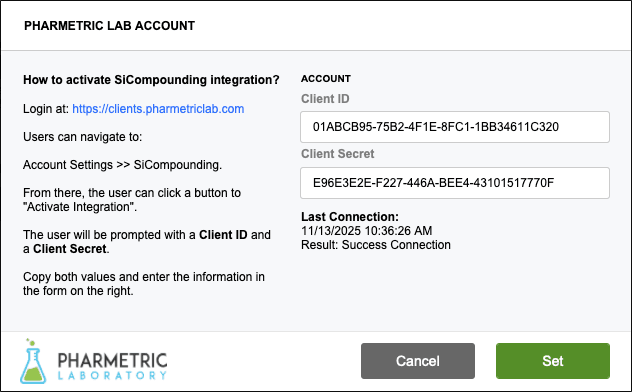
- Login at: https://clients.pharmetriclab.com.
- Navigate to
Account Settings → SiCompounding. - Click Activate Integration.
- Enter the following credentials:
- Client ID
- Client Secret
- Copy the credentials into the SiCompounding form.
- Click Set to complete the integration.
Script Pro

Purpose: A provider of comprehensive pharmacy management and automation systems, focusing on optimizing retail and ambulatory pharmacy operations.
Setup Steps:
- Click Connect or Edit.
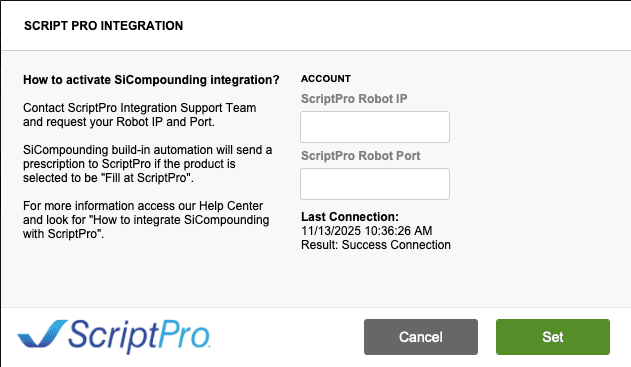
- Contact the ScriptPro Integration Support Team to request your Robot IP Port.
- Enter the following details:
- ScriptPro Robot IP
- ScriptPro Robot Port
- Refer to the Help Center for detailed instructions on integrating SiCompounding with ScriptPro.
- Click Set to complete the integration.
Outcome MD

Purpose: A health tech platform focused on patient-reported outcomes (PROs) to improve healthcare.
Setup Steps:
- Click Connect or Edit.

- Contact OutcomeMD to obtain the following credentials:
- Base URL
- Partner Type
- Partner ID
- Partner Facility Name
- Gateway API Token
- Enter the credentials into the SiCompounding form.
- Click Set to finalize the integration.
Independent Rx

Purpose: A service provider for independent pharmacy ownership, offering support for buying, starting, bookkeeping, and selling pharmacies.
Setup Steps:
- Click Connect or Edit.
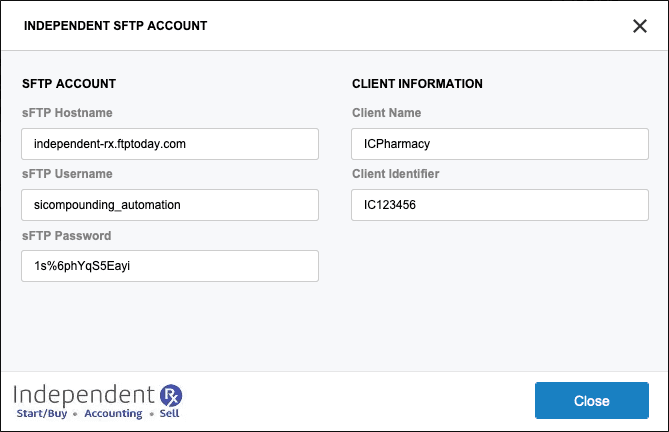
- SFTP Account Setup:
- Enter the following details:
- SFTP Hostname
- SFTP Username
- SFTP Password
- Enter the following details:
- Client Information:
- Enter the following details:
- Client Name
- Client Identifier
- Enter the following details:
- Click Close after entering all required data.
Jopari
Purpose: To maintain its standing as a market leader by consistently exceeding our Clients’ expectations; providing the Property & Casualty, Workers’ Compensation and Group Health Industries with best-of-breed health information technology solutions. We continually communicate and learn from our clients in order to improve our products and services. Strive to make technology integrate seamlessly with your business so your business can grow. As your technology partner, when your business grows, our business will grow with you.
Setup Steps:
- Click Connect or Edit.
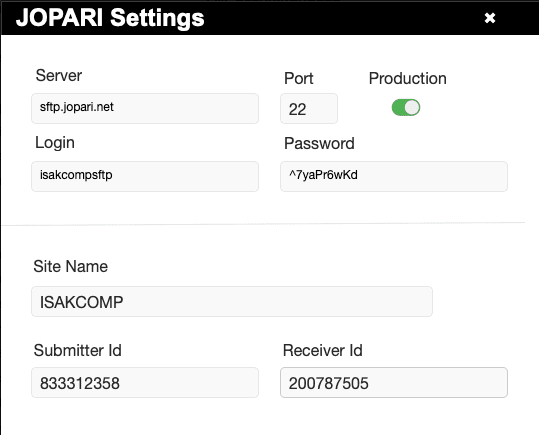
- Jopari Account Setup:
- Enter the following details:
- Server
- Port
- Production
- Enter the following details:
- Client Information:
- Enter the following details:
- Login
- Password
- Site Name
- Submitter Id
- Receiver Id
- Enter the following details:
- Click Connect after entering all required data.
EyeCon

Purpose: So advanced yet so simple. The latest technology in prescription dispensing automation.
- Ease pharmacy workload.
- Improve pharmacy revenue.
- Focus on patient safety.
- Enhance customer satisfaction.
- Reduce workplace stress.
- Improve work life balance.
Setup Steps:
-
Click the Connect button.
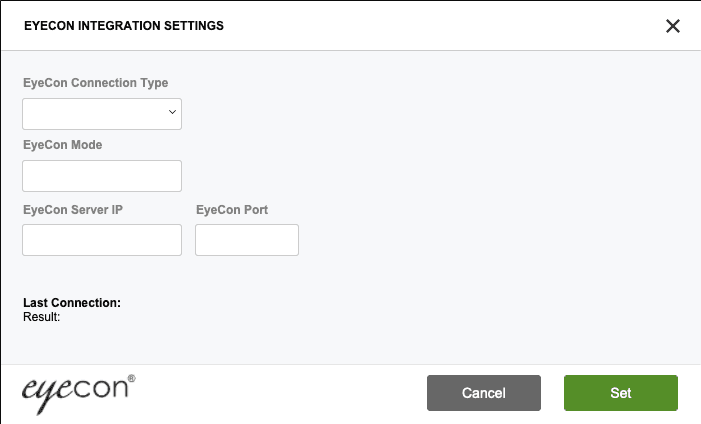
-
EyeCon Account Setup:
- Enter the following details:
-
EyeCon Connection Type - Choose from dropdown
- Direct
- Server
-
EyeCon Mode
-
EyeCon Server IP
-
EyeCon Port
-
Last Connection: Displays the date and time of the last successful connection to EyeCon.
-
Result: Displays the outcome of the last connection attempt, such as "Success" or "Failure," along with any relevant error messages if applicable.
-
- Enter the following details:
-
Click the Set after entering all required data to complete Connection.
Pharmacy Settings (System Foundation)
Pharmacy Settings provide the foundational templates and defaults required for system operation. These settings must be completed before using other areas of SiCompounding.

Best Practice: Enter all available and required data for each section and subsection to ensure proper system behavior, compliance, and reporting across SiCompounding.
This completes the guide for Pharmacy Integrations in SiCompounding.