
Choices for Payment Integrations?
Step-by-step guide to configure payment integrations in SiCompounding for secure and streamlined payment processing.
Overview
The Payment Integrations section within SiCompounding allows pharmacies to connect to multiple online payment platforms, enabling secure processing of patient payments and streamlining financial workflows. Supported integrations include Tabz Payments, Stripe, Priority Payments, CardConnect, Merchante, and TRX Services.
Step-by-Step Instructions
Navigation Path
- Click the FileMaker Pro icon to open FileMaker.
- From the left-hand menu, click SiCompounding.
- In the main window, select Pharmacy to open the dashboard.
- From the blue sidebar, select Settings.
- Scroll below Communications, select Integrations (Payments).
- Switch to the Payments tab to view available integrations.
Available Payment Integrations
Tabz Payments (HealNow)
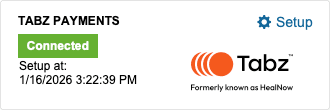
Purpose: Online payment and patient engagement platform for managing prescriptions, deliveries, and communication.
Setup Steps:
- Click Setup.
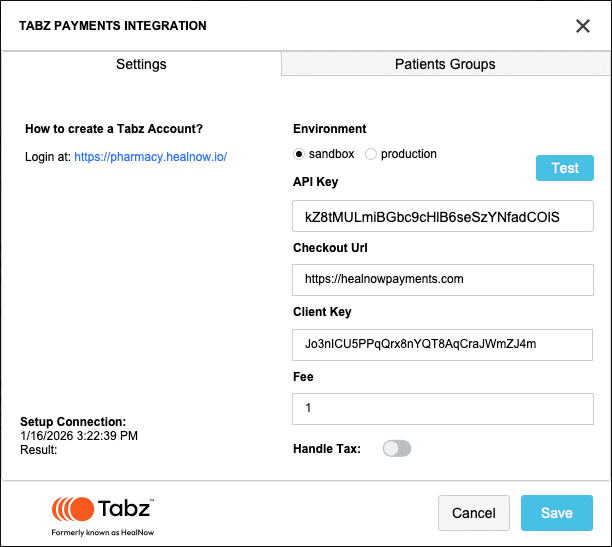
- Login at HealNow.
- Select Environment: Sandbox or Production.
- Enter API Key and click Test.
- Enter the following details:
- Checkout URL
- Client Key
- Fee (mandatory)
- Configure Patient Groups:
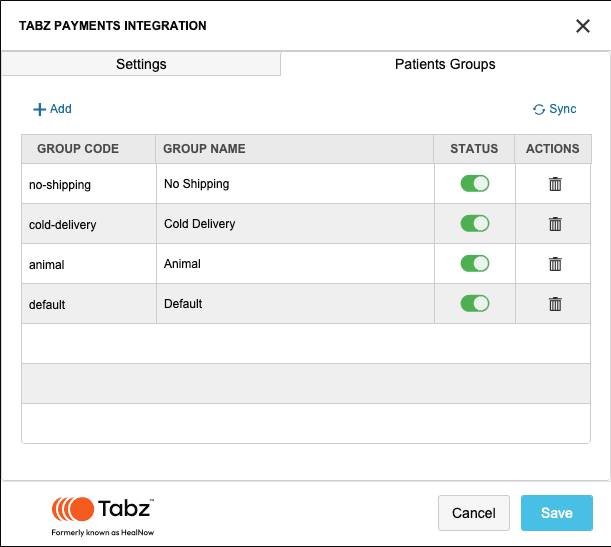
- Click + Add
- Enter Group Code and Group Name
- Toggle Status (On/Off)
- Use Delete if needed
- Click Save after adding and testing all groups.
Stripe
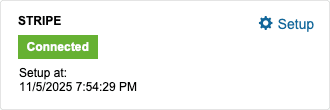
Purpose: Widely-used payment processing platform for accepting online payments, including credit/debit cards and bank transfers.
Setup Steps:
- Click Setup.
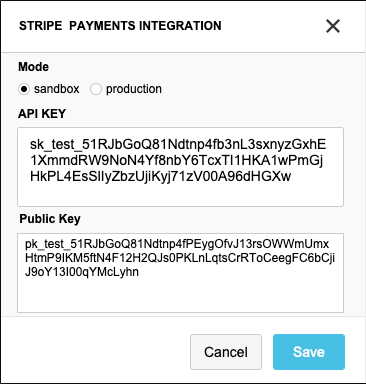
- Enter the following details:
- API Key
- Public Key
- Click Save to finalize the setup.
Priority Payments
Purpose: Payment processing solutions tailored for pharmacies.
Setup Steps:
- Click Setup.
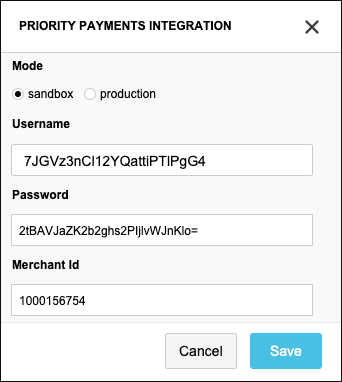
- Enter the following details:
- Username
- Password
- Merchant ID
- Click Save to complete the integration.
Jopari
Purpose: Streamline Payment Processing - Payers eliminate paper and reduce operational expenses with Jopari.
Setup Steps:
- Click Setup.
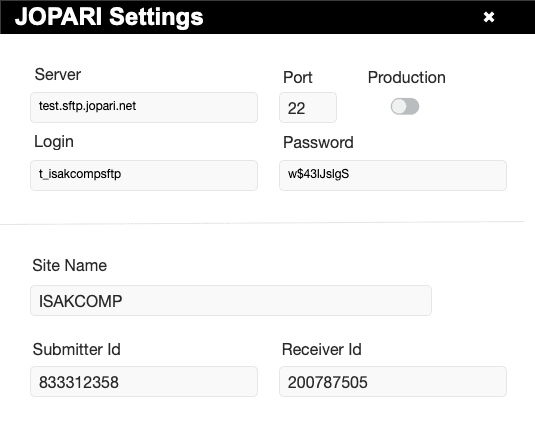
- Enter the following details:
- Mode: Sandbox or Production
- Username
- Password
- Click Save after entering all required information.
Card Connect
Purpose: Payment platform for managing online and in-person transactions, including credit/debit card payments.
Setup Steps:
- Click Setup.
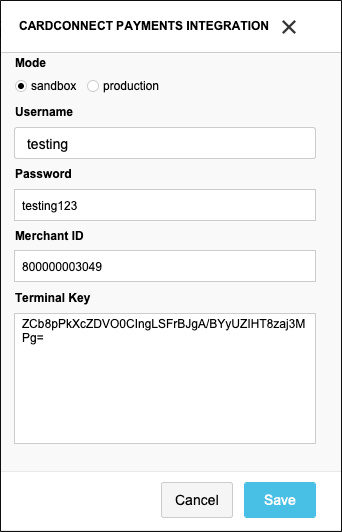
- Enter the following details:
- Username
- Password
- Merchant ID
- Terminal Key
- Click Save after testing the integration.
Merchante
Purpose: Enables businesses, including pharmacies, to accept credit card payments and other electronic transactions.
Setup Steps:
- Click Setup.
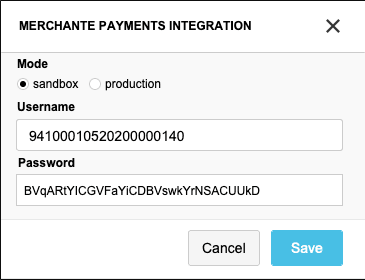
- Enter the following details:
- Username
- Password
- Click Save after testing the integration.
TRX Services
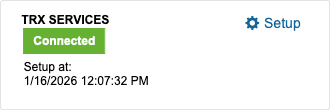
Purpose: Simplify payments and streamline transactions with TRX Services' robust payment gateway and tailored financial solutions.
Setup Steps:
- Click Setup.
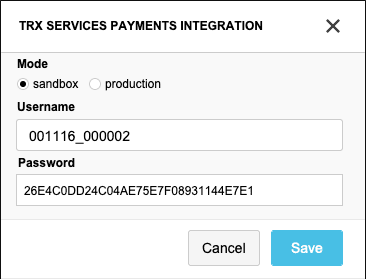
- Enter the following details:
- Mode: Sandbox or Production
- Username
- Password
- Click Save after entering all required information.
Pharmacy Settings (System Foundation)
Pharmacy Settings provide the foundational templates and defaults required for system operation. These settings must be completed before using other areas of SiCompounding.

Best Practice: Enter all available and required data for each section and subsection to ensure proper system behavior, compliance, and reporting across SiCompounding.
This completes the guide for Payment Integrations in SiCompounding.
Email / SMS / IVR / Fax Integrations?
Step-by-step guide to configure communication integrations in SiCompounding for enhanced messaging and notifications.
Setup Shipping Integrations?
Step-by-step guide to configure shipping integrations in SiCompounding for pharmaceutical logistics and delivery workflows.