
Setting up Facility Areas?
Step-by-step instructions for configuring Facility Areas within Pharmacy Settings in SiCompounding.
Overview
Facility Areas define all physical spaces within your pharmacy. Proper configuration of Facility Areas ensures:
- Quality control of pharmaceutical products
- Safety for staff and patients
- Regulatory compliance for processes and storage
Each area can be configured with the following attributes:
- Code – Unique identifier for the area
- ISO – Cleanroom classification or standard
- Area Name – Descriptive name of the area
- Storage – Storage type or requirements
- Hazardous – Yes / No for hazardous materials
- Category – Sterile or Non-Sterile
- Temperature – Controlled temperature range
- Humidity – Controlled humidity range
Note: Adding or deleting Facility Areas can only be done in SiKore within the Company Information section.
Step-by-Step Instructions
Navigation Path
Settings → Facility Areas
- Click the FileMaker Pro icon to open FileMaker.
- From the left-hand menu, click SiCompounding.
- In the main window, select Pharmacy to open the Dashboard.
- From the blue sidebar, select Settings.
- Scroll below Printing Options and select Bins/Bags Setup.
- From the blue sidebar menu on the left:
- Scroll to the bottom.
- Select Settings.
- Under General Settings, select Facility Areas.
Navigate to Facility Areas
- Under General Settings, select Facility Areas.
- The Facility Areas management screen will open, displaying all configured areas.
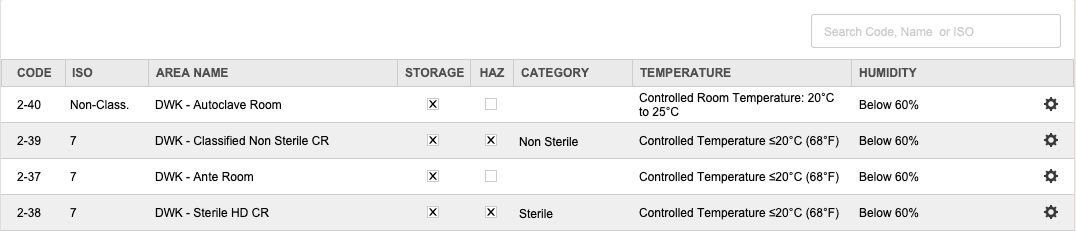
Important:
Providing accurate information for each Facility Area is critical for ensuring the quality, safety, and compliance of all pharmacy operations.
Searching Facility Areas
- In the top-right corner, use the Search bar.
- Search by Code, Area Name, or ISO.
- Press Enter/Return to view search results.
Managing Facility Areas
- To the right of each Facility Area row, click the gear (settings) icon.
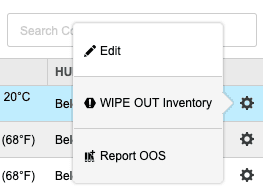 Three options are available:
1. Edit
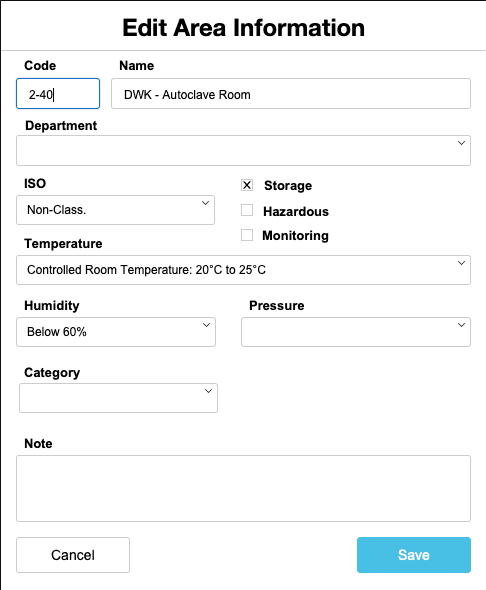
- Allows adding or modifying information for the selected Facility Area.
- Click Save after making changes.
2. WIPE OUT Inventory
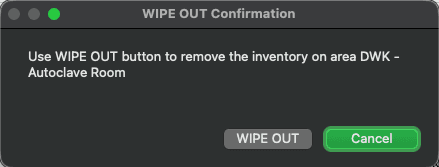
- Opens a confirmation dialog.
- Confirming this action will clear inventory connections associated with the Facility Area.
3. Report OOS
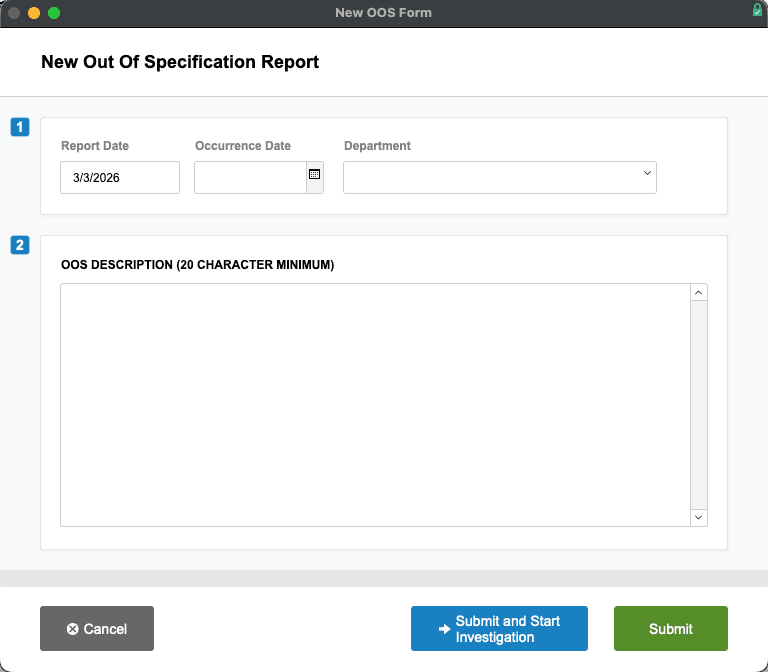
- Opens a New Out Of Specification (OOS) Report window.
- Complete the following fields:
- Report Date
- Occurrence Date (use calendar icon)
- Department (select from dropdown)
- OOS Description (minimum 20 characters)
- Submit the report using either:
- Submit and Start Investigation, or
- Submit (all fields must be completed)
Pharmacy Settings (System Foundation)
Pharmacy Settings provide the foundational templates and defaults required for system operation. These settings must be completed before using other areas of SiCompounding.

Best Practice: Enter all available and required data for each section and subsection to ensure proper system behavior, compliance, and reporting across SiCompounding.
Related Configuration Areas
- Facility Area Management in SiKore
- Out Of Specification (OOS) Reporting
- Pharmacy Defaults
- Automations and Logs