
Setup Shipping Integrations?
Step-by-step guide to configure shipping integrations in SiCompounding for pharmaceutical logistics and delivery workflows.
Overview
Shipping Integrations connect SiCompounding with third-party logistics providers using APIs to automate shipping workflows, maintain regulatory compliance, manage inventory, and support temperature-sensitive pharmaceutical deliveries. These integrations provide real-time tracking, accurate ETAs, and cost optimization for shipping medical supplies, prescriptions, and laboratory materials.
Step-by-Step Instructions
Navigation Path
- Click the FileMaker Pro icon to open FileMaker.
- From the left-hand menu, click SiCompounding.
- In the main window, select Pharmacy to open the dashboard.
- From the blue sidebar, select Settings.
- Scroll below Communications, select Integrations (Shipping).
- Switch to the Shipping tab to view available integrations.
Available Shipping Integrations
Shippo
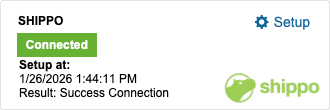
Purpose: Manage carriers, rates, and labels for pharmaceutical shipping.
Setup Steps:
- Click Setup.
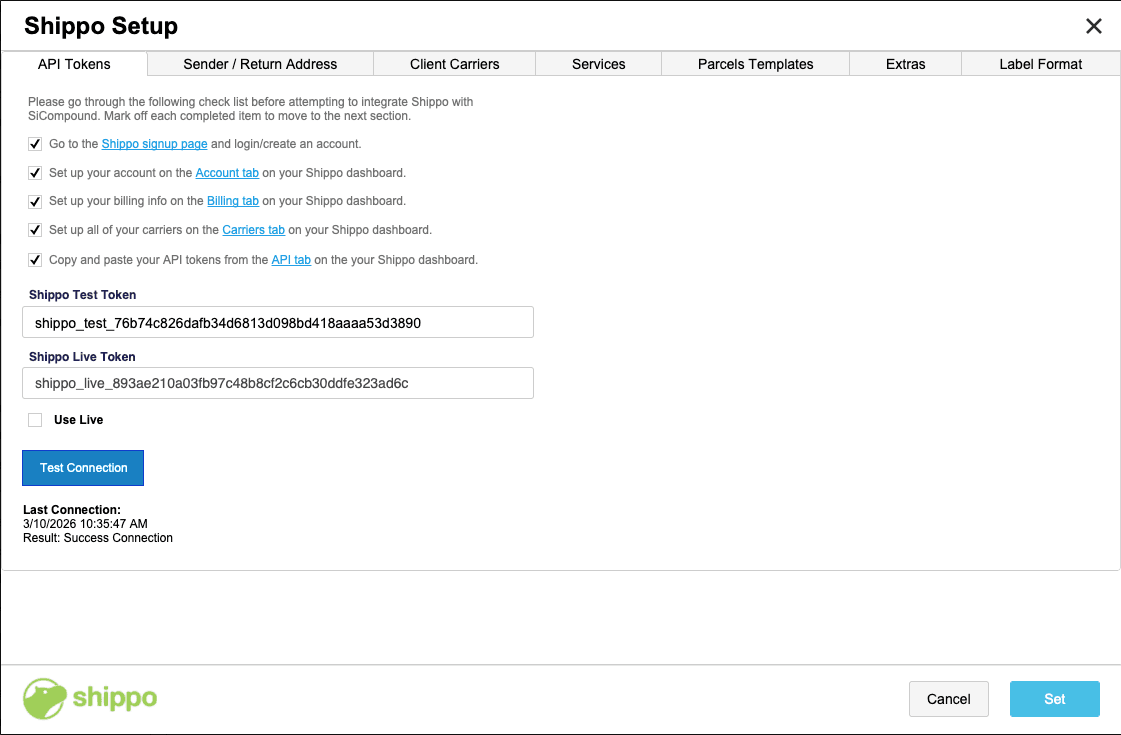
- Complete the following checklist:
- Create or log in to your Shippo account at Shippo Signup.
- Configure Account, Billing, and Carriers.
- Copy API tokens from the API Tokens tab.
- Enter the following details:
- Shippo Test Token
- Shippo Live Token
- Toggle Use Live (√ box).
- Test the connection using the Test Connection button.
- Configure Sender/Return Address:
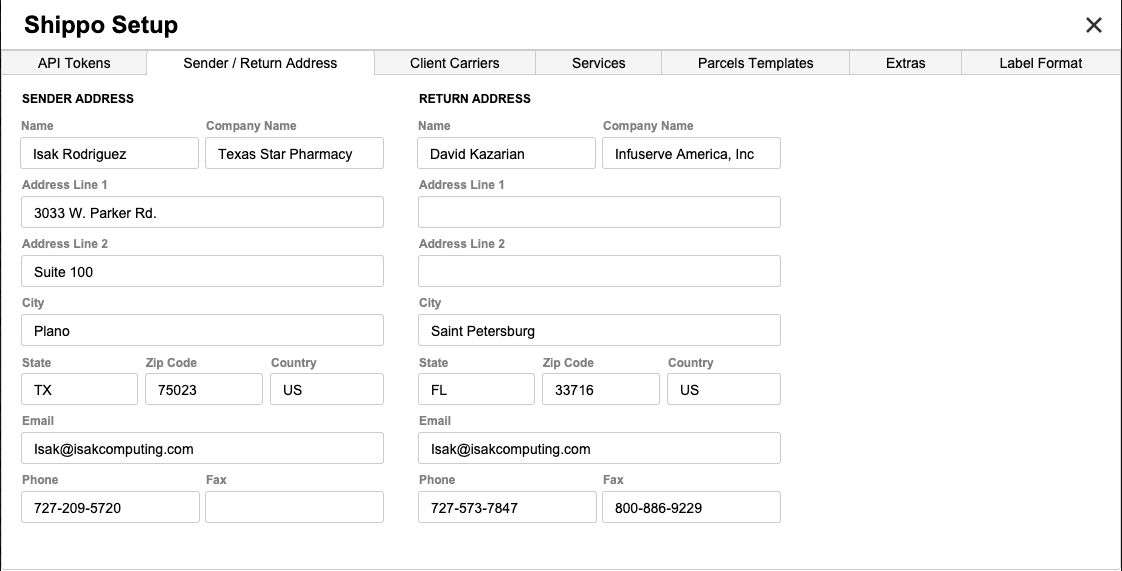
- Enter Name, Company Name, Address, City, State, Zip Code, Country, Email, Phone, and Fax.
- Add Client Carriers:
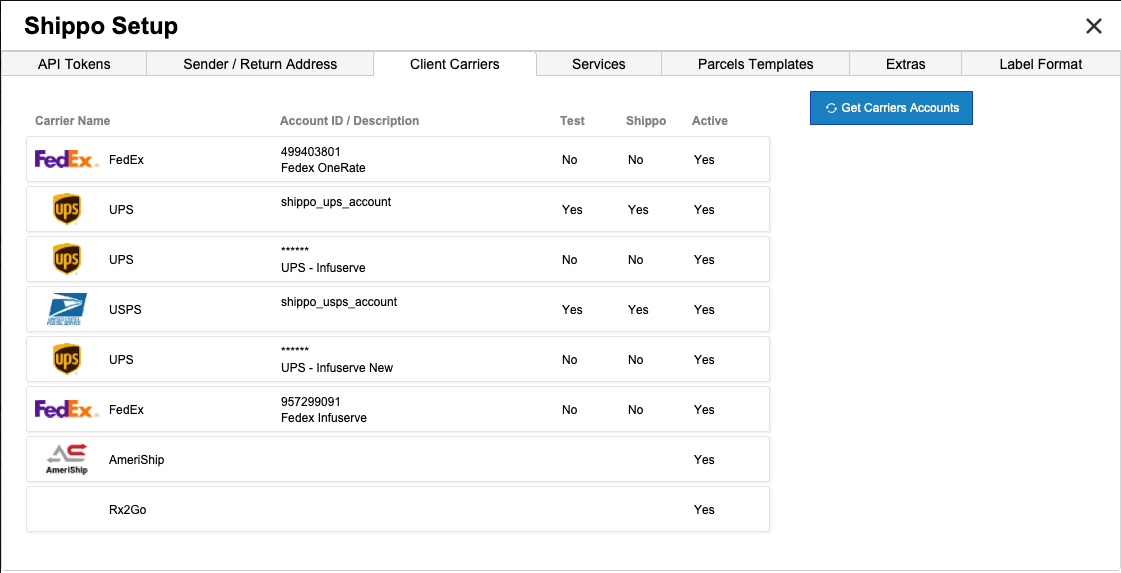
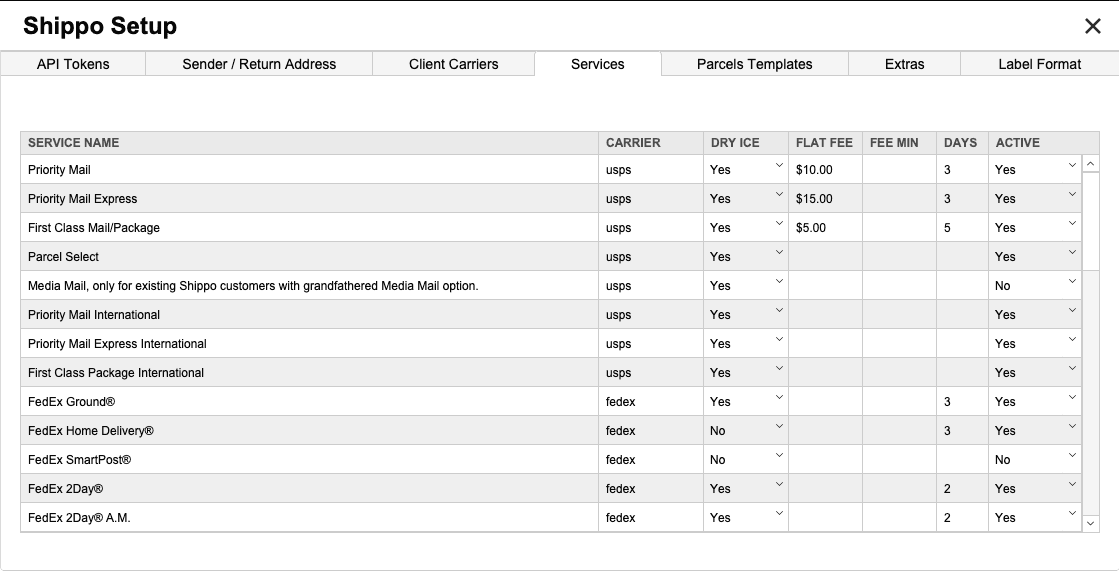
- Click the Get Carriers Accounts button to sync accounts from Shippo's website.
- Show Services: added to Shippo website.
- Add Parcel Templates.
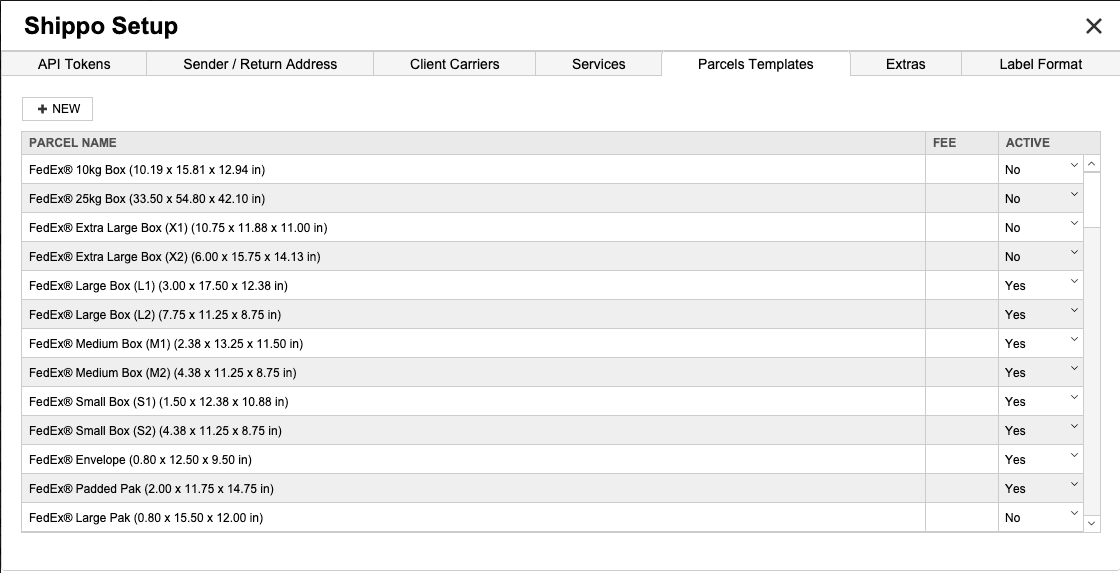
- Click the Add button to add a parcel service.

- Click the Add button to add a parcel service.
- Add Extras. These are additional services that can be added to a shipment, such as flat rates shipping fees or label infrmation.
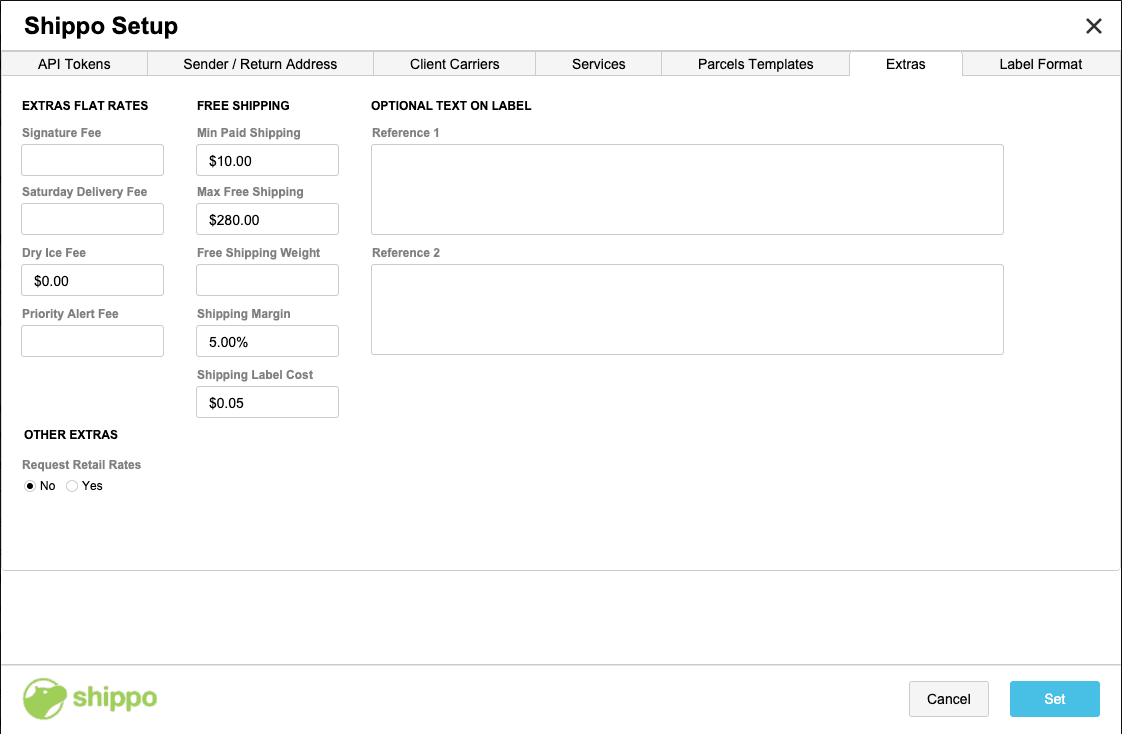
- Enter Signature Fee, Saturday Delivery, Dry Ice, Priority Alert Fee, Free Shipping options, Optional Text on Label, and the abiliy to Request Retail Rates.
- Click the last tab Label Format to select the default label from the dropdown list of labels.
- Click Set to save the configuration.
Ameriship
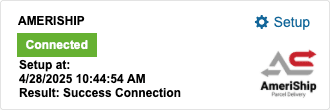
Purpose: Secure and cost-effective delivery services for prescriptions, lab samples, and medical supplies.
Setup Steps:
- Click Setup.
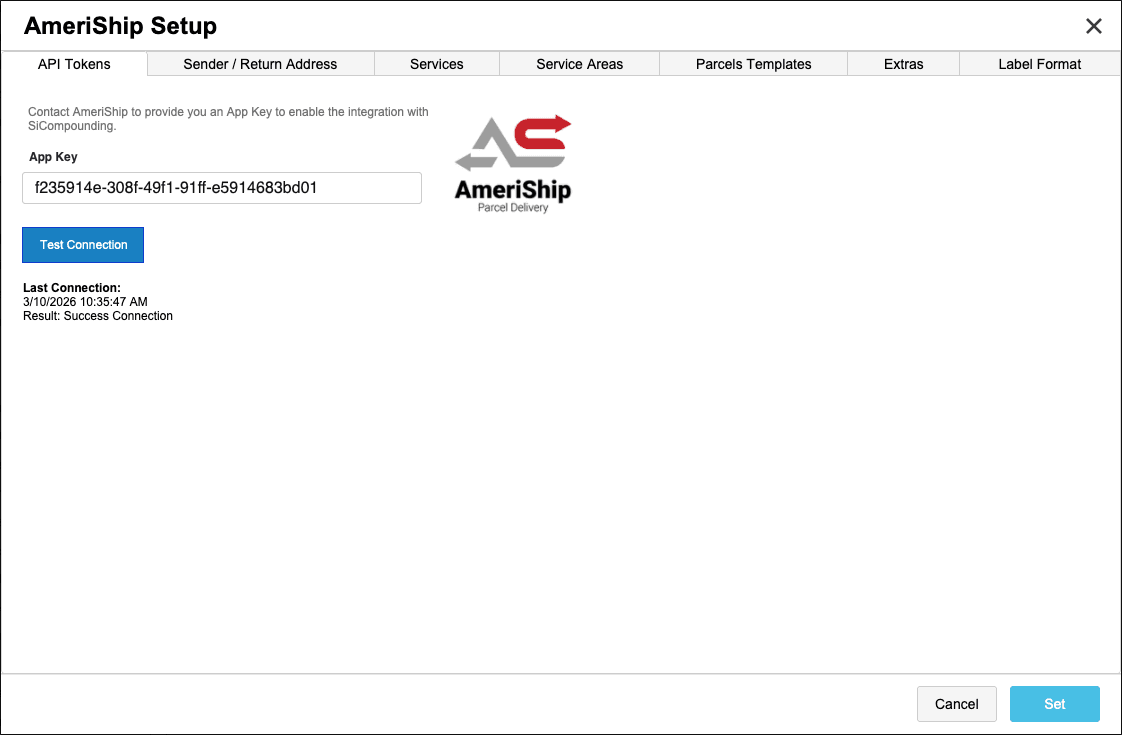
- Enter the following details:
- App Key (provided by Ameriship).
- Test the connection using the Test Connection button.
- Configure Sender/Return Address:
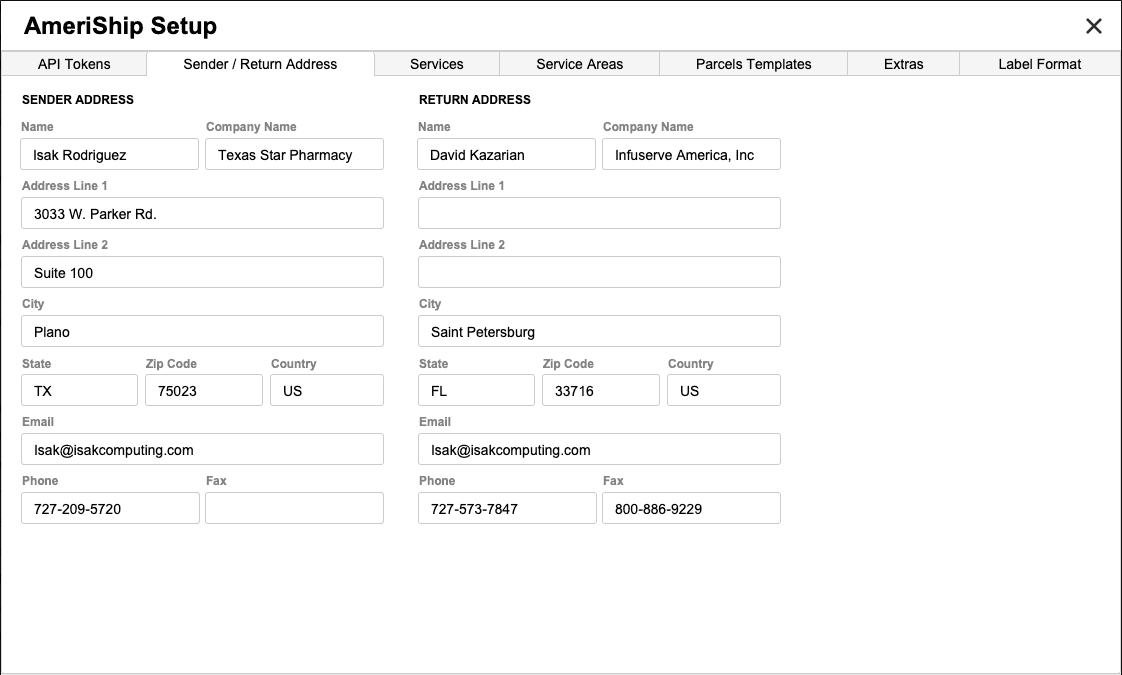
- Enter Name, Company Name, Address, City, State, Zip Code, Country, Email, Phone, and Fax.
- Adjust Services:
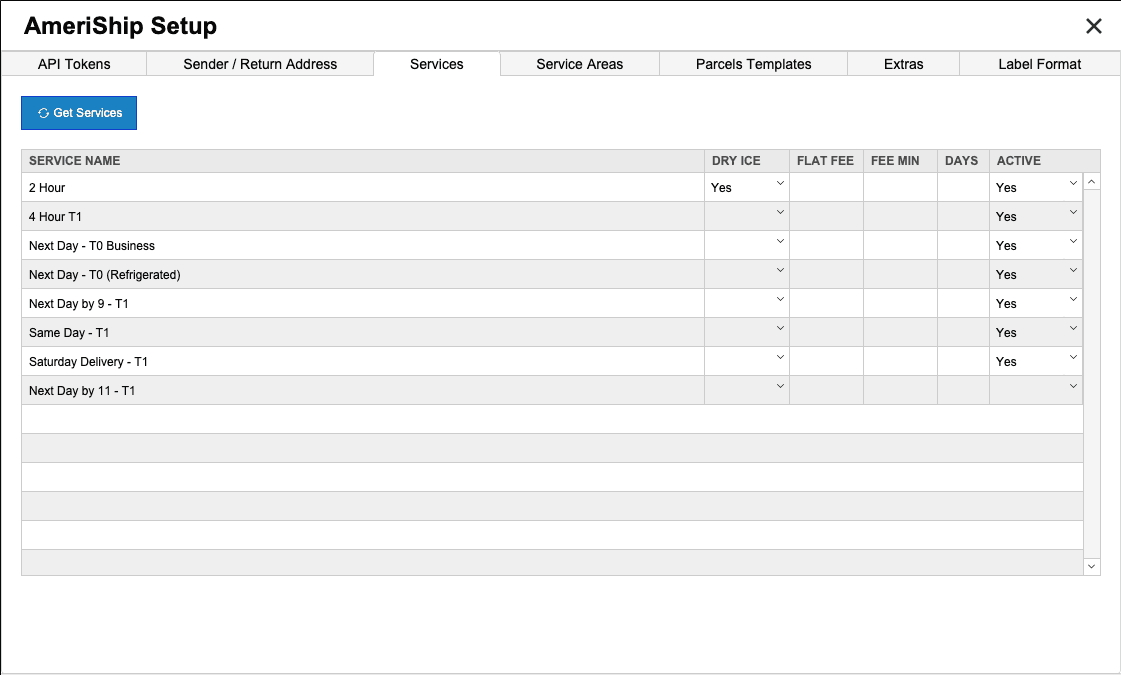
- Use the Get Services button to pull in services.
- Modify service details such as Dry Ice, Flat Fee, Fee Min, Days, and Active status.
- Configure Service Areas:
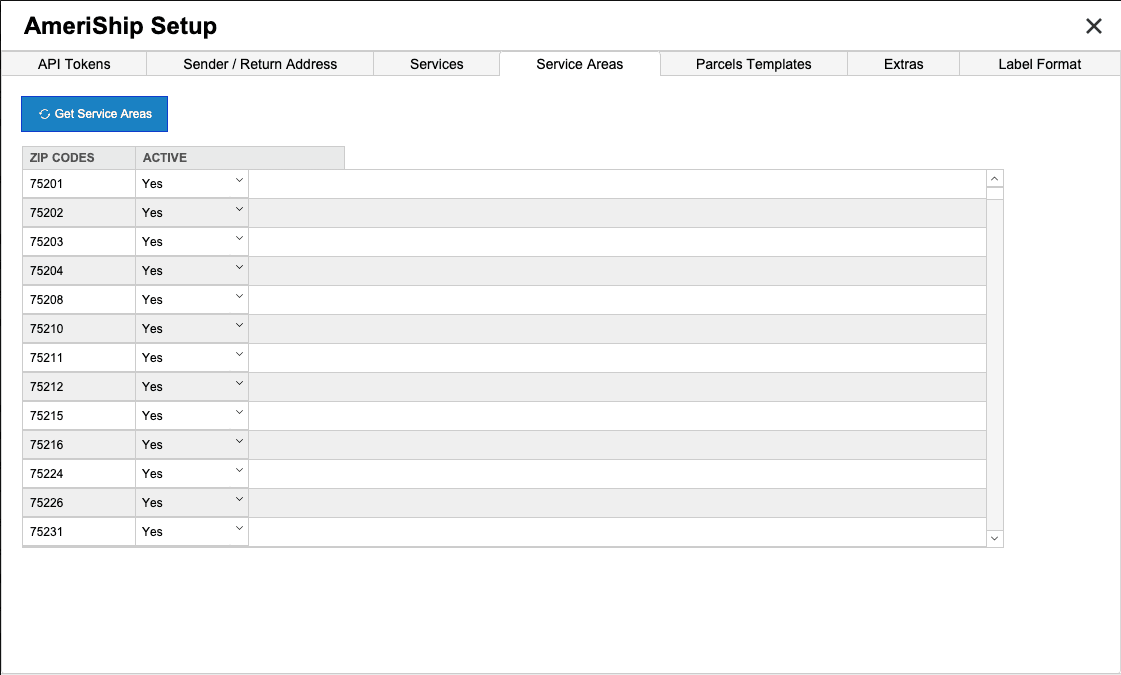
- Use the Get Service Areas button to pull in zip codes.
- Toggle Active status as needed.
- Add Parcel Templates.
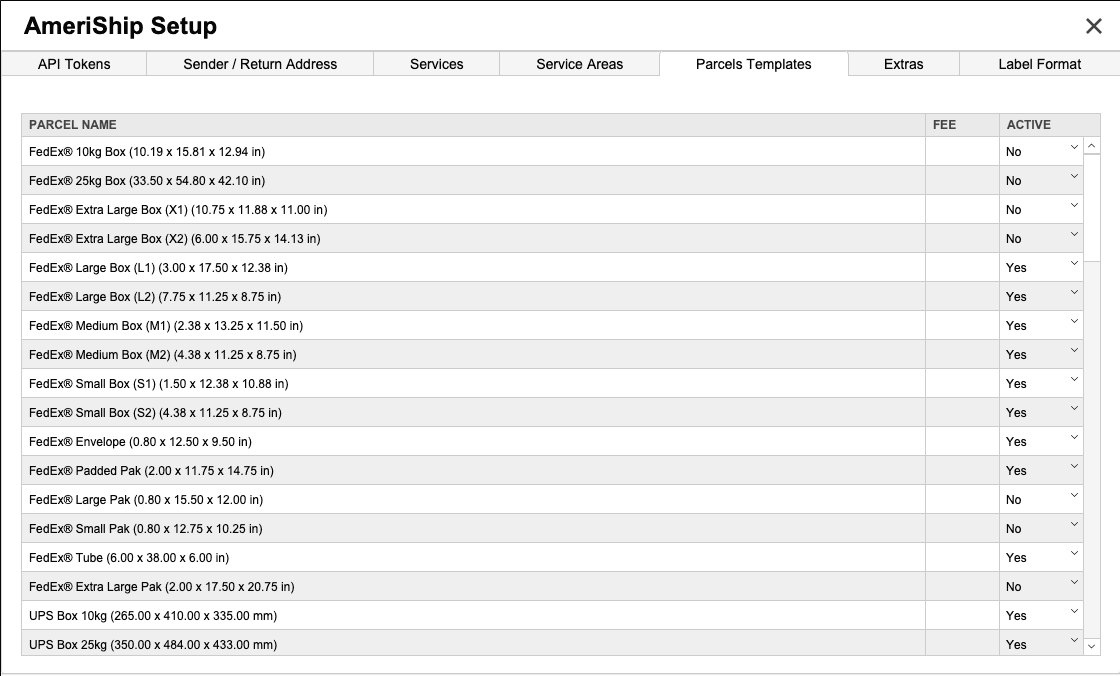
- Add Extras. These are additional services that can be added to a shipment, such as flat rates shipping fees or label infrmation.
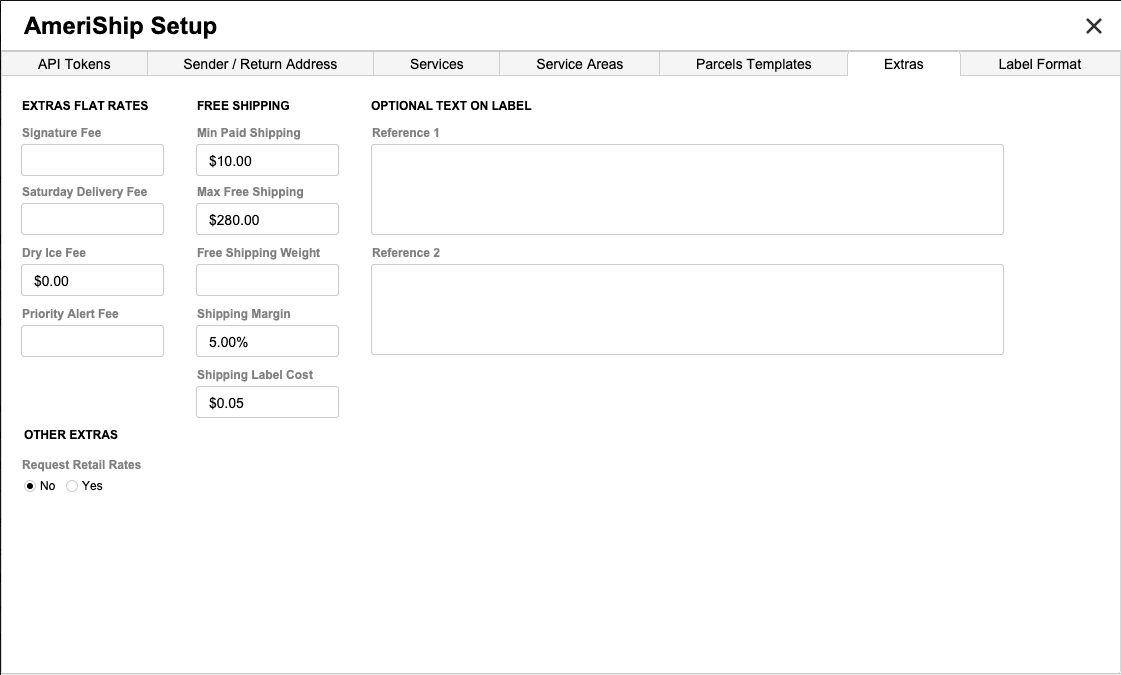
- Enter Signature Fee, Saturday Delivery, Dry Ice, Priority Alert Fee, Free Shipping options, Optional Text on Label, and the abiliy to Request Retail Rates.
- Click the last tab Label Format to select the default label from the dropdown list of labels.
- Click Set to save the configuration.
TABZ Shipping Groups

Purpose: Manage delivery scheduling and last-mile courier services for prescription and OTC items.
Setup Steps:
- Click Setup.
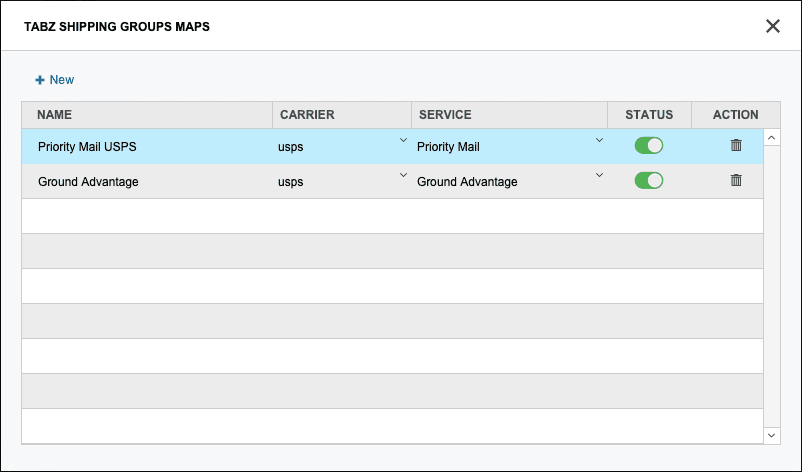
- Use the TABZ Shipping Groups Maps window to manage carriers and services:
- Click + New to add a carrier/service.
- Adjust status or delete as needed.
- Click X to close the window when finished.
USPS
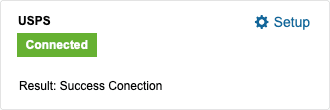
Purpose: Delivery of prescription medications and medical supplies.
Setup Steps:
- Click Setup.
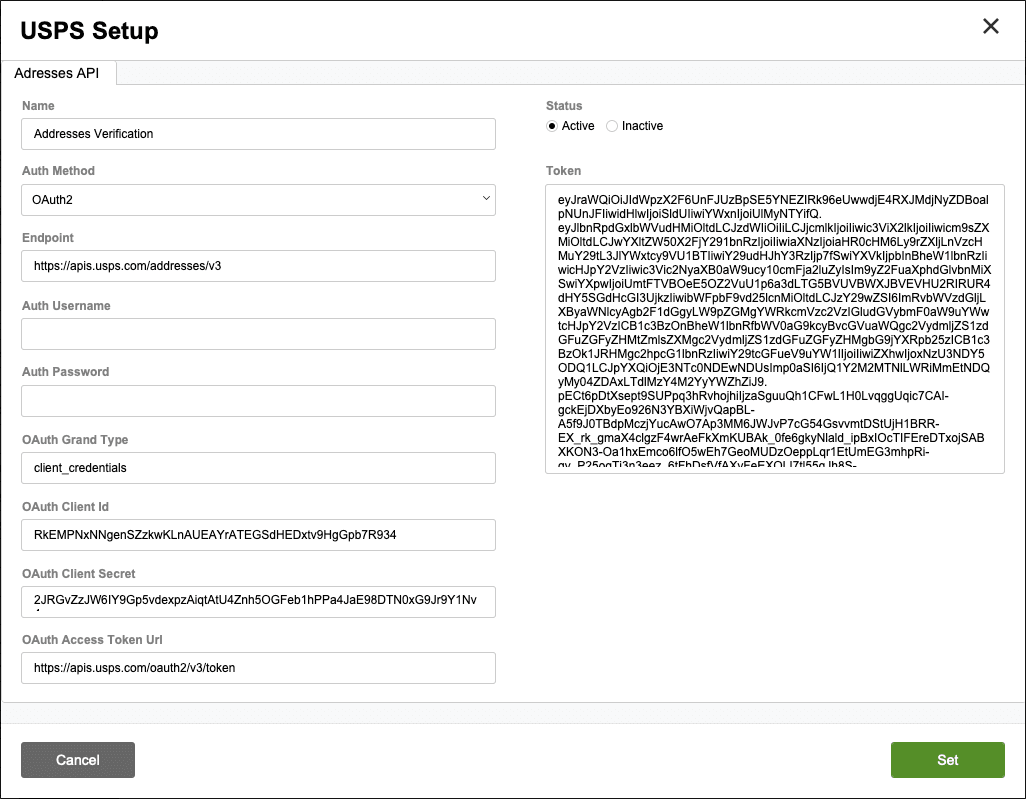
- Enter the following details:
- Name
- Auth Method
- Endpoint
- Auth Username and Auth Password
- OAuth Grant Type, Client ID, Client Secret, and Access Token URL
- Toggle Status (Active/Inactive).
- Click Set to save the configuration.
DDM Medical Delivery
Purpose: Specialized medical delivery services for pharmacies.
Setup Steps:
- Click Setup.
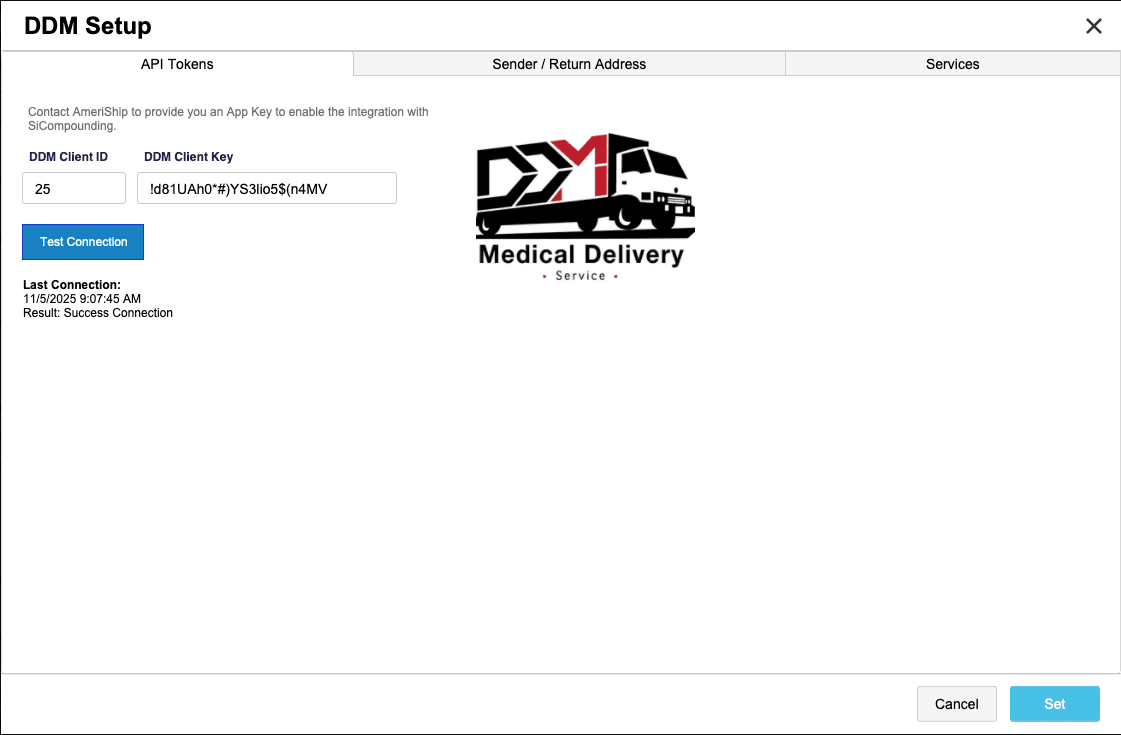
- Enter the following details:
- DDM Client ID and DDM Client Key
- Test the connection using the Test Connection button.
- Configure Sender/Return Address:

- Enter Name, Company Name, Address, City, State, Zip Code, Country, Email, Phone, and Fax.
- Adjust Services:

- Use the Get Services button to update from the web source.
- Modify service details such as Dry Ice, Flat Fee, Fee Min, Days, and Active status.
- Click Set to save the configuration.
RX2GO Delivery
Purpose: Save money, simplify deliveries, and keep everyone happy with cutting-edge solutions that integrate effortlessly with your current software.
Setup Steps:
- Click Setup.
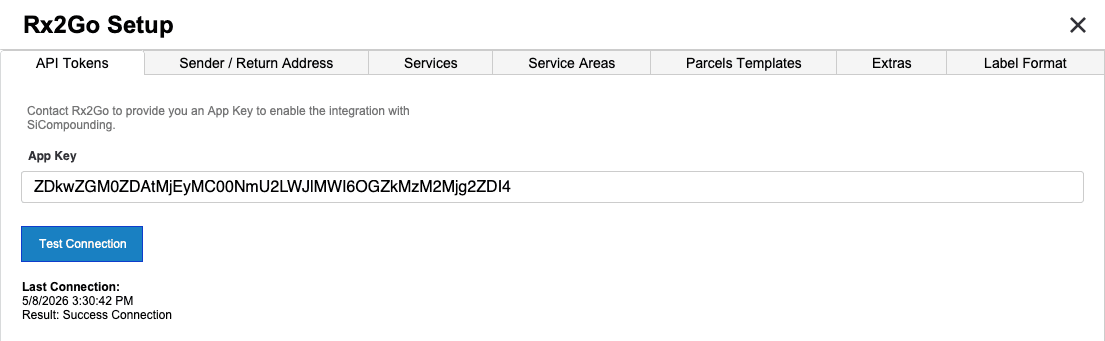
- Enter the following details:
- App Key (provided by RX2GO Delivery).
- Test the connection using the Test Connection button.
- Configure Sender/Return Address:
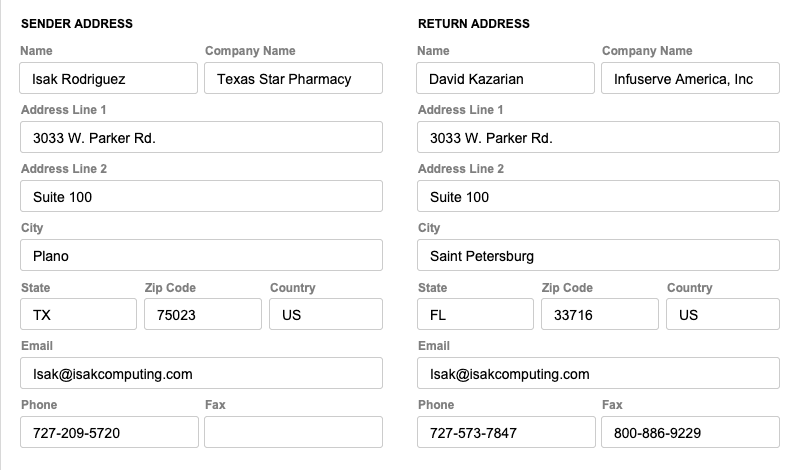
- Enter Name, Company Name, Address, City, State, Zip Code, Country, Email, Phone, and Fax.
- Adjust Services:
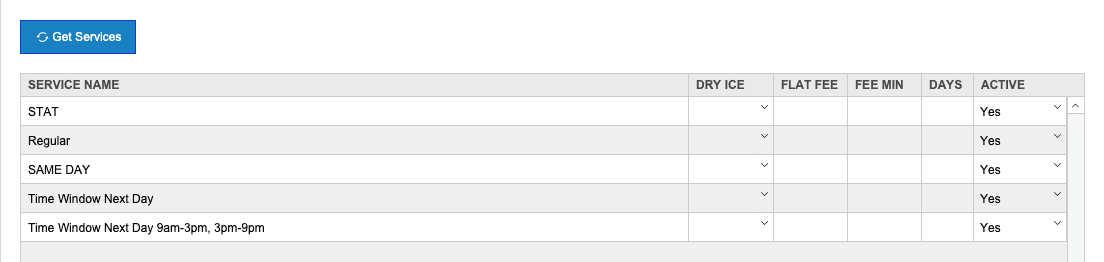
- Use the Get Services button to update from the web source.
- Modify service details such as Dry Ice, Flat Fee, Fee Min, Days, and Active status.
- Click Set to save the configuration.
Scripclip
Purpose: designed to streamline prescription organization and retrieval inside the pharmacy. It is not a direct-to-consumer shipping service, but it supports pharmacy staff by organizing home delivery orders and printing delivery manifests for drivers.
Setup Steps:
- Click Setup.
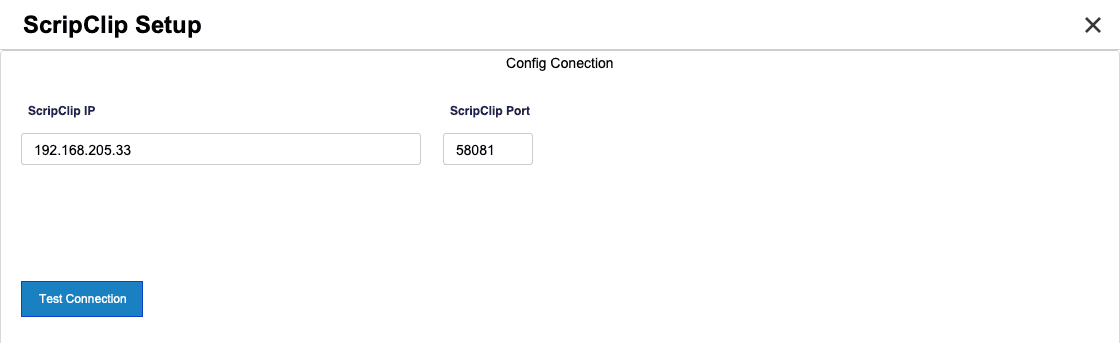
- Enter the following details:
- ScripClip IP and ScripClip Port (provided by Scripclip).
- Test the connection using the Test Connection button.
- Click Set to save the configuration.
Pharmacy Settings (System Foundation)
Pharmacy Settings provide the foundational templates and defaults required for system operation. These settings must be completed before using other areas of SiCompounding.

Best Practice: Enter all available and required data for each section and subsection to ensure proper system behavior, compliance, and reporting across SiCompounding.
This completes the guide for Shipping Integrations in SiCompounding.