
Setting Up Invoice Defaults?
Step-by-step instructions for configuring Invoice Defaults within Pharmacy Settings in SiCompounding.
Overview
Invoice Defaults are configured within Pharmacy Settings and control how invoices are generated, displayed, and integrated with accounting systems. These settings must be reviewed and completed prior to using invoicing or downstream financial workflows in SiCompounding.
Step-by-Step Instructions
Navigation Path
Settings → Pharmacy Defaults → Invoices
- Click the FileMaker Pro icon to open FileMaker.
- When FileMaker opens, locate the large menu bar on the left side of the window.
- Click SiCompounding (near the top of the menu).
- In the next window, several icons appear across the middle of the screen.
- Click Pharmacy to open the Pharmacy Dashboard.
- From the blue sidebar menu on the left, select Settings (located at the bottom).
- Under General Settings, select Pharmacy Defaults.
Navigate to Invoice Defaults
- From the dropdown list, choose Invoices.
Invoice Default Configuration Options
Printed / PDF Invoice Settings
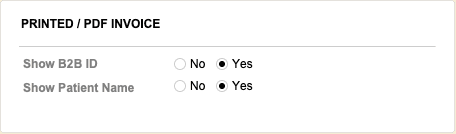
Configure which data elements are displayed on printed or PDF invoices:
| Setting | Options |
|---|---|
| Show B2B ID | Yes / No |
| Show Patient Name | Yes / No |
Default Accounting Accounts
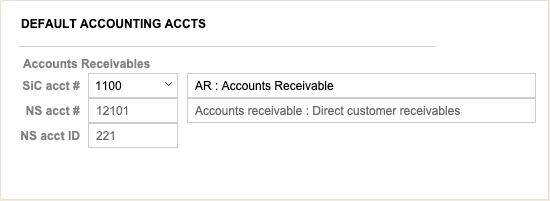
These fields define the default accounting mappings used for invoice transactions.
Accounts Receivable
- SIC Account #
- Select an account from the dropdown list.
- The Account Name field will automatically populate.
NetSuite Integration (If Applicable)
- NS (NetSuite) Account #
- NS (NetSuite) Account ID
Ensure values entered here align with your accounting and ERP configuration.
Pharmacy Settings (System Foundation)
Pharmacy Settings provide the foundational templates and defaults required for system operation. These settings must be completed before using other areas of SiCompounding.

Best Practice: Enter all available and required data for each section and subsection to ensure proper system behavior, compliance, and reporting across SiCompounding.
Related Areas
- Pharmacy Defaults
- Accounting Integrations
- Automations and Logs
- Invoice Processing