
Sicompounding settingsPharmacy defaults
Setting Up Scales Integrations?
Settings — Scales Integrations Step by Step
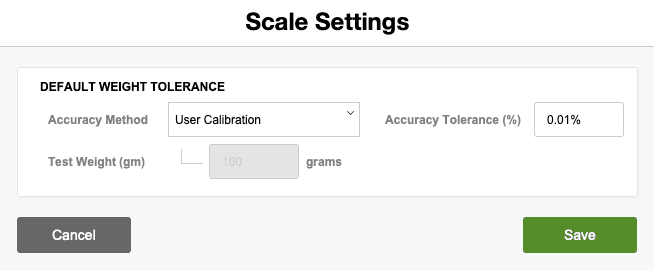
The Scales Integration section allows you to configure default settings for connected scales within SiCompounding, ensuring accurate measurements during compounding processes.
Step 1 — Open SiCompounding
- Click the FileMaker Pro icon on your computer.
- In the next window, select SiCompounding from the left menubar.
- Click the Pharmacy icon in the middle menu to open the Dashboard.
Step 2 — Access Scales Integration
- In the blue sidebar menu, scroll to the bottom and click Settings.
- Under General Settings, select Pharmacy Defaults.
- From the dropdown list, choose Scales Integration.
- Click Edit to open the Scale Settings window.
Step 3 — Configure Default Weight Tolerance
Accuracy Method
- Options: User Calibration | Facility Test Weight
- Determines the method used for scale accuracy verification.
Accuracy Tolerance (%)
- Enter the percent margin of error allowed for measurements.
Test Weight (gm)
- If using Facility Test Weight, enter the default standard weight in grams for every facility test.
Step 4 — Save Changes
- Click Save to update the scale settings.
- Click Cancel to discard any changes.
Pharmacy Settings (System Foundation)
Pharmacy Settings provide the foundational templates and defaults required for system operation. These settings must be completed before using other areas of SiCompounding.

Best Practice: Enter all available and required data for each section and subsection to ensure proper system behavior, compliance, and reporting across SiCompounding.
This completes the step-by-step guide on Setting Up Scales Integrations in SiCompounding.