
How to Set Up Patient Defaults?
Step-by-step instructions for configuring Patient Defaults within Pharmacy Defaults in SiCompounding.
Overview
Patient Defaults define system-wide rules that control patient authorization, identification requirements, and patient status handling throughout SiCompounding. These settings help ensure regulatory compliance, consistent patient workflows, and proper access control during prescription processing and pickup.
Important: Pharmacy Settings must be completed before using any other area within SiCompounding. Patient Defaults directly impact intake, dispensing, and pickup workflows.
Step-by-Step Instructions
Navigation Path
- Click the FileMaker Pro icon to open FileMaker.
- When FileMaker opens, locate the large menu bar on the left side of the window.
- Click SiCompounding (near the top of the menu).
- In the next window, several icons appear across the middle of the screen.
- Click Pharmacy to open the Pharmacy Dashboard.
- From the blue sidebar menu on the left, select Settings (located at the bottom).
- Under General Settings, select Pharmacy Defaults.
- From the dropdown list, choose Patients.
Patient Defaults Settings
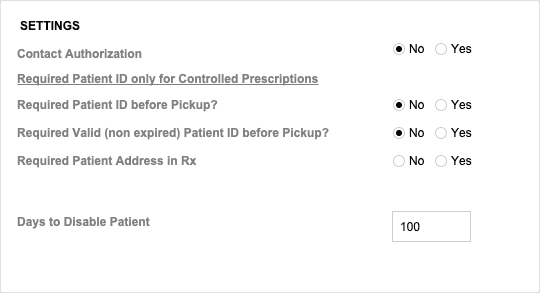
The Patient Defaults section contains configuration options that apply to all patients within SiCompounding. All settings in this section are configured using Yes / No selections unless otherwise noted.
Contact Authorization
-
Contact Authorization (Yes | No)
Determines whether patient contact authorization is required and enforced across the system.
Patient Identification Requirements
-
Required Patient ID only for Controlled Prescriptions (Yes | No)
When enabled, patient identification is required only for prescriptions involving controlled substances.
-
Required Patient ID before Pickup (Yes | No)
Enforces patient ID verification prior to prescription pickup.
-
Required Valid (Non-Expired) Patient ID before Pickup (Yes | No)
When enabled, the patient ID must be valid and not expired at the time of pickup.
Patient Status Control
-
Days to Disable Patient
Enter the number of days after which a patient’s status will be automatically disabled.
Saving and Applying Settings
Ensure all Patient Defaults are reviewed and configured according to pharmacy policy before proceeding to other areas of the system.
Pharmacy Settings (System Foundation)
Pharmacy Settings provide the foundational templates and defaults required for system operation. These settings must be completed before using other areas of SiCompounding.

Best Practice: Enter all available and required data for each section and subsection to ensure proper system behavior, compliance, and reporting across SiCompounding.
Summary
Configuring Patient Defaults ensures consistent enforcement of patient identification, authorization, and status rules, supporting compliance and efficient pharmacy operations within SiCompounding.
Setting Up Inventory & Purchase Order Defaults?
Step-by-step guide for configuring Inventory and Purchase Order default settings within Pharmacy Defaults in SiCompounding.
Where to Set Up Formula Defaults?
Step-by-step instructions for configuring Formula Defaults within Pharmacy Defaults in SiCompounding.