
Where do I Setup Auxiliary Labels?
Step-by-step instructions for creating, managing, and maintaining Auxiliary Labels within SiCompounding.
Overview
The Auxiliary Labels section is where all required auxiliary labels for the pharmacy are stored and maintained within SiCompounding.
Auxiliary Labels can be configured with specific features such as:
- Label color
- Label statement (label information text)
- Label meaning
- Storage conditions
These labels are used to support proper handling, storage, and dispensing of compounded prescriptions.
Accessing Auxiliary Labels
Follow the steps below to navigate to the Auxiliary Labels setup area.
Step-by-Step Instructions
Navigation Path
- Click the FileMaker Pro icon to open FileMaker.
- When FileMaker opens, locate the large menu bar on the left side of the window.
- Click SiCompounding (near the top).
- In the next window, several icons appear across the middle of the screen.
- Click Pharmacy to open the Dashboard.
- From the blue sidebar menu, scroll to the bottom and select Settings.
- Under General Settings, select Codes and Classifications.
- The Code Classifications section allows users to input predefined codes for prescription orders.
- From the popup list, select Auxiliary Labels.
Viewing and Searching Auxiliary Labels
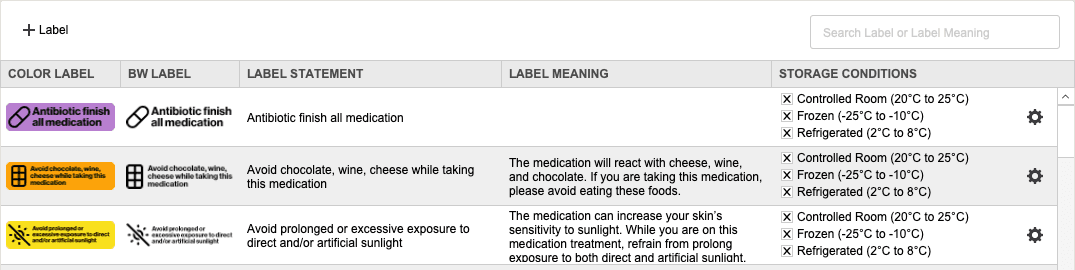
The Auxiliary Labels window displays all configured labels.
Search Options
- Use the Search bar in the upper-right corner to search by:
- Label
- Label Meaning
- Enter the desired search term and press the Enter/Return key to view results.
Creating a New Auxiliary Label
- In the Auxiliary Labels window, click + Label in the upper-left corner.
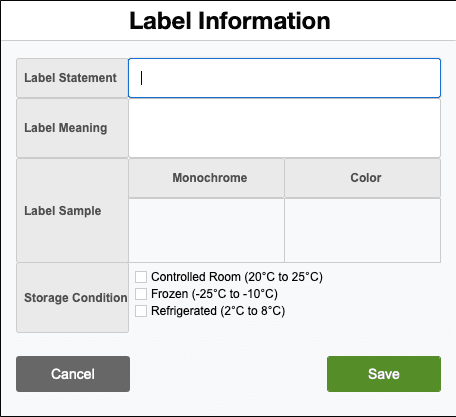
- A new Label row is created.
- Enter all required label details, including:
- Label color
- Label statement (label information text)
- Label meaning
- Storage conditions
- Click Save to store the new Auxiliary Label.
Managing Existing Auxiliary Labels
Each label row includes management options accessed from the gear (settings) icon.
Edit an Auxiliary Label
- Click the gear (settings) icon at the end of the Label row.
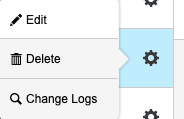
- Select Edit.
- The Label Information window opens.
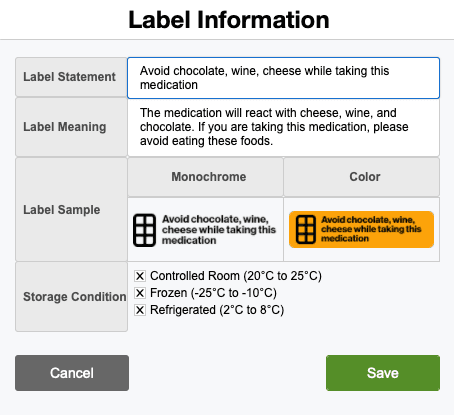
- Add or modify the label information as needed.
- Click Save to apply changes.
Delete an Auxiliary Label
- Click the gear (settings) icon for the desired label.
- Select Delete.
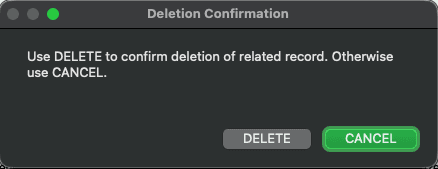
- A Deletion Confirmation dialog box appears with two options:
- DELETE – Permanently deletes the Auxiliary Label
- CANCEL – Closes the dialog box without deleting the label
Note: Deleted labels cannot be recovered.
View Change Logs
- Click the gear (settings) icon for the label.
- Select Change Logs.
- The Record Modification Log window opens, displaying a history of changes made to the Auxiliary Label.
- Click the X in the upper-right corner to close the window.
Pharmacy Settings (System Foundation)
Pharmacy Settings provide the foundational templates and defaults required for system operation. These settings must be completed before using other areas of SiCompounding.

Best Practice: Enter all available and required data for each section and subsection to ensure proper system behavior, compliance, and reporting across SiCompounding.
Summary
Setting up and maintaining Auxiliary Labels ensures:
- Proper labeling for storage and handling
- Consistent dispensing practices
- Clear communication and compliance support
Auxiliary Labels should be reviewed periodically to reflect pharmacy policies and regulatory requirements.
Maintaining USP BUD Settings?
Step-by-step instructions for creating, editing, and maintaining USP Beyond-Use Date (BUD) settings for compounded sterile preparations in SiCompounding.
Maintaining a List of Capsule Sizes?
Step-by-step instructions for creating, searching, and maintaining Capsule Size records within SiCompounding.