
Adding and Managing Insurance Plans?
Step-by-step instructions for creating, editing, and maintaining Insurance Plans within SiCompounding.
Overview
An Insurance Plan—commonly known as Prescription Drug Coverage—helps cover the cost of medications. Insurance Plans may be included as part of a standard health insurance policy or purchased separately. Coverage details, costs, and covered medications vary by provider.
Within SiCompounding, Insurance Plans are maintained so prescriptions can be billed and processed accurately.
Insurance Plans are managed within the Codes and Classifications area of Pharmacy Settings.
Accessing Insurance Plans
Follow the steps below to navigate to the Insurance Plans setup area.
Step-by-Step Instructions
Navigation Path
- Click the FileMaker Pro icon to open FileMaker.
- When FileMaker opens, locate the large menu bar on the left side of the window.
- Click SiCompounding (near the top).
- In the next window, several icons appear across the middle of the screen.
- Click Pharmacy to open the Dashboard.
- From the blue sidebar menu, scroll to the bottom and select Settings.
- Under General Settings, select Codes and Classifications.
- The Code Classifications section allows users to manage standardized codes for prescription orders.
- From the popup list, select Insurance Plans.
Insurance Plans Table
The Insurance Plans window opens and displays a list of configured insurance plans.
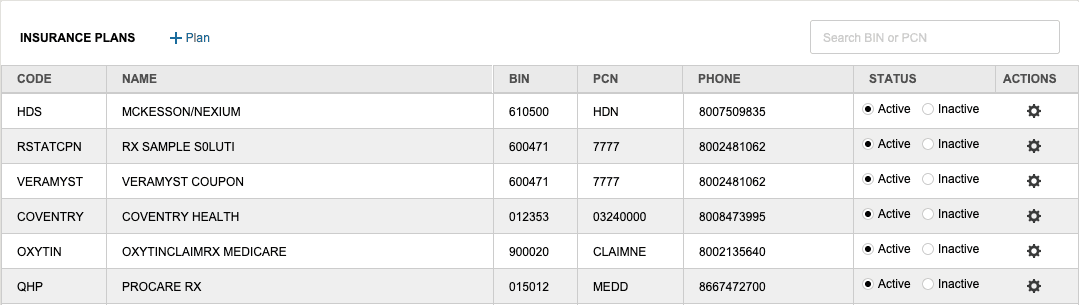
Table Columns
| Column | Description |
|---|---|
| Code | Unique code assigned to the Insurance Plan |
| Name | Insurance Plan name |
| BIN | Bank Identification Number (Rx BIN) |
| PCN | Processor Control Number for insurance billing |
| Phone | Insurance plan contact phone number |
| Status | Indicates whether the plan is Active or Inactive |
| Action | Options to edit the plan or view change history |
Searching Insurance Plans
- Use the Search bar in the upper-right corner of the window.
- Search by:
- BIN
- PCN
- Press the Enter/Return key to display search results.
Adding a New Insurance Plan
- In the Insurance Plans window, click + Plan.

- Enter all required insurance plan information, including:
- Code
- Name
- BIN
- PCN
- Phone number
- Status (Active or Inactive)
- Click Save after all data has been entered.
Managing Existing Insurance Plans
Each Insurance Plan row includes actions accessed from the Action column.

Edit an Insurance Plan
- In the Action column, select Edit for the Insurance Plan you want to modify.
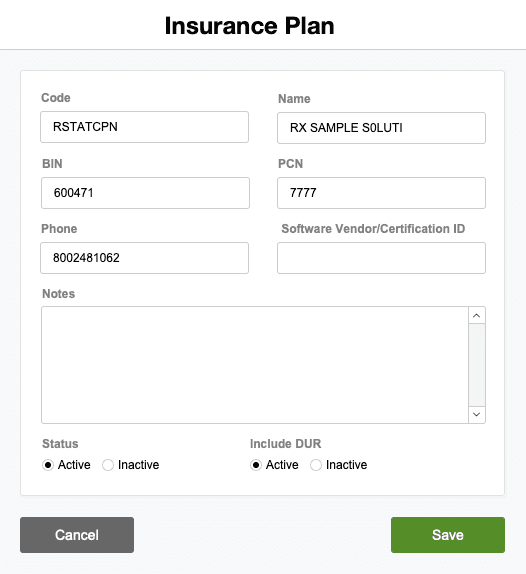
- The plan details window opens.
- Make the necessary updates.
- Click Save to apply changes.
View Change Logs
- In the Action column, select Change Logs.
- The Record Modification Log window opens, displaying a history of changes made to the Insurance Plan.
- Click the X in the upper-right corner to close the window.
Pharmacy Settings (System Foundation)
Pharmacy Settings provide the foundational templates and defaults required for system operation. These settings must be completed before using other areas of SiCompounding.

Best Practice: Enter all available and required data for each section and subsection to ensure proper system behavior, compliance, and reporting across SiCompounding.
Summary
Maintaining Insurance Plans ensures:
- Accurate prescription billing
- Proper insurance plan selection
- Consistent insurance data management
Insurance Plans should be reviewed and updated regularly to reflect payer changes and pharmacy billing requirements.