
Updating Costs and Fees?
Step-by-step guide for configuring Costs & Fees in SiCompounding.
Overview
The Costs and Fees section lets your pharmacy categorically define financial inputs used across SiCompounding: fixed fees, product-category markups, operational expenses, and laboratory testing charges. Proper configuration ensures automatic, accurate pricing and consistent financial reporting.
What are Costs & Fees?
Costs & Fees are the configurable financial entries (fees, markups, expenses, lab charges) that the system applies automatically during compounding, dispensing, invoicing, and reporting. They include per-product markups, special handling fees (hazardous, controlled drug), and operational expenses used for internal costing.
Step-by-Step Instructions
Navigation Path
Settings → Finances → Costs and Fees
- Click the FileMaker Pro icon to open FileMaker.
- From the left-side menubar select SiCompounding.
- Click Pharmacy in the central icons to open the Dashboard.
- From the blue sidebar select Settings → Finances → Costs and Fees.
Costs & Fees — Page Overview
The Costs and Fees window is divided into four primary sections:
- Pharmacy Fees
- Fees by Product Categories
- Pharmacy Expenses
- Laboratory Testing Costs
Each section contains editable entries, a settings (⚙) menu, and optional change-log access for audit purposes.
Pharmacy Fees
Use this section to set fixed fees and default percentages applied during costing.

Configurable fields:
- Complexity
- Controlled Drug
- Formulation
- Hazardous
- Quarantine
- Default Markup Percentage
- Minimum Markup Percentage
- Rx Dispense Fee
- Shipping / Delivery
- Order Discount Minimum Value
- Order Discount %
- Insurance Compounding Fee
- Insurance Retail Fee
Click Edit to open the Fee Settings window, make changes, then Save.
Fees by Product Categories
This table stores fees and markup rules per product category.
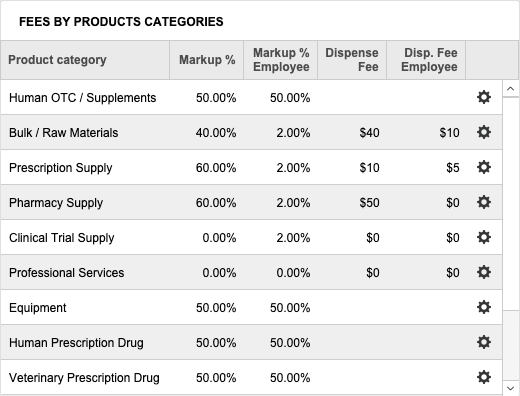
Common product categories:
- Human OTC / Supplements
- Bulk / Raw Materials
- Prescription Supply
- Pharmacy Supply
- Clinical Trial Supply
- Professional Services
- Equipment
- Human Prescription Drug
- Veterinary Prescription Drug
- Veterinary OTC / Supplements
- Clinical Trial Drug
- Compounding Supply
Columns shown:
- Product category
- Markup %
- Markup % Employee
- Dispense Fee
- Dispense Fee Employee
Settings (⚙) actions at the end of each category row:
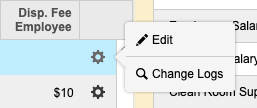
- Edit — Open Cost Information window to modify values and click Save.

- Change Logs — Opens the Record Modification Log showing history of edits. Click X to close.
Pharmacy Operation & Business Costs
Displays aggregated operational cost summaries used for internal costing and reporting:
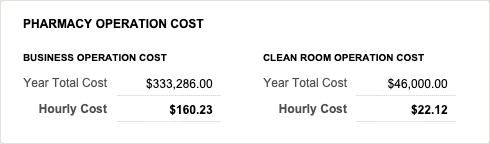
- Pharmacy Operation Cost — Year Total / Hourly Cost
- Business Operation Cost — Year Total / Hourly Cost
- Clean Room Operation Cost — Year Total / Hourly Cost
These values support internal costing models and per-hour calculations.
Pharmacy Expenses
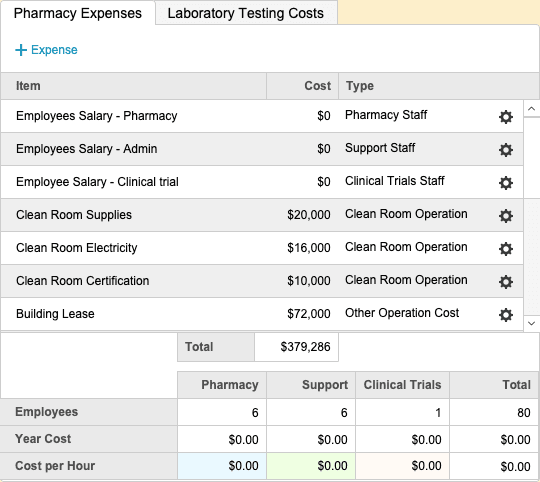
Add and manage recurring or one-time expenses.
Add a new expense:
- Click + Expense to open the Expenses Settings popup.
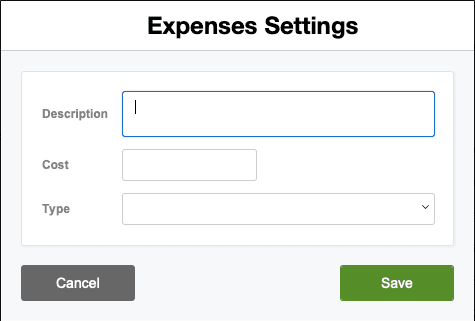
- Enter Description, Cost, and Type (select from dropdown).
- Click Save.
Manage existing expenses (⚙):

- Edit — Modify expense and click Save.
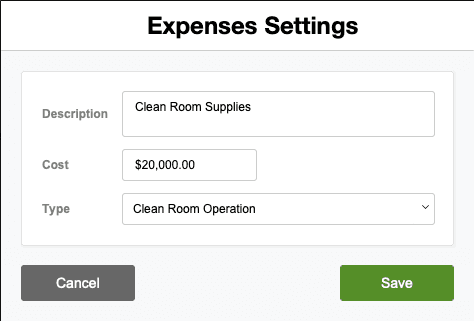
- Delete — Opens deletion confirmation. Choose DELETE to remove or CANCEL to keep.
- Change Logs — View modification history; click X to close.
Additional expense summaries shown:
- Employees (Pharmacy / Support / Clinical Trials / Total)
- Year Costs (Pharmacy / Support / Clinical Trials / Total)
- Cost Per Hour (Pharmacy / Support / Clinical Trials / Total)
Laboratory Testing Costs
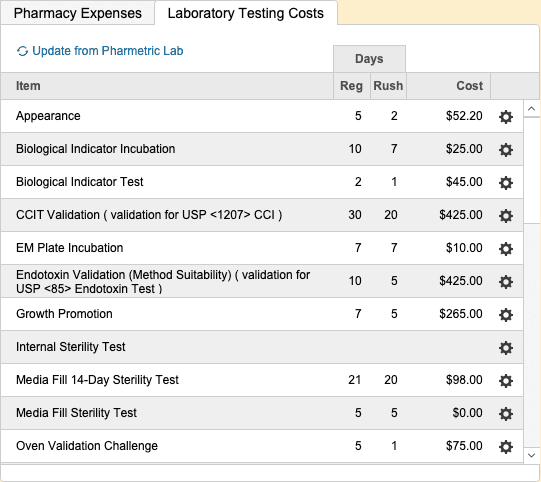
Laboratory testing fees (microbiology, analytical services) display in a table with columns such as:
- Item
- Regular Days
- Rush Days
- Cost
Click Update from Pharmetric Lab to import or refresh lab cost data from the integrated source.
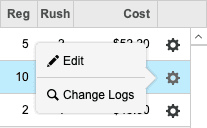
Per-item (⚙) actions:
- Edit — Opens Microbiology window to adjust values; click Save.
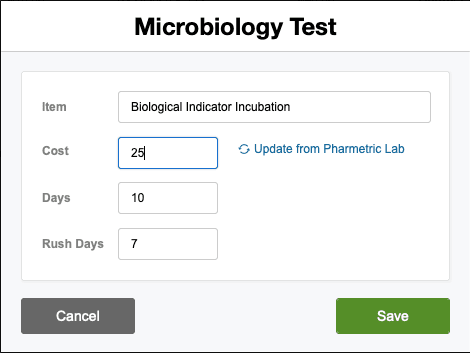
- Change Logs — View the Record Modification Log for Lab Testing Costs; click X to close.
Best Practices
- Complete Pharmacy Settings before configuring Costs & Fees to ensure templates and defaults exist.
- Use standardized category names and consistent markup policies to avoid duplicated rules.
- Test pricing changes on a non-production dataset before applying to live operations.
- Schedule periodic reviews of fees, markups, and lab costs to keep pricing accurate.
Pharmacy Settings (System Foundation)
Pharmacy Settings provide the foundational templates and defaults required for system operation. These settings must be completed before using other areas of SiCompounding.

Best Practice: Enter all available and required data for each section and subsection to ensure proper system behavior, compliance, and reporting across SiCompounding.
This completes the guide for Updating Costs and Fees in SiCompounding.