
SiCash POS Preferences?
Step-by-step guide for configuring Point of Sale (POS) preferences in SiCompounding.
SiCash POS Preferences?
A pharmacy Point of Sale (POS) system is a specialized software and hardware solution used by pharmacies to manage sales, inventory, and patient information. These systems streamline operations, enhance customer experience, and ensure compliance with industry regulations.
Step-by-Step Instructions
Navigation Path
- Click the FileMaker Pro icon to open FileMaker.
- On the next window when FileMaker opens, you will see a large menu bar on the left side of the window. Click on SiCompounding (near the top).
- The next window will have several icons across the middle of the window. Click on Pharmacy to open the Dashboard.
- There is a blue sidebar menu on the left. Select Settings (located at the bottom of the blue sidebar).
- Under Finances, select Point of Sale.
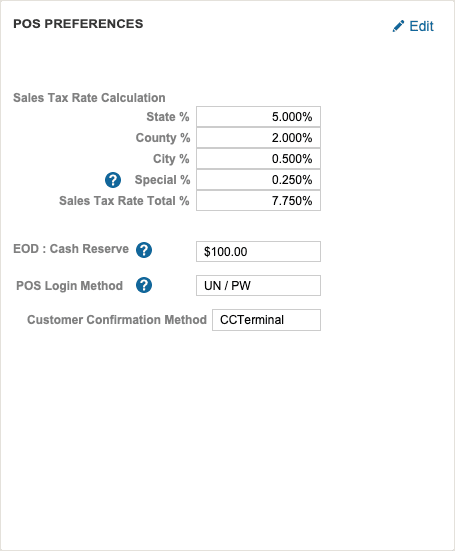
Point of Sale Window
The Point of Sale window opens to a view of the POS Preferences. Click Edit to make changes to the POS Preferences.
In the POS Settings window, POS Preferences section, you can configure the following areas:

POS Item Void Action
Set a POS Item Void Action from a dropdown value list. Choose from one of three options:
| Option | Description |
|---|---|
| Delete Item | Removes the item completely from the transaction |
| Reversing Item | Adds a reversing entry for audit tracking |
| Zero Quantity | Sets the item quantity to zero |
Sales Tax Rate Calculation
Note: Enter % in decimal format (e.g., 0.05 = 5%)
Configure the following tax rate fields:
| Field | Description |
|---|---|
| State % | State-level sales tax rate in decimal format |
| County % | County-level sales tax rate in decimal format |
| City % | City-level sales tax rate in decimal format |
| Special % | Special Sales Tax Rate. This setting is for any sales tax enacted by law that does not conform to normal geographical guidelines |
| Sales Tax Rate Total % | Auto-calculated combined total of all tax rates |
End of Day (EOD) Cash Settings
EOD: Cash Reserve — POS End Of Day: Cash Reserve. This setting defines how much money should be left in the cash drawer at the end of the day or shift.
Register Login Method
Register Login Method (dropdown) — POS Login Method Options:
| Option | Description |
|---|---|
| Username / Password | The credentials you use to log into the system |
| PIN | The 4-digit PIN number in your staff profile. Note: This method is less secure, but more convenient |
Customer Confirmation Method
Customer Confirmation Method (dropdown)
| Option | Description |
|---|---|
| CCTerminal | Credit card terminal confirmation |
| iPad | iPad-based confirmation |
| SiCash | SiCash system confirmation |
Save Settings
Click Save after all data has been entered and changes are complete.
Best Practices
- Set the EOD Cash Reserve to a realistic amount based on your pharmacy's typical shift volume.
- Test void-item behavior before deploying to production.
- Update tax rates whenever local jurisdictions change rates or enact new taxes.
- Document your tax rate configuration and review it quarterly for accuracy.
- Use Username/Password authentication for enhanced security; reserve PIN for convenience-first scenarios.
- Train all staff on the selected customer confirmation method before deploying.
Pharmacy Settings (System Foundation)
Pharmacy Settings provide the foundational templates and defaults required for system operation. These settings must be completed before using other areas of SiCompounding.

Best Practice: Enter all available and required data for each section and subsection to ensure proper system behavior, compliance, and reporting across SiCompounding.
This completes the guide for SiCash POS Preferences in SiCompounding.