
Adding to the Courier List?
Step-by-step guide for creating and managing courier services in SiCompounding.
Adding to the Courier List?
A pharmacy Courier Service specializes in the safe and timely delivery of medications from pharmacies to patients, often offering same-day or on-demand options. These services can be utilized by pharmacies, hospitals, or individuals needing prescription delivery.
Step-by-Step Instructions
Navigation Path
- Click the FileMaker Pro icon to open FileMaker.
- On the next window when FileMaker opens, you will see a large menu bar on the left side of the window. Click on SiCompounding (near the top).
- The next window will have several icons across the middle of the window. Click on Pharmacy to open the Dashboard.
- There is a blue sidebar menu on the left. Select Settings (located at the bottom of the blue sidebar).
- Under Finances, select Couriers.
Couriers Window (Overview)
The Couriers window displays a list of Courier Names with the following columns:
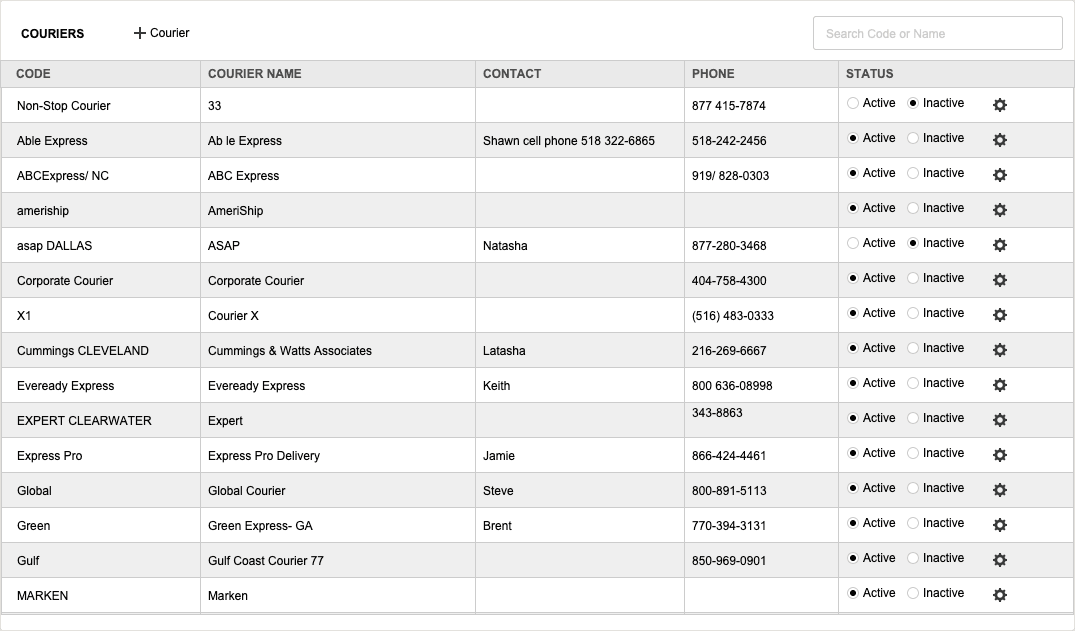
| Column | Description |
|---|---|
| Code | Code uniquely related to the Courier Name |
| Courier Name | Name of the courier service |
| Contact | Contact person at the courier service |
| Phone | Courier Service Phone Number |
| Status | Active | Inactive |
| Actions | Gear icon to access Edit, Delete, and Change Logs options |
Search
Use the search bar in the upper-right corner to find couriers by Code or Name. Click the Enter/Return key on your keyboard for search results.
Fields (Courier Information Entry)
When creating or editing a courier entry, enter the following information:
| Field | Description |
|---|---|
| Code | Unique code related to the courier service |
| Name | Courier service name |
| Contact | Contact person at the courier service |
| Email address for the courier service | |
| Address | Physical address of the courier service |
| Phone | Phone number for the courier service |
| Status | Active or Inactive flag |
Create a New Courier
- Click the + Courier button to create a new Courier.
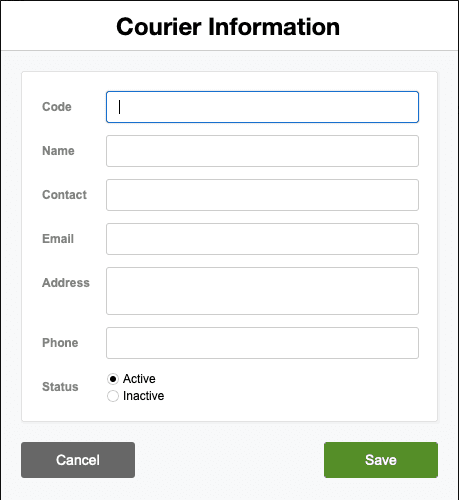
- The Courier Information window opens. Enter the following information:
- Code
- Name
- Contact
- Address
- Phone
- Status — Active | Inactive
- Click Save after all data has been entered and changes are complete.
Actions (Gear Icon)
Click the Gear (settings) icon in the Actions column to access three options:
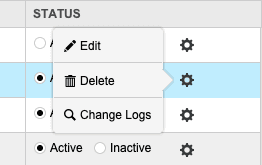
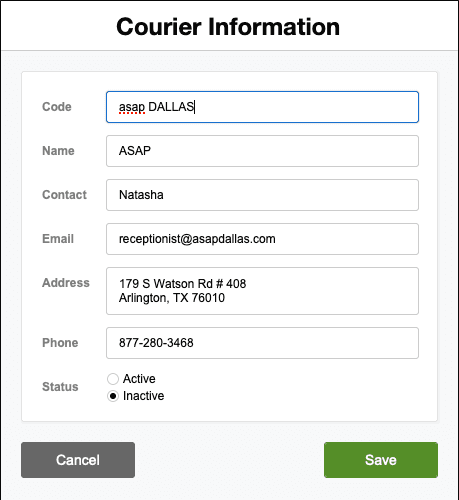
- Edit — Make changes in the Courier Information window. Click Save after all data has been entered and changes are complete.
- Delete — Opens the Deletion Confirmation dialog. Use DELETE to confirm deletion of the related record. Otherwise use CANCEL.
- Change Logs — Opens a window which displays the Record Modification Log showing a list of changes made from Courier Information records. Click the X in the upper right corner to close the window.
Best Practices
- Use clear, standardized codes for easy identification and integration with external systems.
- Maintain complete contact, email, and address information for reliable communication and coordination.
- Keep Status accurate (Active/Inactive) so only active couriers appear in selection dropdowns during operations.
- Periodically review courier records to remove obsolete services and update contact information.
- Test new courier integrations with sample orders before deploying to production.
Pharmacy Settings (System Foundation)
Pharmacy Settings provide the foundational templates and defaults required for system operation. These settings must be completed before using other areas of SiCompounding.

Best Practice: Enter all available and required data for each section and subsection to ensure proper system behavior, compliance, and reporting across SiCompounding.
This completes the guide for Adding to the Courier List in SiCompounding.