
How Do I Create a Price Schedule?
Step-by-step guide for creating and managing Price Schedules in SiCompounding.
How Do I Create a Price Schedule?
A Price Schedule is setup to automatically determine a price for a Formulation Type based on Days Supplied or Quantity Sold. This ensures consistent pricing and streamlines billing by applying tiered pricing rules.
Step-by-Step Instructions
Navigation Path
- Click the FileMaker Pro icon to open FileMaker.
- On the next window when FileMaker opens, you will see a large menu bar on the left side of the window. Click on SiCompounding (near the top).
- The next window will have several icons across the middle of the window. Click on Pharmacy to open the Dashboard.
- There is a blue sidebar menu on the left. Select Settings (located at the bottom of the blue sidebar).
- Under Finances, select Prices Schedule.
Price Schedule Window (Overview)
The Prices Schedule window displays a list of Price Schedules with the following columns:
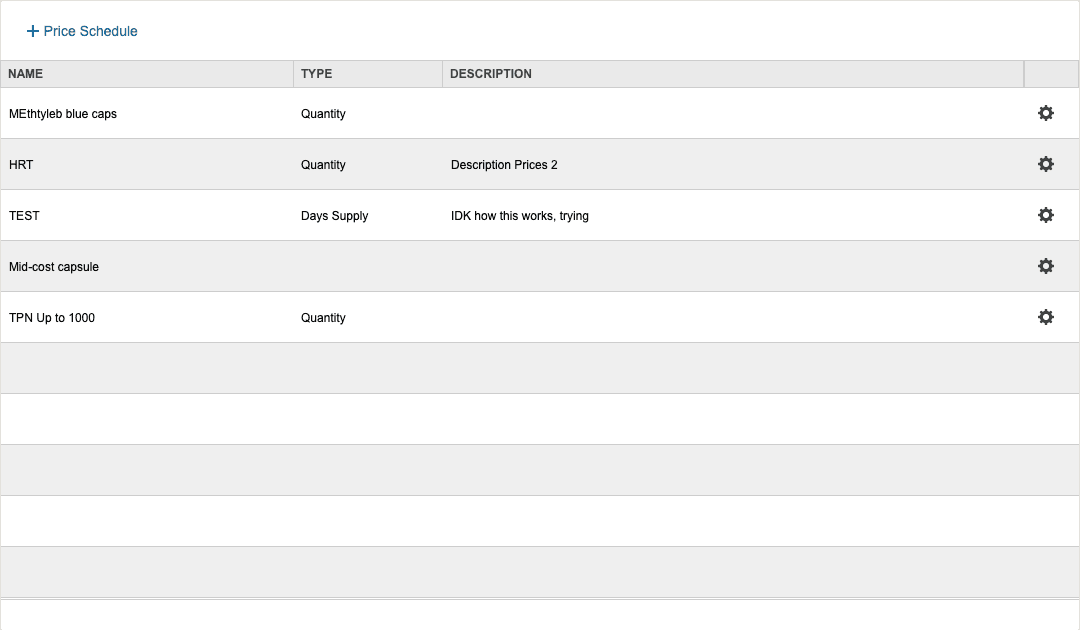
| Column | Description |
|---|---|
| Name | Helps identify the Price Schedule to use |
| Type | Type of schedule (e.g., Quantity, Days Supply, etc.) |
| Description | Important details about the schedule |
| Actions | Gear icon to access Edit and Change Logs options |
Create a New Price Schedule
- Click the + Price Schedule button to create a new Price Schedule.
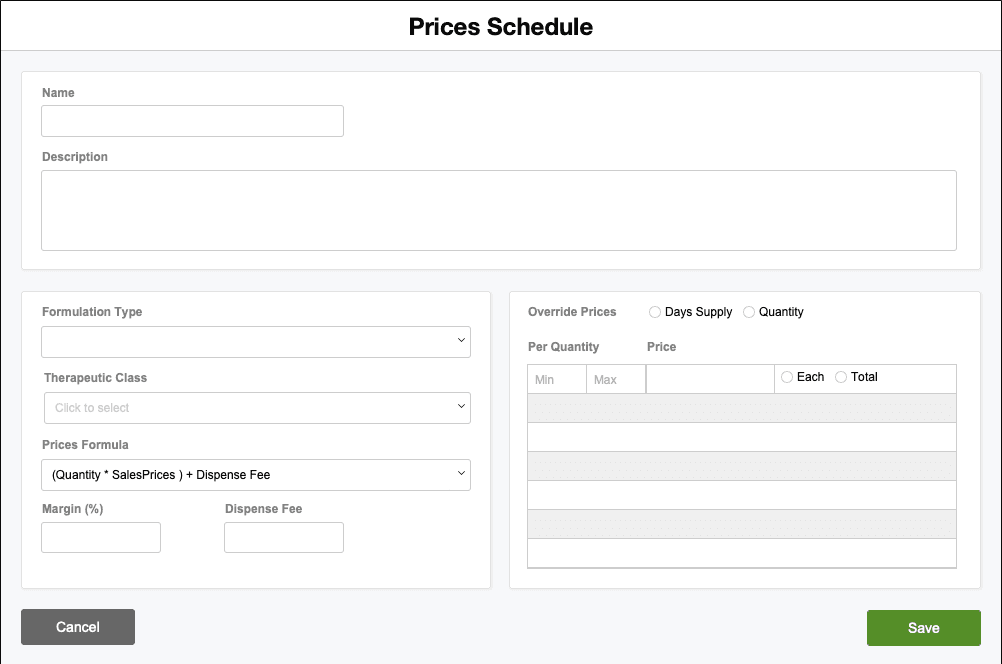
- The Prices Schedule window opens. Enter the following information:
- Name
- Description
- Formulation Type
- Therapeutic Class
- Prices Formula
- Margin %
- Dispense Fee
- Override Prices Days Supply or Quantity — Define tiered pricing examples:
- Qty 5 @ $11.99
- Qty 10 @ $10.99
- Qty 20 @ $10.49
- Click Save after all data has been entered and changes are complete.
Actions (Gear Icon)
Click the gear (settings) icon in the Actions column to access two options:
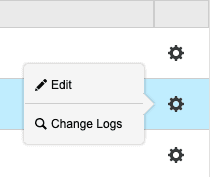
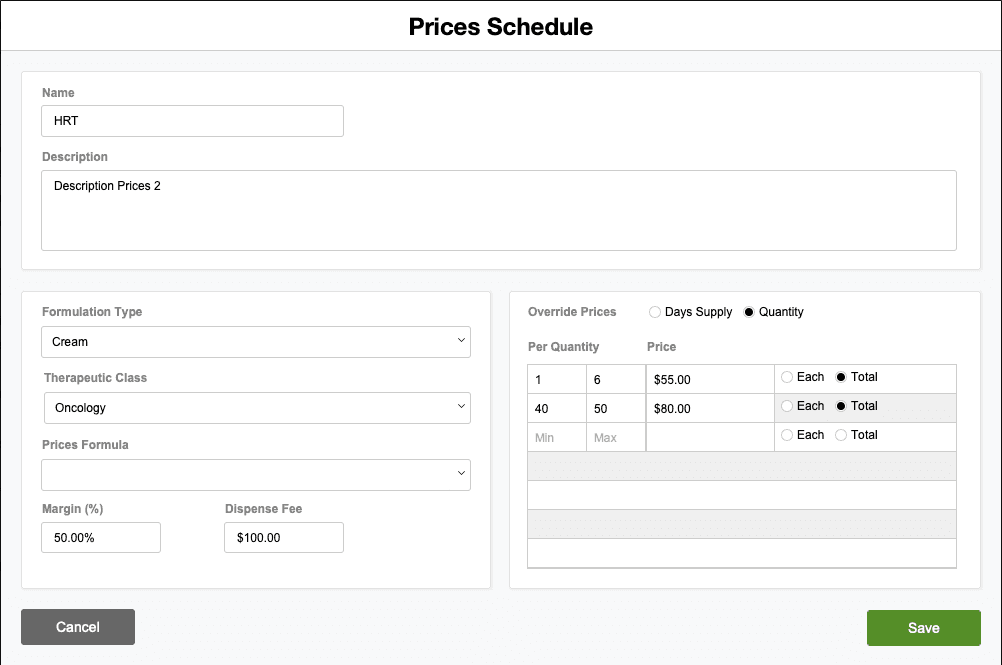
- Edit — Opens the Price Schedule window to make changes. Click Save after all data has been entered and changes are complete.
- Change Logs — Opens a window which displays the Record Modification Log showing a list of changes made to the Price Schedule records. Click the X in the upper right corner to close the window.
Best Practices
- Use clear, descriptive names that reflect the formulation type and pricing basis (e.g., "Antibiotic 7-Day").
- Set tiered pricing to incentivize larger quantities and reduce per-unit cost.
- Ensure Margin % and Dispense Fee remain competitive and profitable.
- Test pricing calculations on sample formulations before deploying schedules to production.
- Review schedules periodically to ensure they align with current costs and market conditions.
Pharmacy Settings (System Foundation)
Pharmacy Settings provide the foundational templates and defaults required for system operation. These settings must be completed before using other areas of SiCompounding.

Best Practice: Enter all available and required data for each section and subsection to ensure proper system behavior, compliance, and reporting across SiCompounding.
This completes the guide for Creating a Price Schedule in SiCompounding.