
Maintaining OOS Classifications?
Step-by-step guide for creating and managing Out-of-Specification (OOS) classifications in SiCompounding.
Overview
Out-of-Specification (OOS) results require documented investigation, remediation, and a scientifically justified disposition. OOS investigations apply to raw materials, in-process samples, and finished products. Within SiCompounding, OOS Classifications let your QA team categorize, track, and manage OOS events to meet regulatory expectations and support testing into compliance.
For regulatory context, refer to your local guidance and the FDA's policy on OOS investigations.
Step-by-Step Instructions
Navigation Path
Settings → Quality Assurance → OOS Classifications
- Click the FileMaker Pro icon on your computer to launch FileMaker.
- When FileMaker opens, locate the large menu bar on the left side of the window.
- Click SiCompounding (near the top of the menu).
- In the next window, several icons will appear across the middle of the screen.
- Click Pharmacy to open the Pharmacy Dashboard.
- From the blue sidebar menu on the left side:
- Scroll to the bottom.
- Select Settings.
Navigate to OOS Classifications
- Under Quality Assurance, select OOS Classifications.
- The OOS Classifications window opens, displaying the cascading classification model.
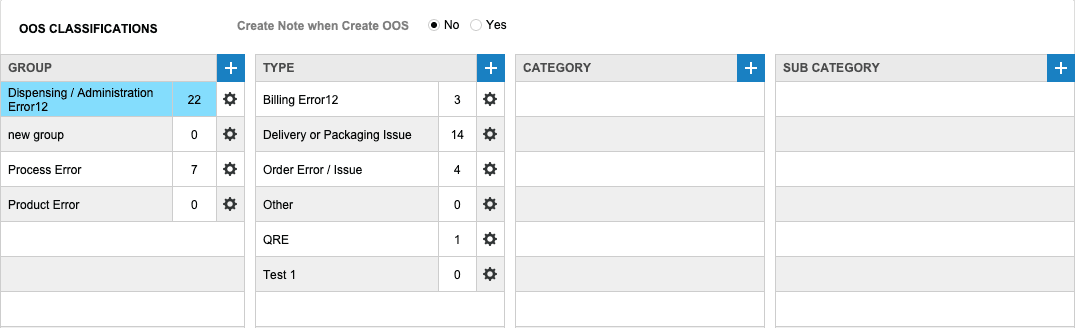
OOS Classifications Window (Overview)
The OOS Classifications window provides a cascading classification model used to tag OOS events. At the top of the page there is a control: Create Note when Create OOS (Yes | No).
Primary columns:
- Group — High-level grouping (e.g., Drug Potency failure)
- Type — Process-level cause (e.g., Stability issues, Poor formulation)
- Category — Specific root cause type (e.g., API concentration, Degradation Issues)
- Sub Category — Detailed classification (e.g., Calculation error, Equipment failure)
Fields Table
| Field | Description | Example |
|---|---|---|
| Group | Broad OOS grouping used as the top-level classification | Drug potency failure |
| Type | Process-level classification related to the Group | Stability issues |
| Category | More granular cause category tied to Type | API concentration |
| Sub Category | Detailed sub-class tied to Category for root-cause tracking | Calculation error |
| Create Note when Create OOS | Toggle that adds a note prompt during OOS creation | Yes / No |
Creating Classifications (Cascading Process)
Create classifications from left-to-right so each level associates with its parent.
-
Create a Group
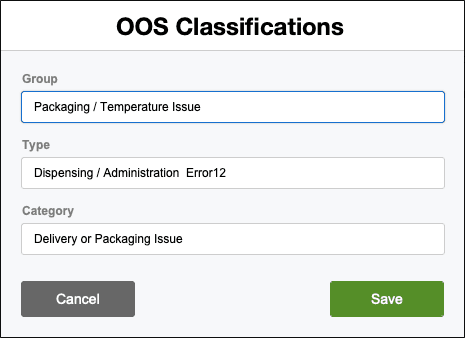
- Click + under Group to open the OOS Classification popup.
- Enter the Group name and optional description.
- Click Save to create the Group.
- Click + under Group to open the OOS Classification popup.
-
Add a Type
- Select the target Group.
- Click + under Type to add a Type associated with the Group.
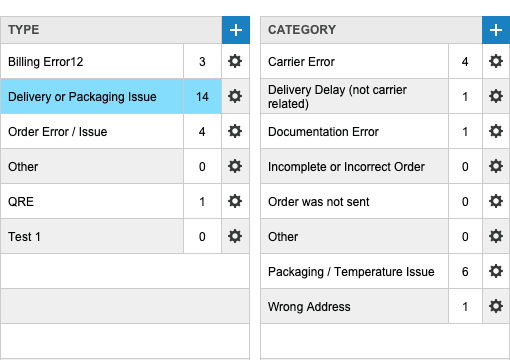
- Enter Type details and click Save.
-
Add a Category
- Select the target Type.
- Click + under Category to add a Category associated with the Type.
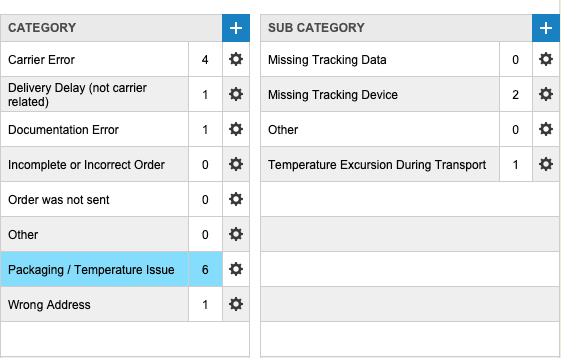
- Enter Category details and click Save.
-
Add a Sub Category
- Select the target Category.
- Click + under Sub Category to add a Sub Category associated with the Category.
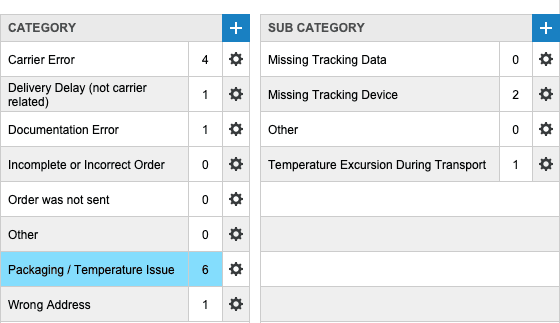
- Enter Sub Category details and click Save.
Each + action opens the OOS Classification popup. Use the gear (⚙) icon to edit or delete existing entries. 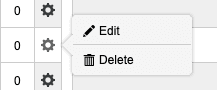
Edit / Delete
Click the gear (⚙) icon next to any classification to access:
- Edit — Modify the selected entry; click Save to apply changes.
- Delete — Open confirmation dialog: DELETE permanently removes the entry or CANCEL aborts.
Example Classifications (Common Use Cases)
| Group | Type | Category | Sub Category |
|---|---|---|---|
| Drug Potency | Stability | Degradation Issues | Accelerated storage failure |
| Manufacturing | Process Variation | Formulation Error | Incorrect mixing ratio |
| Regulatory | Approval Delay | Documentation | Missing stability protocol |
Best Practices
- Build classification hierarchies that reflect your QA workflow and regulatory reporting structures.
- Keep names concise and standardized to ensure consistent tagging across OOS events.
- Use Create Note when Create OOS to capture immediate context for critical events.
- Periodically review and update classifications to remove obsolete entries and consolidate duplicates.
Pharmacy Settings (System Foundation)
Pharmacy Settings provide the foundational templates and defaults required for system operation. These settings must be completed before using other areas of SiCompounding.

Best Practice: Enter all available and required data for each section and subsection to ensure proper system behavior, compliance, and reporting across SiCompounding.
This completes the guide for Maintaining OOS Classifications in SiCompounding.