
Prescriptions
How to Create a New Prescription?
Step-by-step instructions to create and submit a new prescription in the Prescriptions module of SiCompounding.
Overview
This guide explains how to create a new prescription in SiCompounding, including prescription types, patient and provider selection, drug or supply selection, directions for use, and final submission.
Accessing the Prescriptions Module
- Click the FileMaker Pro icon to open FileMaker.
- In FileMaker, click SiCompounding on the left menu bar.
- From the middle icons, click Pharmacy to open the Dashboard.
- From the blue sidebar menu on the left, click Prescriptions.
Creating a New Prescription
-
Click the + New Rx button at the top of the screen.
-
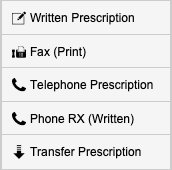
Choose one of the four prescription origins:
Prescription Origins
-
Written Prescription / Fax (Print) Prescription
- Opens an Add Document window.
- Drag and drop any related documents.
- Choose document type and add a description.
- Click Save.
-
Telephone Prescription
- Can be created from Patient or Provider.
- Provider: Select Providers from the sidebar, search, and select provider. or...
- Patient: Select Patients from the sidebar, search, and select patient.
- Click + Prescription → select Telephone Prescription.
- Enter required information, then Sign electronically.
-
Phone Rx Written
- Similar to Written Prescription. Add documents and description, then Save.
-
Transfer Prescription
- Enter Pharmacy, Patient, Drug, and Provider information.
- Sign electronically to complete.
-
Prescription Form
- A new page opens with Prescription Number.
- Fields in orange are mandatory.
Key Fields

- Prescription Origin: Defaults to selected origin but can be changed via dropdown.
- Date Written: Use the calendar icon.
- Earliest Start Date and End Date Override: Enter manually or via calendar.
- Clinical Trial RX: Yes/No. If Yes, select Study Protocol.
- TeleHealth Prescription: Yes/No.
Patient and Provider Selection
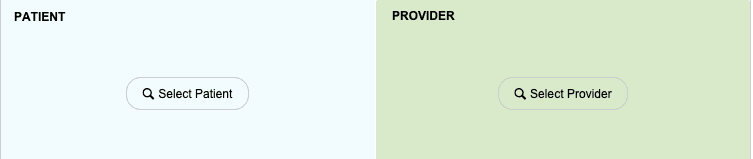
- Patient: Click Select Patient → search by Name, Code, or DOB.
- If not found, click + New Patient. Step-by-Step: How do I add a New Patient?
- Provider: Click Select Provider → search by Name.
- If not found, click + New Provider. Step-by-Step: How do I add a New Provider?
Prescription Types
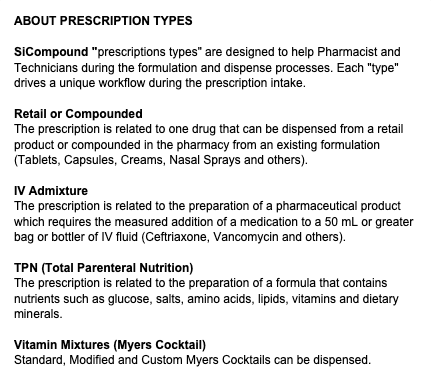
- Retail / Compounded: Dispense from retail product or compounded in pharmacy.
- IV Admixture: Medication added to IV fluids.
- TPN (Total Parenteral Nutrition): Nutrient-based formulas.
- Vitamin Mixtures (Myers Cocktail): Standard, Modified, or Custom.
Select Drug Type

- Select Drug Type from dropdown. Options include:
- Pharmacy Product: Search inventory for the desired product. If not found and can be compounded, click New Formula.
- New Formula: Create from template or scratch.
- Start from a formula template for efficiency.
- Click the template to start or click New Formulation if no template is available. Enter the name of the drug ordered in the prescription (e.g., Testosterone 25mg/GM Cream) and click OK.
- For TPN, options include:
- Start From TPN Formula Template
- Start From Prior Patient TPN Formula
Directions and Dosage
- Enter Directions for Use in the text box.
- Optional: Click Suggested SIG for pre-written directions.
- For multiple instructions, click Multiple SIGs.
- Enter:
- Qty
- Fill Days
- Refills (validated per DEA & State regulations)
- Authorized Dates
- Dispense As Written (DAW)
Additional Prescription Details
- Priority: Yes/No
- Payment Method: Choose from dropdown
- Paid By: Dropdown
- Institution Name: Select Practice/Facility if applicable
- Notes, Delivery Requests and optional Appointment button for time sensitive Order deliveries.
- Patient Diagnosis Provided in the Prescription Information? Yes/No options, and if Yes, select the + Diagnosis to add relevant diagnoses.
Documents and Communications
- Documents: Click + Document to attach files. Add descriptions and Save.
- Rx Annotations / Communications:
- Click + Rx Annotation → select Type: Email, Note, Phone Call, SMS
- Enter notes and attach supporting documents.
- Click Save.
Submission Options
- On Hold: Click Sent to ‘On Hold’, select reason.
- Save and Complete Later: Saves without submission.
- Submit Prescription: Finalizes and submits the prescription.
Completion
Once submitted, the prescription is stored in the system and accessible for tracking or further actions.
This completes the step-by-step guide on:
How to Create a New Prescription