
Patients
How to Add a New Patient?
Step-by-step instructions for adding a new patient in SiCompounding.
Overview
This guide explains how to add a new patient to SiCompounding. There are two ways to add a patient, but the recommended method is through the Patients module on the sidebar. Completing the patient form ensures accurate dispensing, reporting, and workflow management.
Accessing the Patient Form
- Click the FileMaker Pro icon to open FileMaker.
- Select SiCompounding from the left menu bar.
- From the middle icons, click Pharmacy to open the Dashboard.
- Click Patients from the blue sidebar menu.
- In the top header area, click + Patient.
A new Patient Form will appear with nine required sections.
Step 1: Patient Type
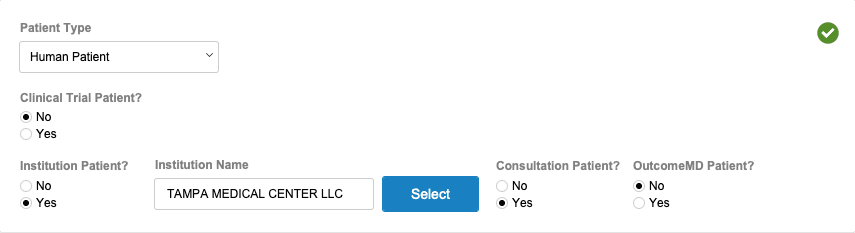
- Select the Patient Type from the dropdown:
- Human Patient – receives human prescription drugs, OTC drugs, or compounded products registered with the FDA.
- Veterinary Patient – receives veterinary drugs or compounded products registered with the FDA.
- Additional options:
- Clinical Trial Patient – requires Subject ID, Study Site, or Patient Initials.
- Institution Patient, Consultation Patient, OutcomeMD Patient – select Yes/No as appropriate.
Note: Patient Types drive workflows and ensure correct dispensing.
Step 2: General Demographics
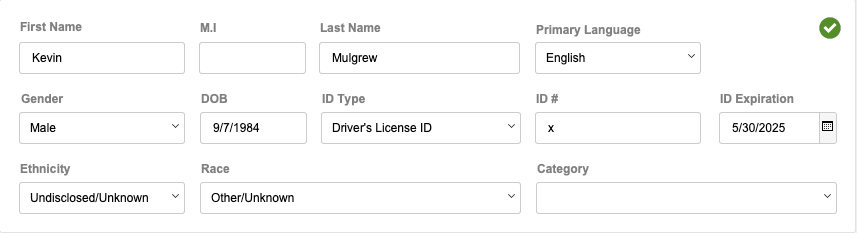
Enter the following information:
- First Name, M.I., Last Name
- Primary Language, Gender, Date of Birth (DOB)
- ID Type, ID#, ID Expiration (calendar)
- Ethnicity, Race, Category
Step 3: Addresses
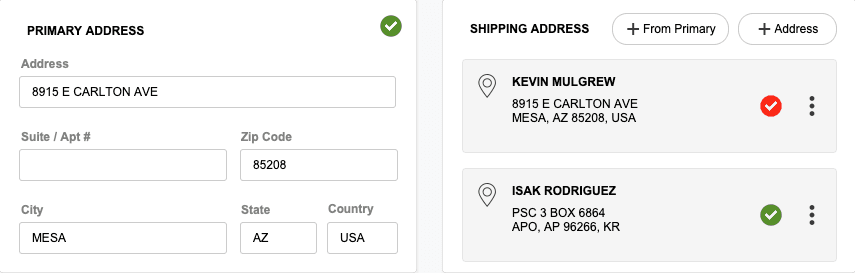
- Primary Address – Address, Suite/Apt #, Zip Code, City, State, Country
- Shipping Address – click + Address to add:
- Recipient Name, Company Name, Address Line 1 & 2
- Zip Code, City, State, Country
- Select Business or Residential
- Same as Primary Address
- Click Save when complete.
Step 4: Contacts
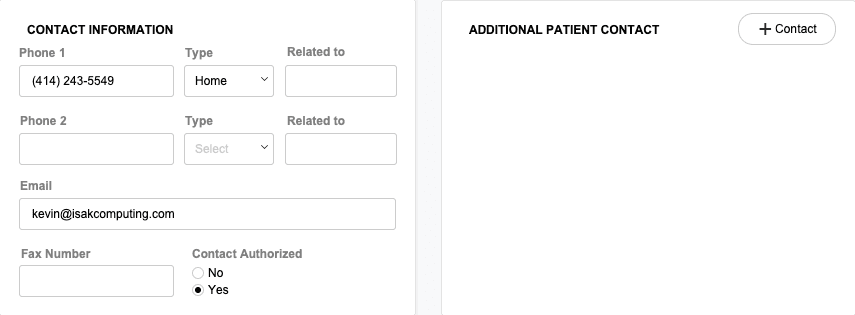
- Enter Contact Information: Phone 1 & 2, Type, Related to, Email, Fax
- Contact Authorized Yes/No
- Additional Contact – click + Contact:
- Prefix, Suffix, First Name, M.I., Last Name, Status
- Phone, Ext, Fax, Email, Position, License #
- Relationship to Patient, Portal Access, Sent To, Sent On, Invitation Sent
- Click Save when complete.
Step 5: Patient Demographics
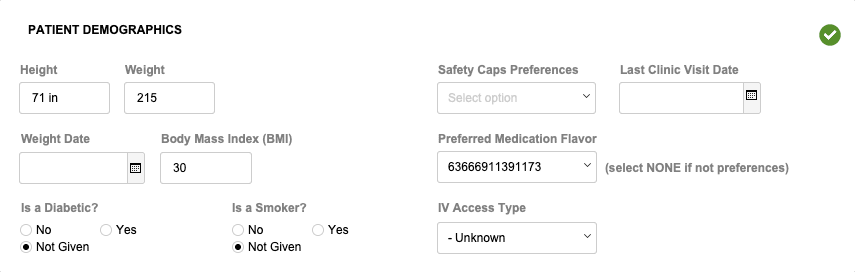
- Height, Weight, Weight Date (calendar), BMI
- Diabetic? Yes/No/Not Given
- Smoker? Yes/No/Not Given
- Safety Caps Preferences, Last Clinic Visit Date (calendar)
- Preferred Medication Flavor (select NONE if no preference)
- IV Access Type (dropdown)
Step 6: Patient Diagnosis Information
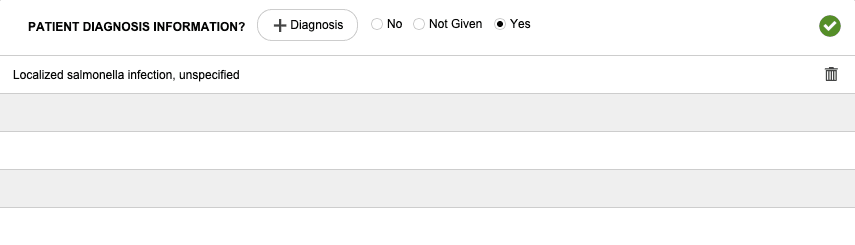
- Patient Diagnosis? Yes/No/Not Given
- Click + Diagnosis to add a diagnosis:
- Search by diagnosis name, press Enter
- Click > to add to Patient Diagnosis list
- Click Close when finished
- To delete, click the trash can icon and confirm.
Step 7: Patient Allergy Information
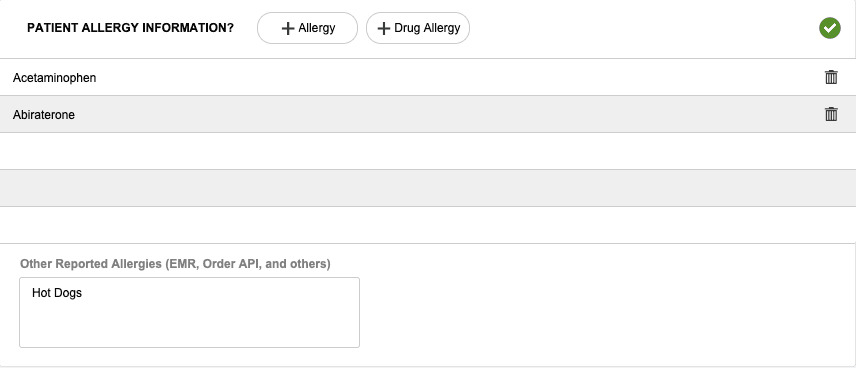
- Click + Allergy or + Drug Allergy:
- Search and select allergies, click > to add
- Click + NKDA for No Known Drug Allergies
- Delete entries via the trash can icon if needed
- Record other reported allergies from EMR, Order API, etc.
Step 8: Patient Medication Information
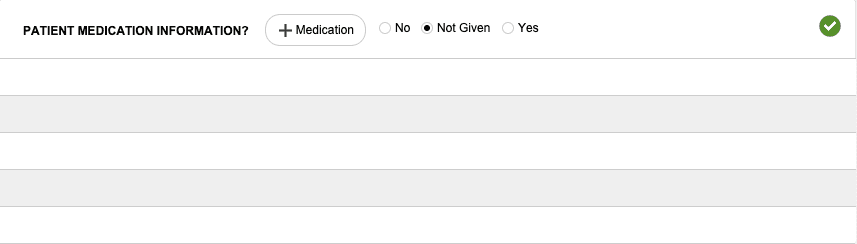
- Click + Medication:
- Search and select medications, click > to add
- Edit or Delete medications via gear icon:
- Edit – change start/end date, notes
- Delete – confirm deletion via dialog
Step 9: Patient Payment Methods
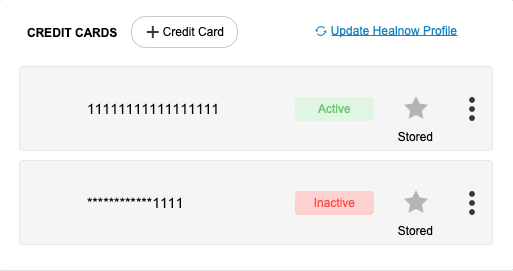
- Click + Credit Card to add:
- Select Merchant from dropdown
- Click Bring from Cardholder to auto-fill information
- Enter Card Number, Expiration, CVV, Card Holder Name
- Address, City, State, Zip Code
- Select Usage – One Time or Save for Later
- Click Save Card when finished
This completes the step-by-step guide on:
How to Add a New Patient