
Patients
Setting Up a Patient Consultation?
Step-by-step instructions for viewing and managing patient consultations in SiCompounding.
Overview
This guide explains how to view, manage, and schedule consultations for patients in the Patients module of SiCompounding. You can search for consultations, review detailed patient information, and schedule follow-up actions.
Step-by-Step Instructions
1. Open SiCompounding
- Click the FileMaker Pro icon to open FileMaker.
- From the left menu bar, select SiCompounding.
- In the middle icons window, click Pharmacy to open the Dashboard.
2. Access Patients Module
- From the blue sidebar menu on the left, click Patients.
3. View Patient Consultations

- Click Consultations at the top right of the Patients window.
- To search for a specific consultation, enter the Patient Name or Drug in the Search bar at the top left, then press Enter/Return.
- Consultations display the following data:
- Date
- Patient Name
- Created By
- Drug
- Status
4. Review Consultation Details
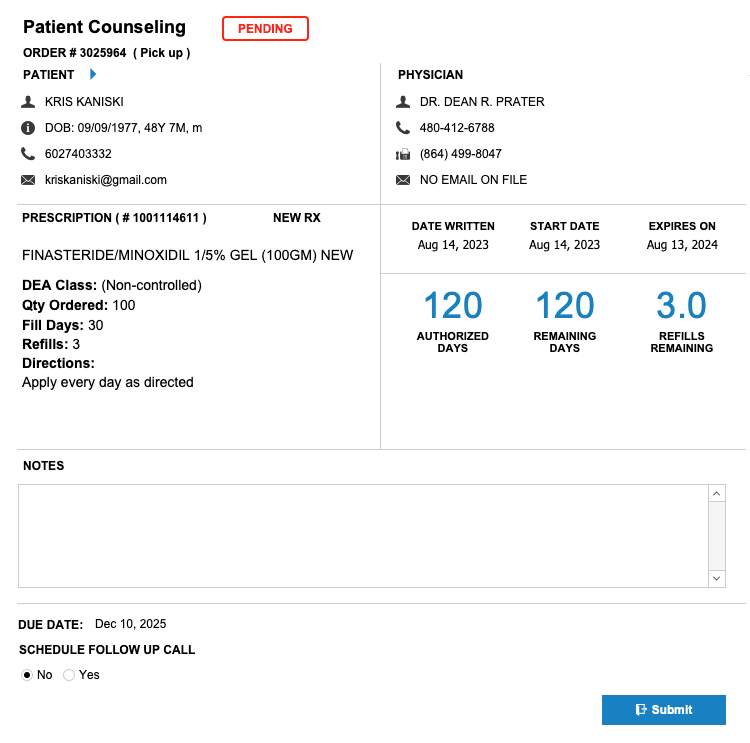
- Click the consultation you want to view.
- Detailed information includes:
- Type of Consultation
- Status
- Patient Information
- Physician
- Prescription Number
- Date Written
- Start Date
- Expiration Date
- Authorized Days
- Remaining Days
- Refills Remaining
- Due Date
- Notes
5. Schedule a Follow-Up Call
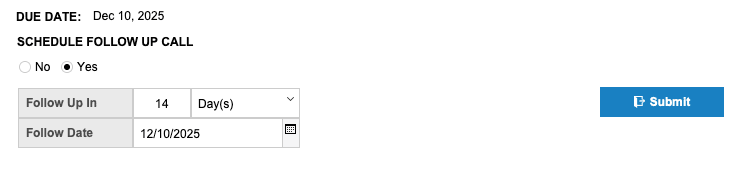
- In the Schedule Follow Up Call section, select Yes.
- Enter the number of Days, Weeks, or Months for the follow-up.
- The Follow Date will automatically update.
This completes the step-by-step guide on:
Setting Up a Patient Consultation