
Patients
Navigating through the Patient Profile
Step-by-step instructions for accessing, managing, and updating information in the Patient Profile module of SiCompounding.
Overview
This guide explains how to navigate and manage a patient’s profile within SiCompounding. Users can view patient details, update health information, manage prescriptions, access documents, and handle consultations, invoices, and other patient-specific records.
Step-by-Step Instructions
1. Open SiCompounding
- Click the FileMaker Pro icon to open FileMaker.
- Select SiCompounding from the left menu bar.
- Click Pharmacy in the middle icons window to open the Dashboard.
2. View a Patient’s Profile
- From the blue sidebar menu, click Patients.
- Search for a patient using Name, DOB, or Phone in the search bar.
- Select the patient row to open their profile page.
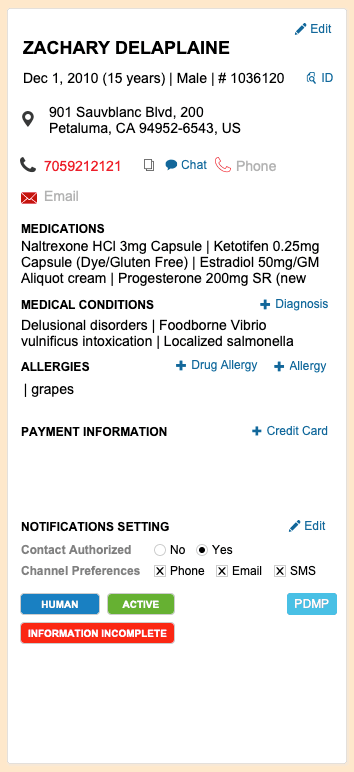
- The Patient Summary section displays:
- Name, Address, Phone, Email
- Medications
- Medical Conditions (+ Diagnosis)
- Allergies (+ Allergy)
- Payment Information (+ Credit Card)
- Notification Settings (Edit to change preferences)
- PDMP information (state-specific)
3. Inside Patient Profile

- While in the Patient Profile window, the main menu includes:
- + Order – Step-by-Step: How to Create a New Order?
- + Prescription – Step-by-Step: How to Create a New Prescription?
- + Patient – Step-by-Step: How do I Add a New Patient?
- Reports – Step-by-Step: What reports are Included in Patients?
- General Features – Step-by-Step: General Features of SiCompounding?
4. Communication Notes

- Report OOS Event – Add Report Date, Occurrence Date, Department, and Description.
- Submit and Start Investigation – start a new investigation
- Submit – add a new occurrence to an ongoing investigation
- Add a Note – Click + Note, choose Type (Email, Note, Phone Call, SMS), enter note, add supporting documents/images, then Save.
- Gear icon options for each note:
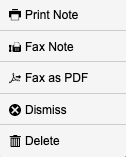
- Print Note
- Fax Note (enter recipient info, attach document, send)
- Fax as PDF
- Open Document
- Dismiss
- Delete
5. Active Prescriptions
- Click View All to open the patient’s prescriptions.
- Filter by Date Range, Rx Number, Drug, or Provider Name.
- Click Summary in the main menu to view last orders.
6. Last Orders
- Click View All to open Orders.
- Filter by Date Range, Order #, or Drug Name.
- Click Summary to view patient portal information.
7. Patient Portal
- Portal Access – On/Off switch.
- Confirm the email for SiPatient Portal login.
- Track Invitation Sent, Sent To, Sent On.
8. Health Profile
- Fields include: Height, Weight, Weight Date, IBW, BSA, Diabetic/Smoker status, Preferred Medication Flavor, IV Access Type.
- All Medications – enter medications and click Check Interactions.
- Drug Interactions / DUR Report – includes:
- Patient Allergies
- Current Medications
- Drug vs Drug Interactions (1 = highest severity)
- Drug vs Allergy Interactions
- Allergy vs Allergy Cross Sensitivity
- Duplicate Therapy Alerts
9. Allergies and Medical Conditions
- Add Allergy – + Drug Allergy, + Allergy Class, or + NKDA.
- Add Medical Condition – + Diagnosis, search and add relevant diagnoses.
- RX Button – navigate directly to prescription associated with a diagnosis.
10. Medications & Labs
- Other Medications – + Medication, enter data, click > to add.
- Patient Medication – edit details: Medication, Start/End Date, Notes, then Save.
- Lab Work – search existing, compare results, or + Lab Work to add new lab information.
- Actions include Edit, Delete, Access Logs, Change Logs.
11. Shipping Addresses
- + Address – create a new shipping address.
- Options per address (gear icon): Edit, Map, Delete, Toggle Status, Access Logs, Change Logs.
- Shipping Defaults – select default delivery method and provide shipping instructions.
12. Family & Contacts
- Family Members – search by Name/DOB/Phone, add new, set Primary Contact.
- Other Contacts – + Contact, enter contact info, enable portal access if needed.
- Gear icon options: Edit, Delete.
13. Payment Methods
- + Credit Card – add new credit card, select merchant, fill required fields, Save Card.
- Options per card (3-dot menu): Edit, Transactions, Toggle Status, Delete, Set as One Time.
- Update profile info: Patient ID, Cart URL, Stripe Customer ID.
- Invoice Settings – select default format: Header with Itemized, Header with Summaries, Single Line.
14. Insurance
- Eligibility Check – E1 Commercial or Medicare Part D.
- Add new insurance plan – + Insurance, select plan, enter member info, additional info, then Save.
15. Patient Rx Scripts
- Filter prescriptions by date, Rx Number, Drug, or Provider Name.
- Click a prescription row to view details, then < Go Back to return.
- Last Filled column links to associated orders.
16. Orders, Shipments, Payments, Credits, All Items
- Filter orders by date or search criteria.
- Navigate to Shipments, Payments, Credits, and All Items tabs for detailed patient transaction info.
17. Consultations & Documents
- Consulting – + Request Consultation, add notes, schedule follow-up, complete verification checklist, then Submit.
- Documents – + Document, drag-and-drop files, select type, add description, then Save.
- Gear icon options: View Document, Delete Document.
18. Actions Menu
Quick access actions include:
- Send Invitation to SiPatient
- Edit Patient
- View Faxes
- Request Consultation
- Report OOS Event
-
- New Invoice (add orders or items)
- Print Profile / Postcard / Transactions
- View Excluded Duplicates
- Set as Inactive / Deceased / Account on Hold
- Access Logs / Change Logs
This completes the step-by-step guide on:
Navigating through the Patient Profile