
Dashboard
General Features of SiCompounding?
Step-by-step guide to understanding the general features available across SiCompounding modules.
Overview
The General Features menu in SiCompounding provides consistent tools and navigation across all modules. This guide explains each feature and its functionality.
Navigation Path
- Click the FileMaker Pro icon to open FileMaker.
- In the left-hand menu, click SiCompounding (near the top).
- Click Pharmacy in the main window to open the Dashboard.
Current User Dropdown
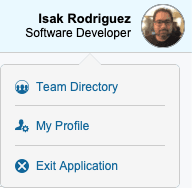
The current user information is displayed in the top right corner. Click on the user icon to see the dropdown options:
- Team Directory – Opens the Contact Team window with a search bar. Communication buttons include: Video, Phone, Chat, Email. Click Close when finished.
- My Profile – Under Development.
- Exit Application – Closes the SiCompounding application.
Dashboard General Features

The top menu contains several features used across SiCompounding modules:
Messages
- Access any messages sent electronically to patients.
- Filter messages by Today or by a Date Range.
Reports
- Access reports in multiple forms, including Dashboard News.
- Click the Reports button in the header to access:
- Pharmacy Stats
- On-Demand Reports
- Later modules will cover Detail View vs List View and Export/Print options.
Communications
- View communication notes added into the system under the General tab.
- Filter by date using the calendar in the header.
Lookup (with Scanner)
- Scan QR codes on inventory items, documents, orders, etc.
- Scanner icons are located at the top right of every document and on inventory packaging.
< Go Back
- Returns to the previous page.
- Located on the top right header throughout the software.
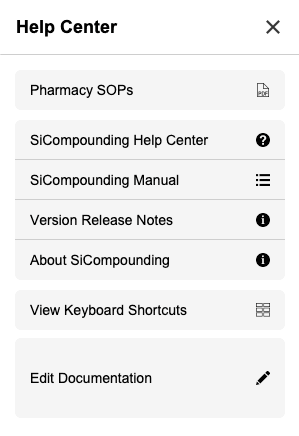
Help
- Opens the Help Center from the top right of any screen.
Current User Dropdown
-
Displays the current user’s name,role and possibly photo.
-
Click to access:
- Team Directory – Opens the Contact Team window with a search bar. Communication buttons include: Video, Phone, Chat, Email. Click Close when finished.
- My Profile – Under Development.
- Exit Application – Closes the SiCompounding application.
General Features Used in Other Modules
Notifications

- Bell icon located on the top right corner area throughout the software.
- Displays alerts and notifications.
Detailed View vs List View

- If Detailed View appears as a button, you are currently on List View.
- Clicking it switches to Detailed View of the selected record.
Export/Print Information

SiCompounding allows printing and exporting data to Excel or PDF.
- Action Button – Usually located at the top right of the screen or section.
- Three Buttons – Top right corner of the screen:
- Export as PDF
- Export as Excel
This completes the step-by-step guide: General Features of SiCompounding.