
Explain How Notifications Work?
Learn how to view, manage, and respond to notifications in SiCompounding using the Alerts Notifications system.
Overview
The Notifications feature in SiCompounding helps users stay informed about important system activity, alerts, and reminders. Notifications are accessed from the bell icon and are color-coded for quick identification.
Navigation Path
- Click the FileMaker Pro icon to open FileMaker.
- When FileMaker opens, locate the large menu bar on the left and click SiCompounding (near the top).
- In the main window, click Pharmacy to open the Dashboard.
- At the top of the window, click the moving Bell icon to open Notifications.
Alert Notifications Window
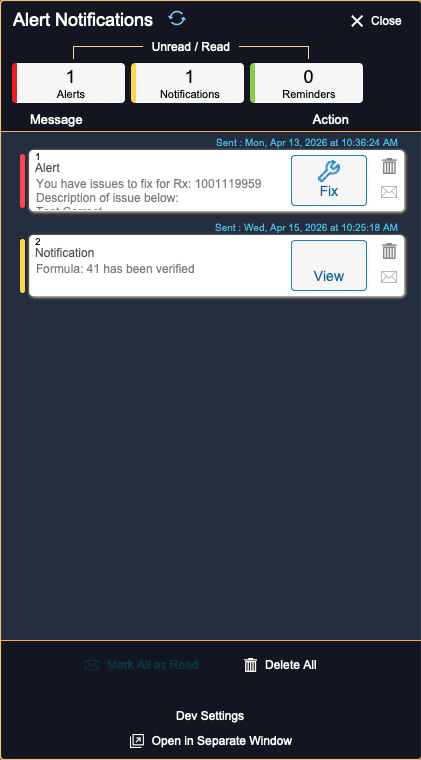
Clicking the bell icon opens the Alert Notifications window.
Notification Categories
Notifications are color-coded for easy recognition:
-
Red — Alerts
Indicates critical issues that may require immediate attention. -
Yellow — Notifications
General system updates or informational messages. -
Green — Reminders
Tasks, follow-ups, or scheduled reminders.
Notification Layout
Each notification includes:
-
Message Column
Displays the notification summary. -
Action Column
Provides available actions for the selected notification.
Viewing and Managing Notifications
Open a Notification
- Click any message in the list to open the full notification.
- The notification is automatically marked as Read when opened.
Mark as Unread
- A read notification can be switched back to Mark as Unread if needed.
Delete a Notification
- Notifications can be deleted directly from the Notifications window.
View or Resolve Items
- Click View to open the related record or activity in SiCompounding.
- This allows you to review what was done or fix outstanding items.
Bulk Actions
At the top of the Notifications window, users can:
- Mark All as Read
- Delete All
These options help keep the notification list organized.
Closing Notifications
- Click the X (Close) button in the upper-right corner to exit the Notifications window.
Summary
The Notifications system provides:
- Real-time alerts and reminders
- Color-coded message prioritization
- Quick access to related records
- Easy tools for managing and clearing notifications
This completes the step-by-step guide: Explain How Notifications Work.