
On Demand Reports & How They Work?
Learn how to search, run, filter, and export On Demand Reports within SiCompounding for detailed operational and compliance reporting.
Overview
On Demand Reports allow users to generate detailed, module-specific reports whenever needed. These reports support advanced filtering, multiple output formats, and flexible export options, making them ideal for audits, operational reviews, and data analysis.
Navigation Path
- Click the FileMaker Pro icon to open FileMaker.
- When FileMaker opens, locate the large menu bar on the left and click SiCompounding (near the top).
- In the main window, click the Pharmacy icon to open the Dashboard.
- At the top of the Dashboard, click Reports.
The Reports window opens, providing access to Pharmacy Stats and On Demand Reports.
Opening On Demand Reports
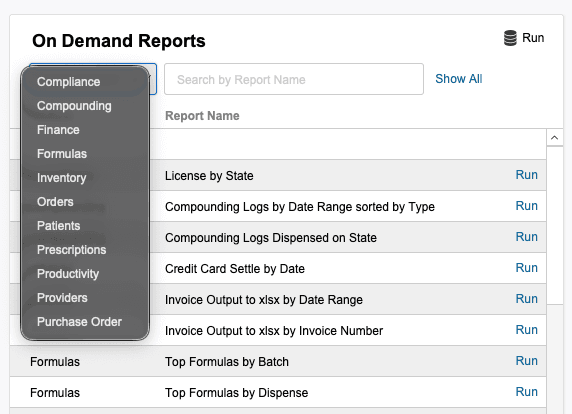
- Select On Demand Reports from the Reports window.
- You are taken to the On Demand Reports screen.
Note:
If you navigate to On Demand Reports while already inside a module (such as Orders), that module will be selected by default.
Finding a Report
Filter by Module
- Click Select Module
- Choose the module you want to report on (e.g., Orders, Prescriptions, Inventory)
The report list will update automatically based on the selected module.
Search for a Report
- Click inside the Search bar
- Type the name or keyword of the report
- Press Enter / Return to view results
Alternative search method:
- Click Show All
- Then type a keyword (for example, dispenses)
- This may return multiple reports across different modules
Running a Report
- Locate the desired report in the list.
- Click the Run button at the end of the report row.
- A dialog appears asking for the output format.
- Select PDF.
Applying Report Filters
After selecting the format, a second dialog opens requesting report parameters.
Common Parameters
- Date Range
- Use Select Dates
- Type the dates manually or use the calendar icon
- Additional variables may appear depending on the report and module
Once all required variables are entered:
- Click Print
Report Generation
- A dialog displays Generating Report while the system processes the request.
- When complete, a confirmation dialog appears:
Your Report Is Ready
- The dialog shows the name of the report
- Click the report name to download the file
Saving and Exporting the Report
After clicking the report name, the Export Field to File dialog opens.
You can:
- Change the Save As file name
- Choose a different save location
- Use default settings if preferred
Optional Actions
- Automatically open the file after saving
- Create an email with the file attached
When ready:
- Click Save
Closing the Dialogs
- After saving, click Close to exit the report dialogs.
- You will return to the On Demand Reports screen.
Key Benefits of On Demand Reports
- Generate reports instantly, without waiting for scheduled jobs
- Filter by module, date range, and report-specific variables
- Export reports as PDFs for printing, sharing, or archiving
- Flexible search across multiple modules
This completes the step-by-step guide: On Demand Reports & How They Work.