
Is the Help Button Important?
Learn how to use the Help button in SiCompounding to access SOPs, reports, support tools, and system documentation.
Overview
The Help button in SiCompounding provides immediate access to documentation, reports, system guidance, and support tools. It is designed to assist users with daily operations, troubleshooting, reporting issues, and staying informed about system updates.
Navigation Path
- Click the FileMaker Pro icon to open FileMaker.
- When FileMaker opens, locate the large menu bar on the left and click SiCompounding (near the top).
- In the main window, click the Pharmacy icon.
- The Dashboard is selected by default in the blue sidebar.
- At the top of the window, click the Help button.
Help Center Overview
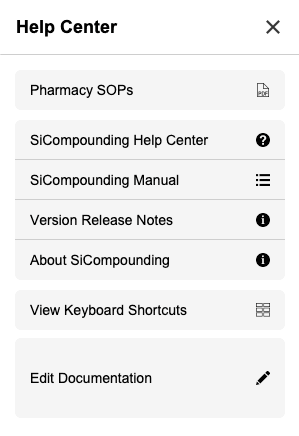
- When selected, the Help Center sidebar opens on the right side of the screen.
It contains seven sections with step-by-step guidance and tools to support daily operations.
Pharmacy SOPs

The Pharmacy SOPs section provides access to standard operating procedure documents.
Searching for Documents
-
Use the Search bar to search by:
-
Document Code
-
Document Name
-
After locating a document:
- Click the search icon at the end of the row to view it
- Click the X in the upper-right corner to close the document
Printing & Exporting Reports

-
To the right of the Search bar, three Report / Print icons are available.
PDF Report
-
Click the PDF icon
-
A dialog appears:
“Exporting data from the found set of ### Orders records to a PDF file on your desktop?”
-
Select OK
-
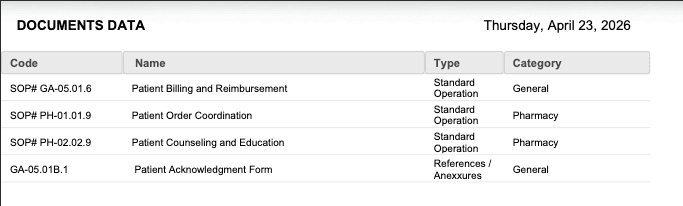
The PDF opens and is saved to the desktop
CSV Report
-
Click the CSV icon
-
A dialog appears:
“Export data from the found set of ### Document records to a CSV Spreadsheet on your desktop?”
-
Click OK to continue or Cancel to stop the export process.
-
A column-selection window opens
Custom Column Selection
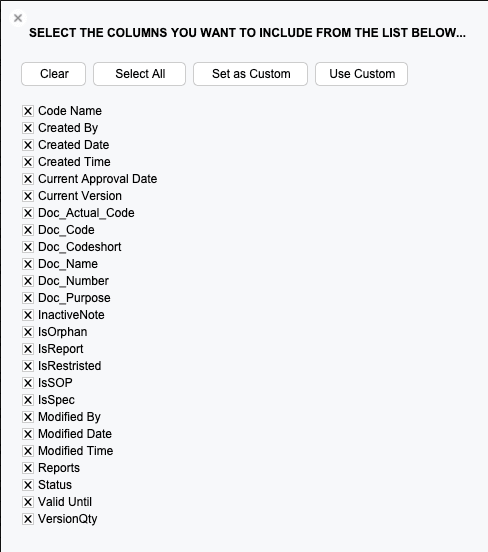

- Buttons available:
- Clear
- Select All
- Set as Custom
- Use Custom
To create a custom column set:
-
- Click Clear
-
- Select commonly used columns
-
- Click Set as Custom
To reuse later:
-
- Click Clear
-
- Click Use Custom
Export Options
-
At the bottom of the window:
- Stop and Close – cancels export
- Export and No Wait – may take longer
- Export and Wait – waits for completion
-
Choose the desired option to generate the CSV file.
-
Once complete:
-
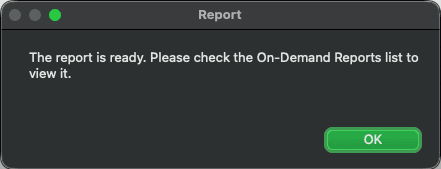
A dialog appears: “The Report is Ready. Please check the On-Demand Reports list to view it”
-
Click OK
-
The CSV file can be found in the On-Demand Reports area
-
Click the Go Back button to return to the main window
-
Click the Reports button next to find the report in the Scheduled Reports list.
Printed Report
- Click the Printer icon
- A dialog appears:
“Export data from the found set of ### Orders records to a printer of your choice?”
- Click OK
- The Print dialog opens, allowing selection of:
- Printer
- Presets
- Copies
- Pages
- File format
- Note that Print: defaults to Current record but can be changed to Records being browsed when needed (common).
- Click Print to complete
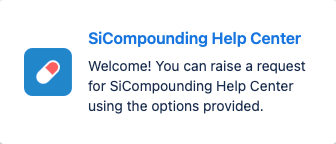
SiCompounding Help Center
-
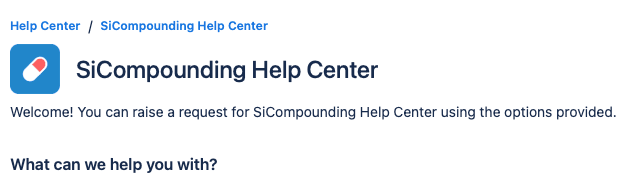
The Help Center also includes direct access to support and system information.
Available Options
-
Report a Bug
- Report system issues or unexpected behavior
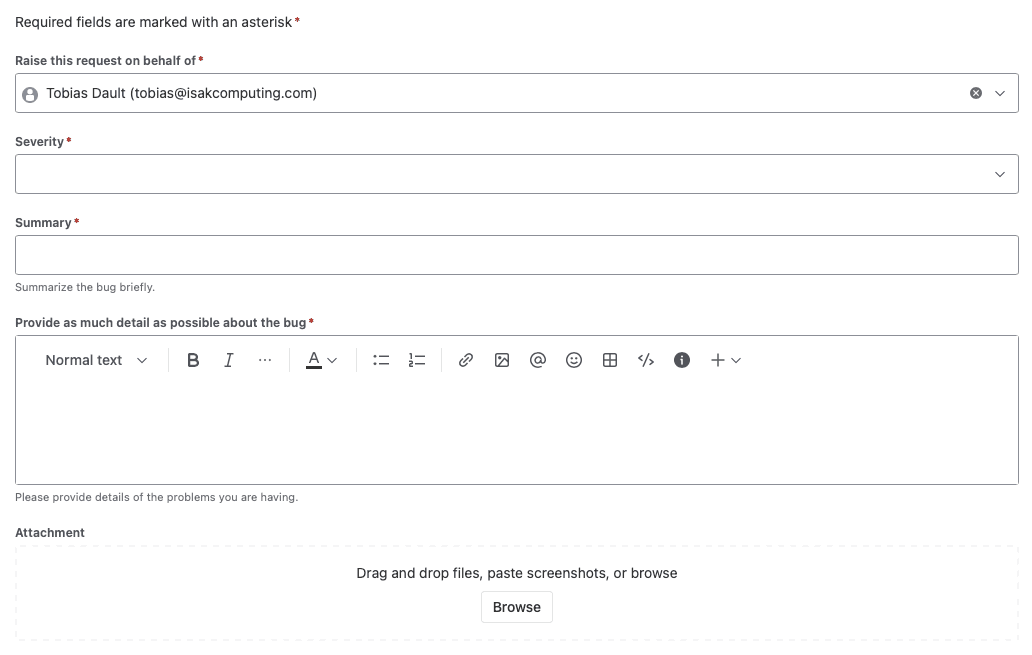
- Report system issues or unexpected behavior
-
Technical Support
- Request help with installation, configuration, or troubleshooting
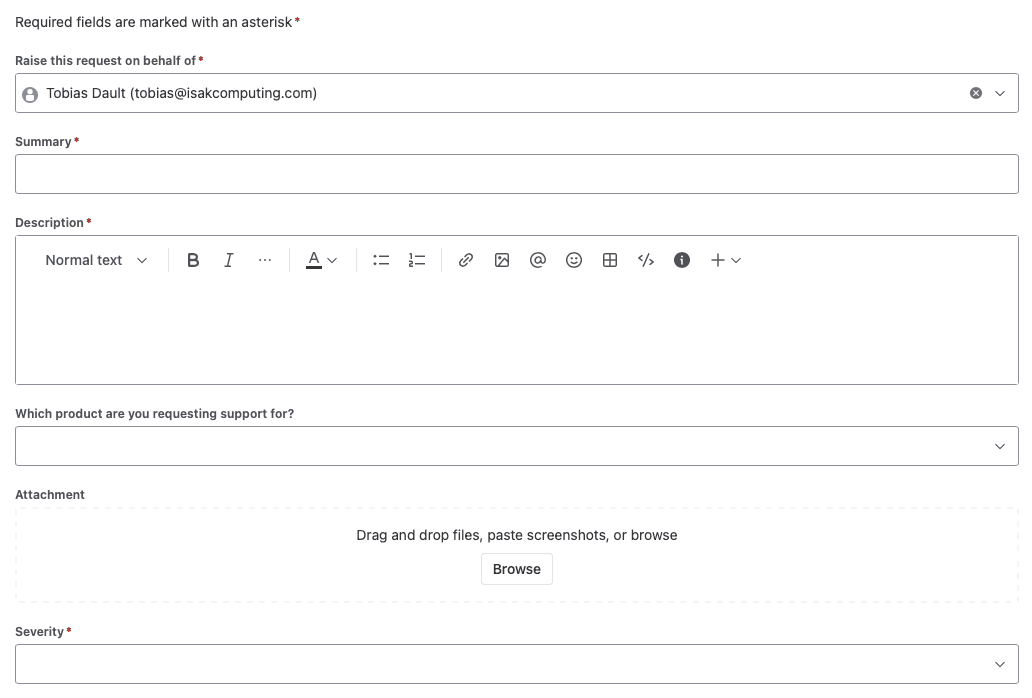
- Request help with installation, configuration, or troubleshooting
-
Suggest a New Feature
- Share ideas for future enhancements
-
Suggest Improvement
- Provide feedback on existing functionality
-
Licensing and billing questions
- Provide feedback on licensing and billing issues
-
Other questions
- Provide feedback on other questions
SiCompounding Manual
The official manual and guide for SiCompounding, the compounding management system for pharmacies.
SiCompounding is a comprehensive pharmacy management platform developed by Isak Computing to streamline every stage of the compounding process. From prescription intake and compliance to dispensing and reporting, SiCompounding helps pharmacies improve accuracy, efficiency, and regulatory alignment through secure, continuously evolving technology.
-
Version Release Notes
View release notes for each version, including:- New features
- Enhancements
- Fixes
- Performance improvements
-
About SiCompounding
Displays the currently installed software version -
View Keyboard Shortcuts
- Access the Dashboard

- View available keyboard shortcuts (Go To) for faster navigation and actions within SiCompounding
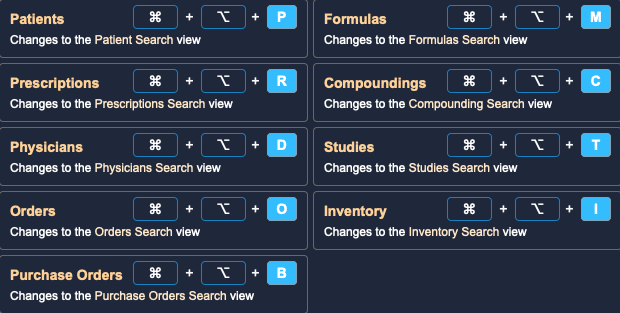
- Navigation Shortcuts
- View available keyboard shortcuts for faster navigation within SiCompounding
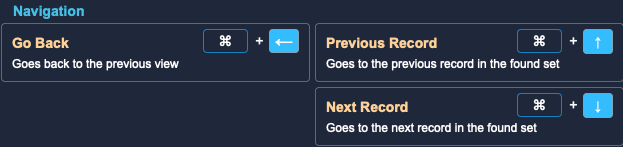
- View available keyboard shortcuts for faster navigation within SiCompounding
- Other Shortcuts
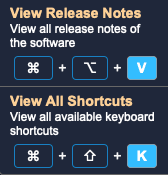
- Navigation Shortcuts
- Access the Scale Commands Menu
- View available scale command shortcuts for faster use of connected scales in the compounding process
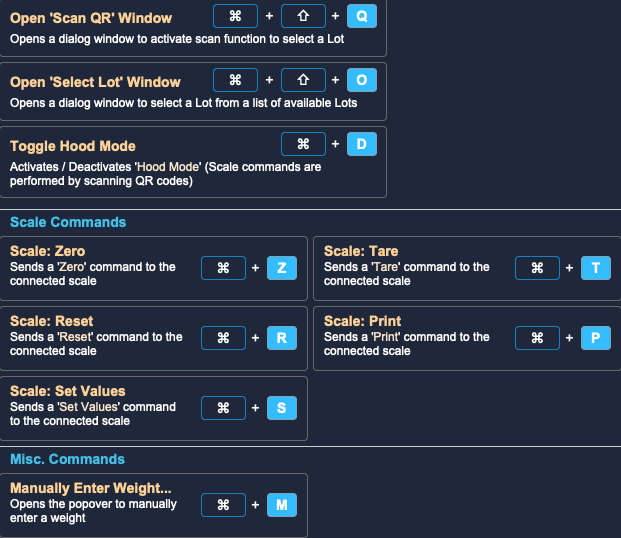
- View available scale command shortcuts for faster use of connected scales in the compounding process
- Access the Dashboard
This completes the step-by-step guide: Is the Help Button Important?