
Catch Up Using the Dashboard?
Step-by-step instructions for using the Dashboard and its features in SiCompounding.
Overview
The Dashboard in SiCompounding provides a centralized view of your pharmacy operations, including patients, prescriptions, orders, providers, institutions, clinical trials, inventory, and real-time performance metrics.
Use this guide to catch up with all Dashboard features and workflows.
Navigation Path
- Click the FileMaker Pro icon to open FileMaker.
- From the left-hand menu, select SiCompounding (near the top).
- In the main window, click Pharmacy to open the Dashboard.
General Features Menu

At the top of the Dashboard, you will see the General Features used across SiCompounding modules:
- Messages
- Communications
- Reports
- Lookup (barcodes)
- < Go Back
- Help
- Notifications (bell)
- Current User Dropdown – includes: Team Directory, My Profile, Exit Application
Each one of these General Features will be explained step by step in the following document: General Features of SiCompounding?.
Quick Start Widgets
Click any widget instead of navigating the blue sidebar menu for a faster workflow.
Patients
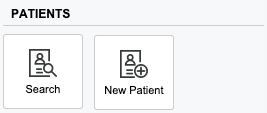
Search Patients
- Opens the Patients window in List View.
- Search by: Name, DOB, or Phone
- Filter by: Active | Inactive | All
- Click Filters to choose from the dropdown list
New Patient
Opens a New Patient Form with 9 sections to complete:
- Patient Type
- Personal Information
- Addresses
- Contact Information
- Patient Demographics
- Patient Diagnosis Information
- Patient Allergy Information
- Patient Medication Information
- Payment Information
Prescriptions
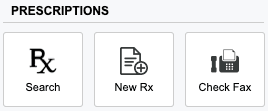
Search Prescriptions
- Opens the Prescriptions window in List View.
- Valid search options: Rx Number, Patient Name, Physician Name, Drug Ordered
New Prescription
- Written Prescription – Opens Add Document Form
- Fax (Print) – Opens Add Document Form
- Telephone Prescription – Opens Telephone Prescription Form
- Phone Rx (Handwritten) – Opens Add Document Form
- Transfer Prescription – Opens Transfer Prescription Form
Check Fax
- Opens the Faxes window to display:
- New Faxes
- Today’s Faxes
- Sending – Faxes being sent
- Create a + New Fax from this window
Orders
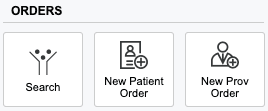
Search Orders
- Opens the Orders window in List View
- Search by:
- Order Number
- Dispense Date (MMDDYYYY)
- Recipient Name (Patient/Physician)
- Recipient Phone (numbers only)
- Drug Ordered
- Shipping Tracking Number
New Orders
- New Patient Order – Select an existing patient or create a + New Patient before creating the order
- New Provider Order – Select an existing provider or create a + New Provider before creating the order
Providers
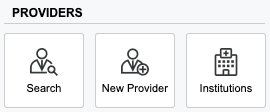
Search Providers
- Opens the Providers window in List View
- Valid search options:
- Physician Name
- NPI Number
- DEA Number
- State License Number
- DOB (MMDDYYYY)
- Phone (numbers only)
- Address (City, State, Zip)
- Filter by: Active | Inactive | All
New Provider
Opens the Physician Information Form with 6 sections:
- Physician Information
- Contacts Information
- Location
- Licenses
- Payment Method
- Summary
Institutions
Search / New Institution
- Opens the Institutions window in List View
- Search by: Institution Name, Phone Number
- Filter by: Active | Inactive | All
- + New Institution – Opens the Institution Form to enter all required data
Clinical Trials
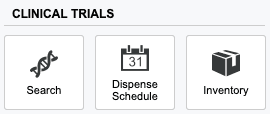
Search Clinical Trials
- Opens the Clinical Trials window in List View
- Search by: Study Name, Phone Number
- Filter by: Active | Inactive | All
Dispense Schedule
- Opens Dispense Schedule window
- Viewing Options: Month, Week, Day, or List
- By Pharmacy: Lists orders with Patient Name, Study Name, Drug Name, Date, Mix After, Back to Fridge At, Pick-up At, Shipping Carrier
Inventory
- Opens the Inventory Items window in List View
This completes the Catch Up by Using the Dashboard step-by-step guide.