
How to Create a New Order?
Step-by-step guide for creating, configuring, and processing a new order in SiCompounding, including drugs, supplies, shipping, payments, and communications.
Overview
This guide walks through the complete workflow for creating a new Order in SiCompounding, from order creation through payment, shipping, communications, and documentation.
Accessing Orders
- Click the FileMaker Pro icon to open FileMaker.
- From the left menu, select SiCompounding.
- Click Pharmacy to open the Dashboard.
- From the blue sidebar, click Orders.
Creating a New Order
- From the Orders window, click + Order.
- A New Order popup opens with three selection options:
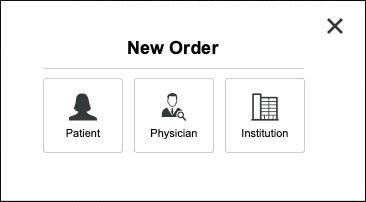
Select an Order Owner
-
Patient
- Search by Name, DOB, or Phone
- Select Patient from the found set of records then click Create Order or...
- Click + New Patient to create a new patient record
-
Provider
- Search by Name or NPI
- Select Provider from the found set of records then click Create Order or...
- Click + New Provider to create a new provider record
-
Institution
- Search by Institution Name
- Select Institution from the found set of records then click Create Order or...
- Click + New Institution to create a new institution record
-
Once selected, click Create Order or...
-
If there is an open Order an Alert Link to Order appears. Click Link Order to complete the open order.
Order Summary Window
The Order Summary opens with:
- Order Date filled in automatically
- To Dispense On Date also filled in automatically
Patient Information
- Click Edit to modify patient details.
Shipping Override
- Overrides calculated shipping price
- Enter
0to waive shipping charges
Discount Override
- Overrides calculated discount
- Enter
0to disable discount
Adding Prescription Drugs to your Order
- Click + Prescription Drug
- Select Prescription window opens
- Choose from existing patient prescriptions or click + New RX (add link to New Rx guide)
- Search by Drug Name or Rx Number and then select items using checkboxes
- Click + All Selected to add to order
- Close window using X in upper-right corner
Adding OTC Drugs to your Order
- Click + OTC Drug
- Search by Product Name or NDC
- Click + To List to add to order
- Click + Add Selected Items
- Remove items with X if needed
- Close window using X in upper-right corner
Adding Supplies to your Order
- Click + Supply
- Search by Name or NDC
- Filter Active | Inactive | All
- Click + To List
- Click + Add Selected Items
- Close window using X when finished
Shipping Configuration
Recipient Addresses
- Select Patient, Provider, Institution, or Study Sponsor
- Choose an address or click + New Address
- Click Apply
Order Delivery Information
- Delivery Method
- Service Provided by Pharmacy (Yes/No)
- Courier Service
- Pickup Date / Time / Job Number
- Delivery Date / Time
- Delivery Instructions
- Driver Comments
Shipment Options
- ☐ Signature Confirmation
- ☐ Saturday Delivery
- ☐ Dry Ice Package
- ☐ Priority Alert
Edit Address (Optional)
Required fields:
- Recipient Name
- Company Name
- Address Line 1 & 2
- City, State, Zip, Country
- Business or Residential
- ☐ Same as Primary Address
Shipping Summary
- Shipping Price
- Shipping Service Rate
- Shipping Extras
- Shipping Override (
0= free shipping) - Subtotal Shipping
- Estimated Weight (auto-calculated)
Link Other Orders
- Click + Link to include additional orders in the same shipment
- Click Close when complete
Monitoring Devices
- Click + Device
- Search by Name or NDC
- Filter Active | Inactive | All
- Verify stock availability
- Click + To List
- Click + Add Selected Items
- Close window using X
Payment (Tabz / HealNow Example)
Requesting Payment
- From Orders, open the order
- Click Payment
- Select Payer → Patient
- Select Payment Method → Credit Card
- Click Request Payment
- Click Send Payment Link
Patient Profile Sync (Recommended)
- Click Summary
- Click Profile
- Open Payment Methods tab
- Click Update Profile (Tabz Icon)
- Click < Go Back
Completing Payment (Patient Side)
- Enter Last Name and DOB
- Review Shopping Cart
- Choose Pickup or Delivery
- Add Signature (if needed)
- Enter payment details
- Click Pay
- Receipt and feedback displayed
Sync Payment
- Back in Orders, click Sync Payment
- Verify transaction appears in Payment History
Handling Shipping Override Issue
- Default Tabz shipping =
$40 - If override is red, click amount and correct to
$40
Adding a New Card After Payment
- Delete existing transaction (gear icon → Delete)
- Click Select Credit Card
- Click + New Card
- Enter card details
- Click Save Card
- Click Apply Payment
- Confirm cancellation of existing payment link
Refunds
- Click gear icon on payment
- Select Refund
- Enter:
- Refund Date
- Refund Amount
- Notes
- Click Submit
- Refund appears under Payment History
Order Summary Calculations
- Subtotal Products
- Shipping Base
- Shipping Extras
- Shipper Fee
- Shipping Override
- Subtotal Shipping
- State Surcharge %
- Taxes
- Minimum Discount
- Discount Override
- Payment Fee
- Cash Price
- Total Due
Communications
Located to the right of Payment.
Features
- Report OOS Event
- Add Notes:
- Highlight Notes
- Pick Sheet Notes
- Billing Notes
- Order Notes
OOS Report
Required:
- Report Date
- Occurrence Date
- Department
- Description (20+ characters)
Call List
- Contact Status
- Call in Days
- Call Queue
- Last Call Date
- Next Call Date
Additional Fields
- Discount Reason & Notes
- Shipping Override Reason
- Doctor Appointment Date
- Hold Setup (Yes/No)
- Need Clarification
- Patient Consultation Request
Documents
- Click Documents
- Click + Document
- Drag & drop files
- Select Document Type
- Enter Description
- Click Save
Completion
This completes the step-by-step guide for creating a new Order in SiCompounding, covering order creation, items, shipping, payment processing, communications, and documentation.