
Patients
What Reports are Included in Patients?
Step-by-step instructions for generating patient-related reports in SiCompounding.
Overview
This guide explains the different report options available in the Patients module of SiCompounding. Reports provide insights into patient activity, prescriptions, orders, and financial transactions.
Accessing the Reports Menu
- Click the FileMaker Pro icon to open FileMaker.
- Select SiCompounding from the left menu bar.
- From the middle icons, click Pharmacy to open the Dashboard.
- Click Patients from the blue sidebar menu.
- At the top of the window, click the Reports button.
A popup list appears with several report options.
Available Reports
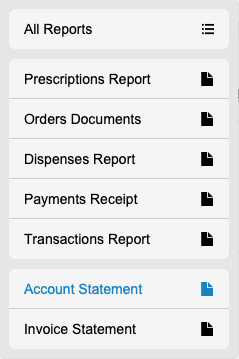
1. All Reports
- Selecting All Reports opens the On Demand Reports view.
- Patients is the default module selected. Step-by-Step: On Demand Reports & How they Work?
2. Prescriptions Report
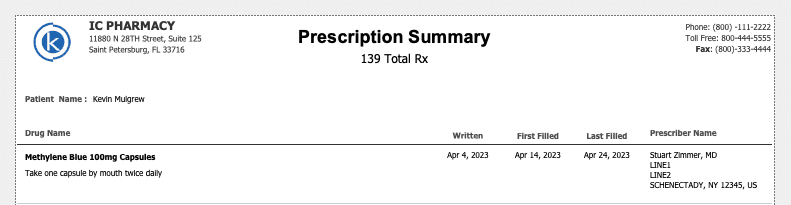
- Opens the Prescription Summary Report for the patient.
3. Orders Documents
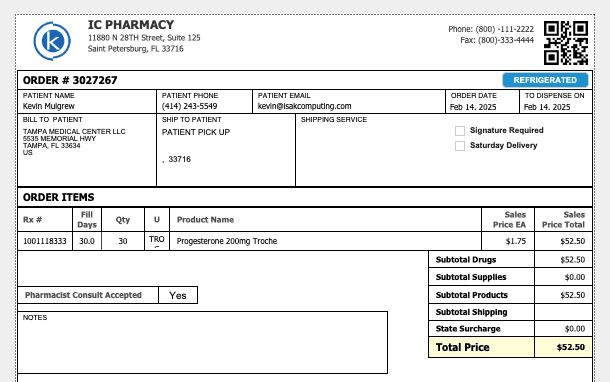
- A Select Dates popup appears.
- Enter:
- State (optional)
- Start Date (calendar icon)
- End Date (calendar icon)
- Click Print to generate the report.
4. Dispenses Report
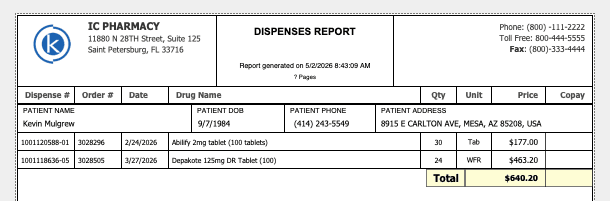
- Similar to Orders Documents:
- Select dates and optional state
- Click Print to process
5. Payments Receipt
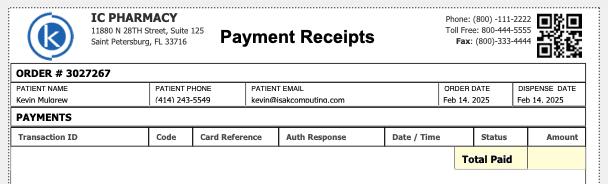
- Select dates and state if needed.
- Click Print to generate payment receipts.
6. Transactions Report
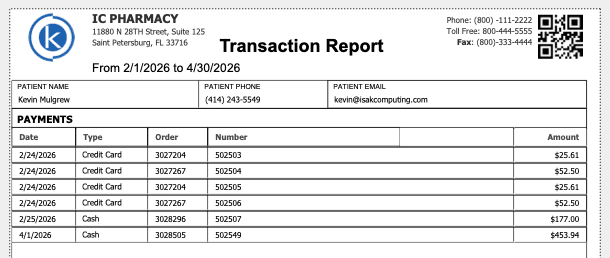
- Select:
- Start Date (calendar)
- End Date (calendar)
- Card Type (dropdown, optional)
- Click Print to generate a transactions report.
7. Account Statement
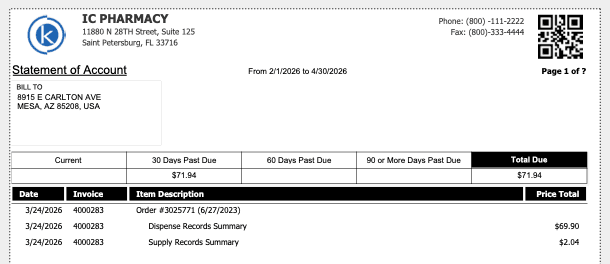
- Enter a date range:
- Start Date
- Stop Date
- Click OK to process the account statement.
8. Invoice Statement
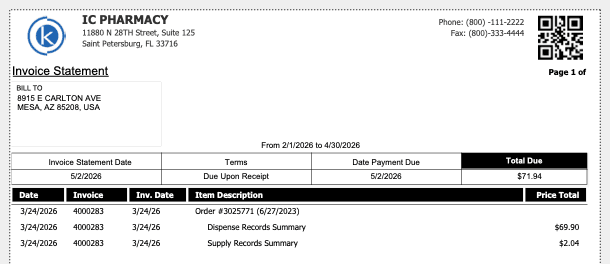
- Enter a date range:
- Start Date
- Stop Date
- Click OK to process the invoice statement.
This completes the step-by-step guide on:
What Reports are Included in Patients