
What Reports are Included in Prescriptions?
Step-by-step guide on generating and exporting reports in the Prescriptions module of SiCompounding.
Overview
The Reports feature in the Prescriptions module allows users to generate detailed, on-demand reports, including:
- All Reports
- Dispense Report
- DUR Report
You can filter, export, or print these reports depending on your workflow needs.
Accessing Reports
- Click the FileMaker Pro icon to open FileMaker.
- Select SiCompounding from the left menu bar.
- From the middle icons, click Pharmacy to open the Dashboard.
- From the blue sidebar menu, click Prescriptions.
- Click the Reports button at the top of the Prescriptions window.
A popup menu will appear with the following options:
All Reports
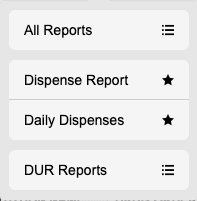
Selecting All Reports takes you to On-Demand Reports. The module defaults to Prescriptions. Step-by-Step: On Demand Reports & How they Work?
Dispense Report
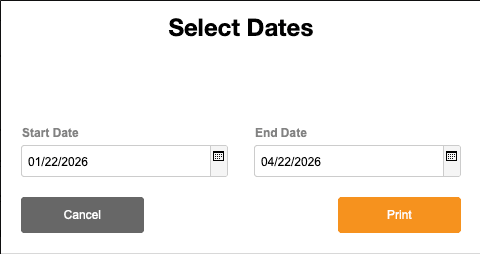
- A dialog prompts you to Select Dates. Enter From and To dates.
- Click Print to process the report.
- A dialog will confirm the creation of an .xlsx file on your desktop.
Daily Dispenses
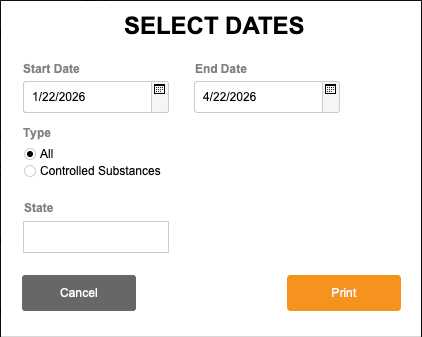
- A dialog prompts you to Select Dates. Enter From and To dates.
- Select Type. Either All or Controlled Substances.
- Schedule Type appears when Controlled Substances is selected. Choose Schedule from the Dropdown.
- Choose State or leave blank for all States.
- Click Print to process the report.
- A dialog will confirm the creation of an .xlsx file on your desktop.
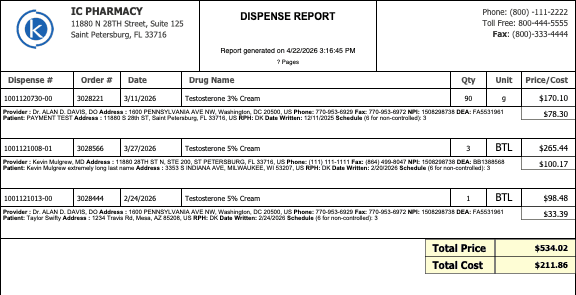
DUR Report

- Opens the DUR Records window.
- You can search prescriptions by:
- Rx Number
- Patient Name
- Provider Name
- Drug Ordered
- Press Enter to see search results.
Exporting Reports
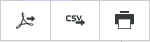
On the right side of the menu bar, you will see three Report/Print icons:
-
PDF Report:
Opens a dialog: “Exporting data from the found set of ### Prescription records to a PDF file on your desktop?”
Click OK to generate and save the PDF on your desktop. -
CSV Report:
Opens a dialog: “Export data from the found set of ### Prescription records to a CSV Spreadsheet on your desktop?”
Steps to customize CSV export:- Select columns from the list.
- Click Set as Custom to save this selection for future use.
- Use Export and Wait or Export and No Wait to generate the CSV.
- A Generating Report dialog will appear. Once finished:
- Click the report name.
- Select Export Field to File.
- Adjust Save As location or name if needed.
- Optionally, automatically open or email the file.
- Click Save.
-
Printed Report (printer icon):
Opens a dialog: “Export data from the found set of ### Prescription records to a printer of your choice?”
Click OK to open the print dialog and configure printer settings.
Additional Report Options
-
Filtered Queue:
Filters prescriptions by queue (e.g., Clarification) and staff.- Use Select Staff, Rx Source, or Category to refine results.
- Use the √ Show Mine box to filter your own prescriptions.
-
Search Button:
Similar to Filtered Queue. Search by Rx Number, Drug, or Patient Name, then press Enter.
Export or print reports from the found set using the Report/Print icons.
Notes
- All reports can be exported as PDF or CSV, and printed directly.
- CSV export allows customization of columns for consistent reporting.
- Reports respect the current filtered or searched dataset for flexibility.
This completes the step-by-step on:
What Reports are Included in Prescriptions