
Providers
How Do I Add a New Provider?
Step-by-step instructions for adding a new provider in SiCompounding.
Overview
This guide explains how to add a new provider in SiCompounding, including entering their personal, contact, licensing, and payment information.
Step-by-Step Instructions
Open SiCompounding
- Click the FileMaker Pro icon to open FileMaker.
- Select SiCompounding from the left menu bar.
- Click Pharmacy in the middle icons window to open the Dashboard.
Access Providers
- From the blue sidebar menu, click Providers.
- Click the + New Provider button at the top of the screen.
- A Provider Form will appear with six required sections.
1. Provider Information
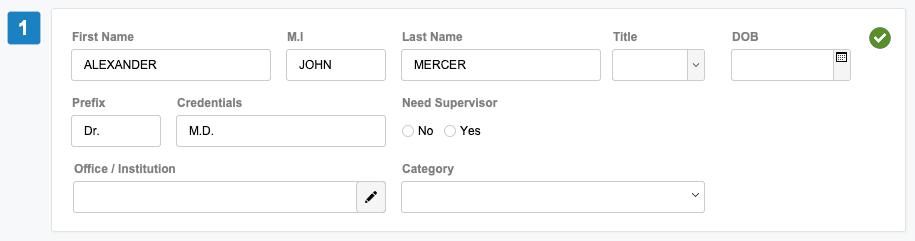 Enter the following provider details:
- First Name, Middle Initial, Last Name
- Title, DOB (calendar), Prefix, Credentials
- Need Supervisor: Yes | No
- Office / Institution (pencil icon)
- Category (dropdown)
2. Primary Addresses
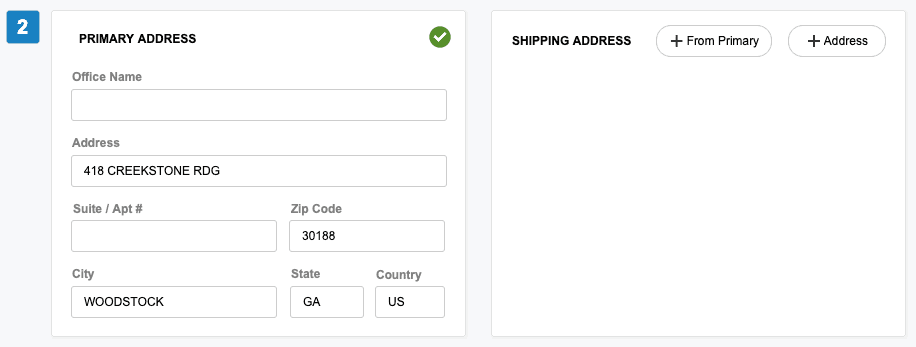 Enter:
- Office Name, Address, Suite/Apt #
- Zip Code, City, State, Country
Shipping Address
-
+ From Primary – creates a shipping address from the primary address.
-
+ Address – opens a form to enter:
- Recipient Name, Company Name
- Address Line 1, Address Line 2
- Zip Code, City, State, Country
- Business or Residential
- Save as Primary Address
-
Click Save when finished.
Shipping Address Actions (vertical 3 dots icon)
- Edit – modify the address; click Save when complete
- Maps – view area map, get directions, or open larger map
- Delete – opens a confirmation dialog; use DELETE to confirm or CANCEL
3. Contact Information
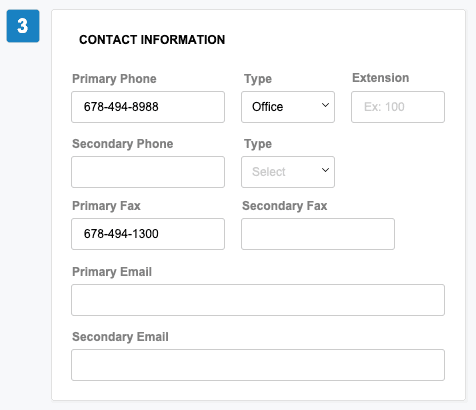 Enter the following contact details:
- Primary Phone, Type (dropdown), Extension
- Secondary Phone, Type (dropdown).
- Primary Fax, Secondary Fax
- Primary Email, Secondary Email
Additional Contacts
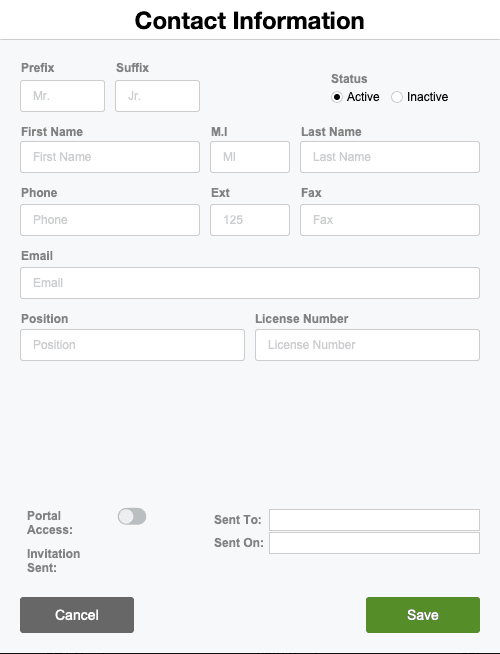
- Click + Contact to add additional contact info:
- Status: Active | Inactive
- Prefix, Suffix
- First Name, M.I., Last Name
- Phone, Extension, Fax, Email
- Position, License Number
- Portal Access: On | Off
- Sent To (email), Sent On (date), Invitation Sent (date)
- Click Save when finished.
4. Provider Identification Numbers
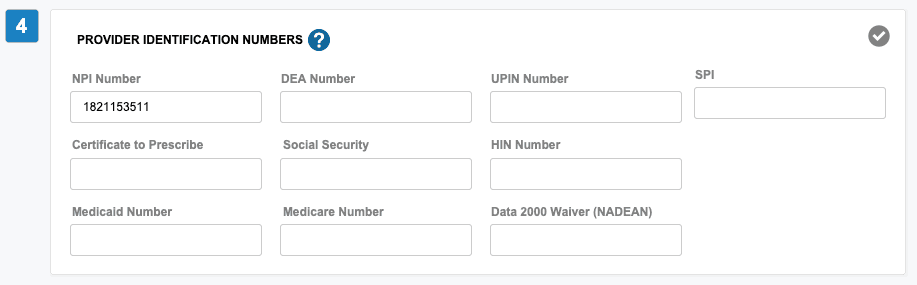 Physician information needs to be verified at least once a year within this time address and contact information could change:
- NPI Number, DEA Number, UPIN Number, SPI
- Certificate to Prescribe, Social Security, HIN
- Medicaid Number, Medicare Number and Data 2000 Waiver (NADEAN)
Note:
- NPI and State License numbers are required for dispensing a prescription.
- To dispense controlled substances, the physician's DEA number is required:
- 21 CFR 1311.205(b)(7) The pharmacy application must read and retain the full DEA number including the specific internal code number assigned to individual practitioners authorized to prescribe controlled substances by the hospital or other institution as provided in § 1301.22(c) [“Exemption of Agents and Employees; Affiliated Practitioners”].
- SiCompound provides a simple method to verify DEA, NPI and State License numbers under the Physician profile section.
5. Provider Licenses
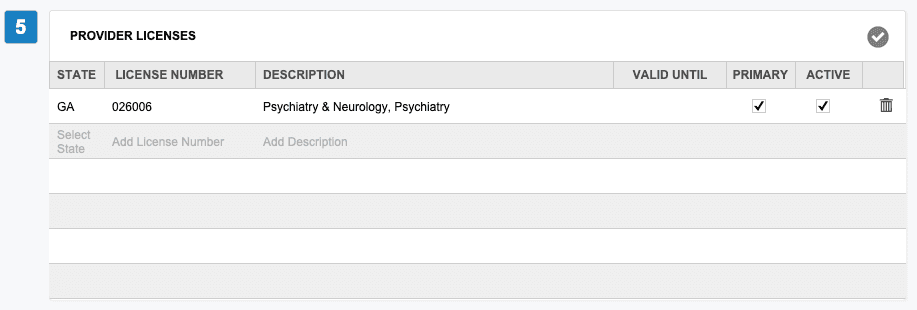
- Click under the State column (dropdown) to select a state which creates a new record.
- Add License Number, Description, and Valid Until date.
- Select checkbox if Provider is Primary and/or Active.
6. Payment Methods
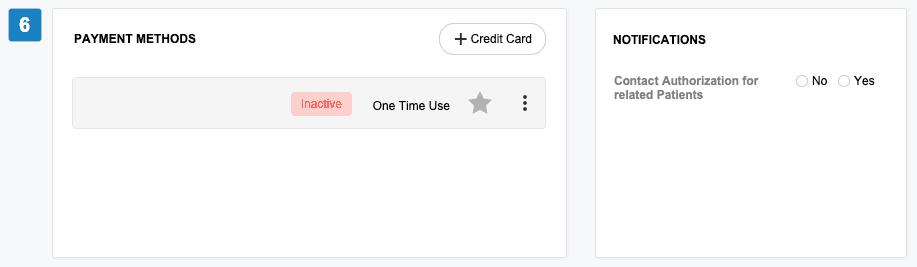
- Click + Credit Card to open the Add Credit Card window.
- Enter the following:
- Select Merchant (dropdown) – required fields appear automatically
- Bring from Cardholder pulls info from Patient Profile (optional)
- Usage: One Time | Save for Later
- Click Save Card when complete.
Notifications
- Contact Authorization for related Patients: Yes | No
- Refill Notifications: Yes | No
- Order Status Notifications: Yes | No
- Order Shipping Notifications: Yes | No
- New Rx Notifications: Yes | No
- Promotions Notifications: Yes | No
Final Check and Save
- Double-check all six sections for accuracy.
- Click Save Provider to save the new provider record.
- If information is incomplete, click Save and Complete Later.
This completes the step-by-step guide on:
How do I Add a New Provider