
Navigating Through the Provider’s Module?
Step-by-step instructions for navigating the Providers module in SiCompounding.
Overview
When healthcare providers and pharmacists work as a unified team, it leads to better health outcomes, more successful treatments and even lower overall medical costs. They are involved in various aspects of drug development, from research and clinical trials to regulatory affairs and marketing.
This guide explains how to navigate the Providers module in SiCompounding, including searching, editing, managing provider data and accessing the Prescriber Portal.
Step-by-Step Instructions
Open SiCompounding
- Click the FileMaker Pro icon to open FileMaker.
- Select SiCompounding from the left menu bar.
- Click Pharmacy in the middle icons to open the Dashboard.
- From the blue sidebar menu, click Providers.
Providers Window – List View Menu
Top-right menu options include:
- Lookup NPI – see: Step-by-Step: How do I Find Registered Providers?
- + Provider – see: Step-by-Step: How do I Add a New Provider?
- Reports – see: Step-by-Step: What Reports are Included in Providers?
- General Features: Lookup,
< Go Back, Help, Notifications (Bell icon) – see: Step-by-Step: General Features of SiCompounding?
Searching for Providers
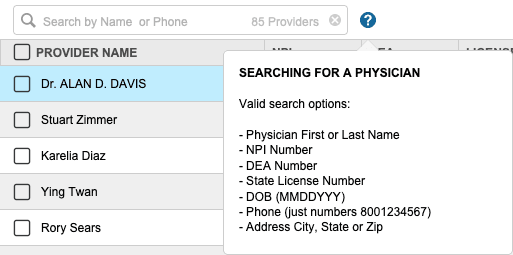
First click into the Search Bar. Valid search options in the Search Bar are the following:
- Provider First or Last Name
- NPI Number
- DEA Number
- State License Number
- DOB (MMDDYYYY)
- Phone (numbers only, e.g., 8001234567)
- Address, City, State, Zip
Filters:
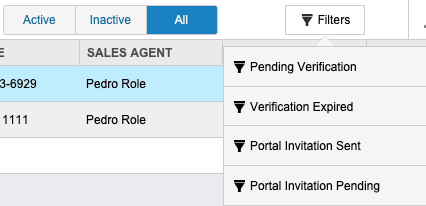
- Status: Active | Inactive | All
- Verification: Pending Verification, Verification Expired
- Portal: Invitation Sent, Invitation Pending
Printing: Provider data can be printed, exported to Excel, or saved as PDF.

Provider Walkthrough – Detail View
- Search for a provider by Name or Phone.
- Click the provider name to access the Provider Detail Window.
Sections:
-
The Provider Summary section allows adding or changing the information for the Provider when first created. Clicking Edit opens to the Provider Form providing data in the following Area:
- 1 Provider Information
- 2 Provider Address
- 3 Contact Information
- 4 Identification Number
- 5 Provider Licenses
- 6 Payment Methods
-
To review in more detail click this link: Step-by-Step: How do I Add a New Provider?
-
Communication Notes
-
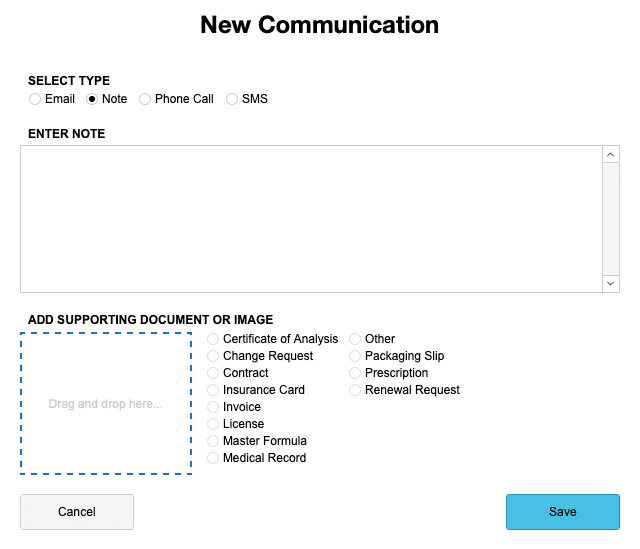
Add + Note - opens a New Communications dialog box to enter note details, including:
- Select Type from: Email, Note, Phone Call, or SMS.
- Enter Note: Continuous notes, Plenty of space for detailed notes.
- Add Supporting Document or Image: Drag and drop. Select type.
- Save Note.
-
Report OOS Event - opens a New OOS Report dialog box to enter details, including:
- Report Date, OOS Event Date (pick date), Department (dropdown), Description.
- OOS Description (20 Character Minimum): Continuous notes, Plenty of space for detailed notes.
- Submit and Start Investigation. Already started an investigation? Click Submit.
- Step-by-Step: Navigating the OOS Reports?
-
-
Stats: Total Patients, Prescriptions, CS Prescriptions, Total Value
-
**SiPrescribe Settings:
- Office Name: Displayed on the Provider’s Portal.
- Portal Access: Confirm email for invitation.
- Direct Rx & Direct Order: Access to prescriptions and/or Orders.
-
E-Prescribing Services: Access to E-Prescribing services, including Surescripts.
- Surescripts: Toggle On/Off. If On, select Surescripts Role from dropdown (Prescriber, Insitution, or Both).
Profile Sections
1. Contacts
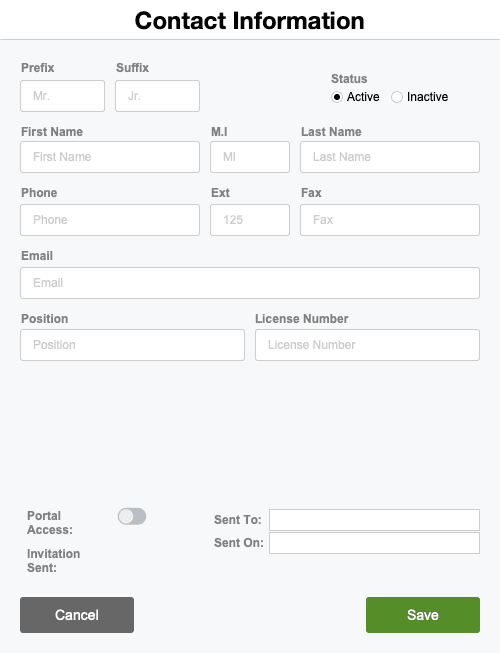
- + Contact Click to add a contact person for this provider. Enter the following information:
- Prefix, Suffix, Status (Active/Inactive), First Name, M.I, Last Name.
- Phone, Ext, Fax, Email, Position, and License Number.
- Portal Access (slide right ON), Sent To, Sent On, Invitation Set.
- Click Save when done.
2. Shipping Address
-
Enter Office Name, Address, Suite / Apt #.
-
Zip Code, City, State, Country.
Shipping Address
-
Add + Shipping Address or + From Primary
- Enter Recipient, Address, Zip, City, State, Country, Business/Residential
- Actions: Edit, Maps, Toggle Status, Delete, Access Logs, Change Logs
Shipping Defaults
-
Edit Default Delivery Method: Courier, Pickup, or Shipping Carrier.
- Click Close when done
3. Payment Methods
- Add + Card - Enter the following:
- Merchant (dropdown), Card Holder First Name, Cardholder Last Name
- Street Address, Zip Code, City, State, Country, and Usage (One Time or Save for Later)
- Record Actions:
- Edit
- Transactions
- Toggle Status
- Set as Stored
- Default Options for Adding Orders: Header Itemized, Header Summaries, Single Line, Auto-create Monthly Invoices
State Licenses
- Add + License: State, License Number, Valid Until, Description, Status
- Verification Logs: + DEA Verification, + NPI, + DEA
Marketing
- Add + Action: Type, Details, Supporting Docs/Images, Sales Agent
Supervised Professionals
- Search by Name, Email, or Phone; click row to open professional record
Learned Locations
- Search by Name or Address
Suggested Formulas
- Search by Formula ID or Name, filter by Active/Inactive
- Add + Formula → Master Formulas → + To List → Add Selected Items
- Options: + From other Provider, + From Prescriptions History, Favorites (Star icon), Actions (Remove or Go to Master Formula)
6. Provider’s Patients
- Search by Patient Name, DOB, Phone
- Actions (Vertical 3 Dots): Patient Details (opens Patient Profile), New Prescription
7. Provider’s Scripts
- Filter by Date Range (Last 30 Days default, options: Last Year, Year-to-Date, etc.)
- Search by Rx Number, Drug, Patient Name
- Click Prescription row for detailed view,
< Go Backto return
8. Provider Financial
Orders
- Filter by Date Range, search by Order Number or Date
Invoices
- Search by Invoice Number
Payments
- Search by Date, Amount, Notes
Shipments
- Search by Date or Tracking Number
Special Contract Price
- Add + Contract Price, select product, fill Sales Price Override, Notes
- Actions: Edit, Delete
Credits
- Issue a Credit: Enter Amount, Reason → Save
- Search by Date, Amount, Notes
Provider Documents
- Add + Document: Drag & Drop, Document Type, Description → Save
- Search by Filename, Actions: Document, Delete
9. Provider Actions
- Create Fax: Recipient Info, Attach Documents → Send
- View Faxes
- Send / Resend Portal Invitation (SiPrescribe / ID.me)
- Update from SS Directory
- Report OOS Event: Set Dates, Department, Description → Submit
- Set as Inactive / Deceased / Put Account on Hold
- Delete Provider (if no active records)
- Access Logs / Change Logs
This completes the step-by-step guide on:
Navigating Through the Providers Module