
Providers
What Reports Are Included for Providers?
Step-by-step instructions for accessing and generating provider reports in SiCompounding.
Overview
This guide explains how to access provider reports in SiCompounding, including all available report types and how to generate them with filters and date ranges.
Step-by-Step Instructions
1. Open SiCompounding
- Click the FileMaker Pro icon to open FileMaker.
- Select SiCompounding from the left menu bar.
- Click Pharmacy in the middle icons window to open the Dashboard.
2. Access Providers Reports
- From the blue sidebar menu, click Providers.
- At the top of the Providers window, click the Reports button.
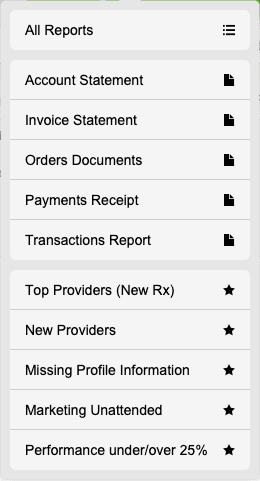
- A popup list appears with the following report options:
- All Reports
- Top Providers (New Rx)
- New Providers
- Missing Profile Information
- Marketing Unattended
- Performance under/over 25%
3. Generate Each Report
All Reports
- Opens the On-Demand Reports page.
- Module selected: Providers (default). Step-by-Step: On Demand Reports & How they Work?
Account Statement
- Opens a Please enter a date range for this report dialog.
- Enter Start Date and End Date.
- Click OK.
- Options available: Page Setup, Save as Excel, Save as PDF, Print.
- Close the report using the red close button at the top left.
Invoice Statement
- Opens a Please enter a date range for this report dialog.
- Enter Start Date and End Date.
- Click OK.
- Options available: Page Setup, Save as Excel, Save as PDF, Print.
- Close the report using the red close button at the top left.
Orders Documents
- Opens a Please enter a date range for this report dialog.
- Enter Start Date and End Date.
- Click OK.
- Options available: Page Setup, Save as Excel, Save as PDF, Print.
- Close the report using the red close button at the top left.
Payments Receipt
- Opens a Please enter a date range for this report dialog.
- Enter Start Date and End Date.
- Click OK.
- Options available: Page Setup, Save as Excel, Save as PDF, Print.
- Close the report using the red close button at the top left.
Transactions Report
- Opens a Please enter a date range for this report dialog.
- Enter Start Date and End Date.
- Click OK.
- Options available: Page Setup, Save as Excel, Save as PDF, Print.
- Close the report using the red close button at the top left.
Top Providers (New Rx)
- Opens a Select Dates dialog.
- Select State (optional, e.g., FL).
- Enter Start Date and End Date.
- Click Print.
- Preview window opens: Top Prescribers with date range.
- Options available: Page Setup, Save as Excel, Save as PDF, Print.
- Close the report using the red close button at the top left.
New Providers
- Opens a Select Dates dialog.
- Select State (optional).
- Enter Start Date and End Date.
- Click Print.
- Preview window opens: Recently Added Prescribers with date range.
- Options: Page Setup, Save as Excel, Save as PDF, Print.
- Close using the red close button.
Missing Profile Information
- Opens a Select Dates dialog.
- Select State (optional).
- Enter Start Date and End Date.
- Click Print.
- Preview window opens: Prescribers With Missing Info.
- Options: Page Setup, Save as Excel, Save as PDF, Print.
- Close using the red close button.
Marketing Unattended
- Opens a Select Dates dialog.
- Select State (optional).
- Enter Start Date and End Date.
- Click Print.
- Preview window opens: Marketing Unattended Prescribers.
- Options: Page Setup, Save as Excel, Save as PDF, Print.
- Close using the red close button.
Performance under/over 25%
- Opens a Select Dates dialog.
- Enter First Period: Start Date → End Date.
- Enter Second Period: Start Date → End Date.
- Click Print.
- Preview window opens: RX Ratio Change Over 25%.
- Options: Page Setup, Save as Excel, Save as PDF, Print.
- Close using the red close button.
This completes the step-by-step guide on:
What Reports are Included for Providers