
Compounding
What Reports are Included in Compounding?
Step-by-step guide to accessing the Compounding reports in SiCompounding.
Overview
This guide explains how to access Compounding reports in SiCompounding. Reports allow users to monitor, track, and analyze all compounding activities, including stock and prescription orders.
Step 1: Open FileMaker Pro and Navigate to SiCompounding
- Click the FileMaker Pro icon to launch the application.
- On the left menu bar, select SiCompounding.
Step 2: Open the Pharmacy Dashboard
- In the main window, click the Pharmacy icon located in the middle of the screen.
- This opens the Pharmacy Dashboard.
Step 3: Access the Compounding Module
- In the blue sidebar menu on the left, click Compounding.
- You are now in the Compounding module, ready to view reports.
Step 4: Open Reports
- At the top right of the Compounding window, click the Reports button.
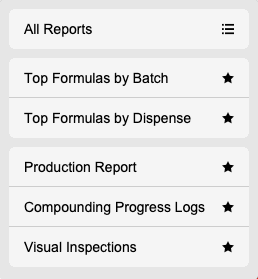
All Reports
- Opens the On-Demand Reports page.
- Module selected: Providers (default). Step-by-Step: On Demand Reports & How they Work?
Top Formulas By Batch
- Opens a Select Dates dialog.
- Enter Start Date and End Date.
- Click Select Type
- Click Select Product Type.
- Preview window opens: Top Formulas with date range.
- Options available: Page Setup, Save as Excel, Save as PDF, Print.
- Close the report using the red close button at the top left.
Top Formulas By Dispense
- Opens a Select Dates dialog.
- Enter Start Date and End Date.
- Click Select State.
- Click Select Type.
- Click Select Product Type.
- Preview window opens: Top Formulas with date range.
- Options available: Page Setup, Save as Excel, Save as PDF, Print.
- Close the report using the red close button at the top left.
Production Report
- Select an End Date using the date picker.
- Choose Frequency - Daily, Weekly, or Monthly.
- Choose Scope - All or Quarantine.
- Preview window opens: Production Report with date range.
- Options available: Page Setup, Save as Excel, Save as PDF, Print.
- Close the report using the red close button at the top left.
Compounding Progress Logs
- Opens a Select Dates dialog.
- Click Select State.
- Enter Start Date and End Date.
- Preview window opens: Compounding Progress Logs with date range.
- Options available: Page Setup, Save as Excel, Save as PDF, Print.
- Close the report using the red close button at the top left.
Visual Inspections
- Opens a Select Dates dialog.
- Click Select State.
- Enter Start Date and End Date.
- Preview window opens: Visual Inspections with date range.
- Options available: Page Setup, Save as Excel, Save as PDF, Print.
- Close the report using the red close button at the top left.
✅ This completes the step-by-step guide for accessing Compounding reports.