
Compounding
How to Compound From Stock or Prescription?
Step-by-step instructions for compounding medications from stock or prescription in SiCompounding.
Overview
When beginning the compounding process, the formula used will either be:
- Stock Compounding – Refill from pre-existing inventory
- Prescription Compounding – Made from scratch for a specific patient
The general process after initiating either method is largely the same. This guide covers both pathways and the general compounding workflow.
Step 1: Open FileMaker Pro and Navigate to Pharmacy
- Click the FileMaker Pro icon to open the application.
- From the menu bar on the left, select SiCompounding.
- In the middle window, click Pharmacy to open the Dashboard.
Step 2: Stock Compounding (Refill from Inventory)
- In the blue sidebar menu, click Formulations.
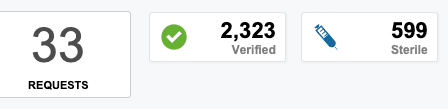
- At the top of the Formulations window, click Verified to access all verified formulas.
- Use the Search bar to locate the formula.
- Click the Actions button from the rightside of the Main menu.
- Select Create Compounding Order from the dropdown.
- In the New Compounding Record window:
- Section 2: Enter the Batch Size (number of units to make)
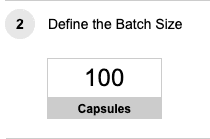
- Section 4: Select Stock for Inventory and Patient for Prescription.

- Section 2: Enter the Batch Size (number of units to make)
- Click Create to send the formula to Compounding.
- In Compounding, click Search at the top, locate the formula, and open it.
- If a Hazardous Products alert appears, click the USP link for safety details, then > Continue.
Tip: Adjust batch size as needed for partial batches or link orders to combine multiple orders of the same formula.
Step 3: Prescription Compounding (Patient-Specific)
- In the blue sidebar menu, click Compounding.
- Use the Lookup button and scan the prescription document to access the patient’s profile.
- Click Pending Lot Creating to start the compounding process.
- Follow General Compounding Instructions below.
General Compounding Instructions
1. Start
- Select the compounding area by clicking Area.
- In the Select Compounding Areas window, move the desired area to Area Selected and click Close.
- Select the equipment to be used by clicking Equipment.
- Move required equipment to Equipment Selected and click Close.
- Click Review and Acknowledge to proceed to components and ingredients.
2. Components
Weigh and prepare ingredients according to formula instructions:
Example workflow:
- Weigh powders in the powder hood.
- Triturate active ingredient (e.g., progesterone) to a homogenous powder.
- By geometric addition, combine powders with excipients.
Instructions for each ingredient:
- Click Weigh to calculate required amount.
- Scan QR code; expected weight appears on the scale.
- If weight does not appear, click Set Value.
- Click Print when ingredient is ready.
Note: Substitute warnings will appear if a required ingredient is unavailable.
Packaging Supplies:
- Scan each supply and enter required information.
Documentation:
- Click Take Photos to capture ingredients and supplies.
- Click SureIntelligence Verification Set as Ingredients Verified and wait for head pharmacist verification.
- Click Start to proceed.
3. Mix Preparation
- Click Create Sub-Batches if machine capacity requires multiple batches.
- Set capsules per batch; the system will divide formula accordingly.
- Weigh each batch and click Print when it passes weight tests.
- Perform capsule weight test for 10% of batch:
- Tare scale, weigh capsules, click Set Value.
- Repeat until batch verification is complete.
- Once all batches pass, the head pharmacist must verify.
- Click Finish Non-Sterile Prep.
4. Quality Checks
- Click Visual Inspection.
- Inspect capsules and packaging according to protocol.
- Check all visual elements, then click Complete.
- Request quality checks verification.
5. Release (Head Pharmacist)
- Review all documentation and verifications.
- Verify or select N/A for each step.
- Submit for final release.
- After verification, create the prescription label via the Actions menu.
✅ This completes the step-by-step guide for compounding from stock or prescription.