
Navigate Through SiCash?
Step-by-step instructions for navigating and using the SiCash Point of Sale system.
Step-by-Step Instructions
SiCash Navigation
This guide walks through the full workflow of navigating and operating SiCash, from Setup, opening the application, completing transactions, to setting up consultations if needed. Note: Reach out to support to confirm hardware and software configuration has been completed.
Facility Setup for SiCash
- Click the FileMaker Pro icon to open FileMaker.
- When FileMaker opens, locate the large menu bar on the left.
- Select Facility Setup (near the bottom).

- From the menu on the left side of the window, click Terminals.


- Find this Computer - click this button to locate the terminal you are using (top of the window). It will display the terminal name and IP address.
- In the POS Data section select the Used for POS checkbox.
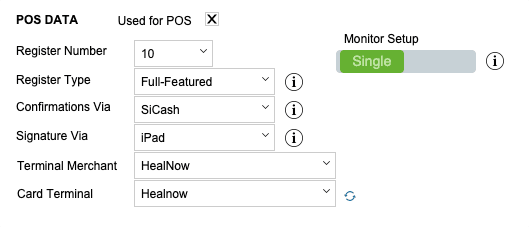
- Select the Register Number from the dropdown menu.
- Monitor Setup Choose Single Monitor or Multi-Monitor via slider.
- Single Monitor: One monitor will handle both store POS functions and customer inputs.
- Multi-Monitor: There is a dedicated customer-facing screen for customer input.
- Choose Register Type: Credit Card Only, Full-Featured, or View Only.
- Credit Card Only: Register does not have a cash drawer. Register will only accept credit card payments. Cash payment mehod will be hidden.
- Full-Featured: All payment methods will be accepted at register.
- View Only: Register will only be used to view transactions and register history. No transaction will be started/completed at this register
- Select Confirmations Via Device: CC Terminal, iPad, or SiCash 2nd monitor.
- Confirmations: Confirmations are the answers to the questions gathered during finalizing a POS transaction.
- SiCash (In-App): Confirmations will be answered in-app on the SiCash 2nd monitor.
- CC Terminal: Confirmations will be answered within the selected credit card terminal (if terminal supports confirmations).
- Choose Signature Via Capture Method: CC Terminal, iPad, or SiCash 2nd monitor.
- SiCash (In-App): Signature will be collected in-app on the SiCash 2nd monitor.
- CC Terminal: Signature will be collected within the selected credit card terminal (if terminal supports signature capture).
- Select Terminal Merchant from the dropdown menu. Example: HealNow.
- Select ** Card Terminal** from the dropdown menu. Example: HealNow.
Launching SiCash
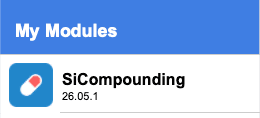
- Click the SiKore icon in the upper left corner of your screen.

- Select SiCompounding (near the top).
- From the icons displayed across the center of the window, click SiCash.
- Enter your PIN to gain access.
SiCash Home Screen Overview
- You are now on the SiCash Home Screen window 1 of 3 displaying the top menu.

- Click Devices Status to view the status of connected devices (e.g. receipt printer, credit card terminal, device diagnostics, photo, etc.).
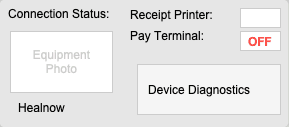
- Click Settings Overview to review and adjust SiCash Settings and Current Monitor Settings by cicking one of these buttons as needed (covered in the General Settings area below).
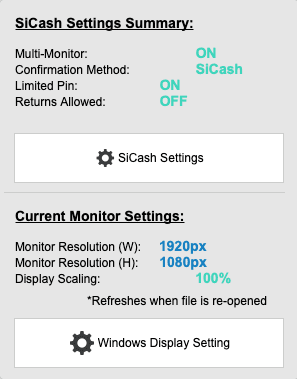
- Click Devices Status to view the status of connected devices (e.g. receipt printer, credit card terminal, device diagnostics, photo, etc.).
- Click Help to access the help documentation and support resources. See: Step-by-Step: Is the Help Button Important?
Register Cash Drawer Area
- Cash-In Register (register status:Closed) click to open the cash drawer and start the register for the day.
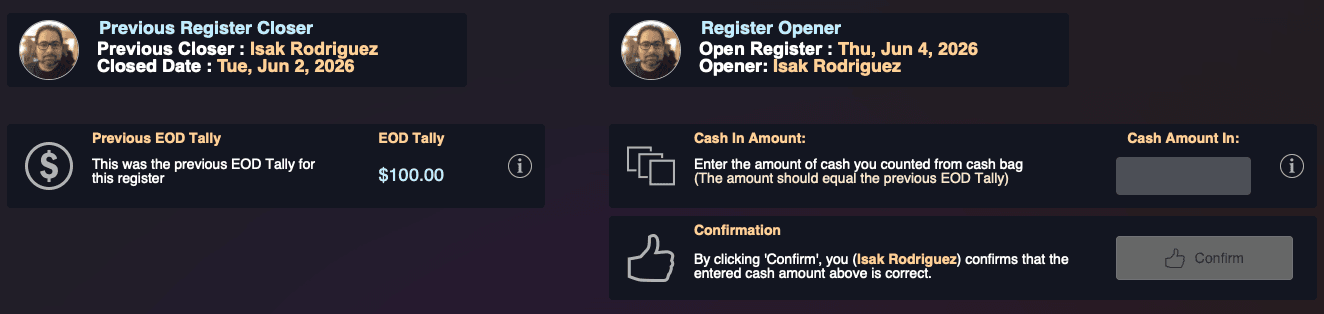
- After clicking, enter the starting cash amount and Confirm to open the register.
- Cash Amount In: This is the amount of money you are putting into the cash drawer when opening the register. Reserve set for: (Example) $100.00. After confirming the cash amount, the register status will change to Open and you can start processing transactions.
- After clicking, enter the starting cash amount and Confirm to open the register.
- Open Cash Drawer (register status: Open) click to open the cash drawer at any time during an open register shift. Will require a reason for opening the cash drawer (e.g. Cash-In, Cash-Out, Price Override, etc.).
Transactions / Reports / Settings
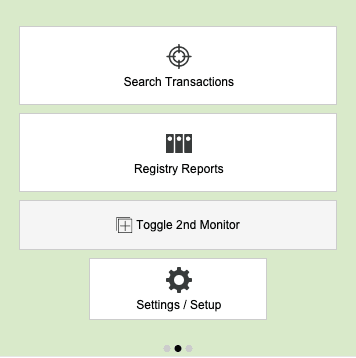
General Settings
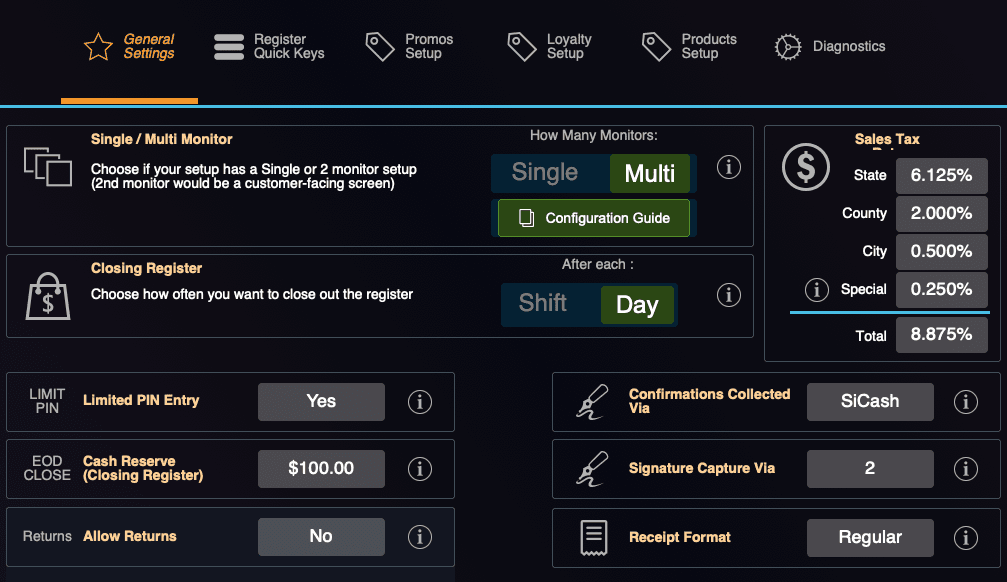
- Settings/Setup before going through the transaction workflow, it is important to review the settings and setup options to ensure the register is configured correctly for your pharmacy's needs.
- Click Settings/Setup to review and adjust settings as needed. See the Settings/Setup section below for details on each setting.
- Monitor Mode: Single or Multi-Monitor
- Single: One monitor will handle both store POS functions and customer inputs.
- Multi-Monitor: There is a dedicated customer-facing screen for customer input.
- Closing Register: Per Shift or Per Day Functions:
- End of Shift: Staff will need to close out the register after each of their shifts. Multiple register closes can be performed within a day.
- End of Day: Staff will only close register at the end of a full day. Only one register close can be performed per day.
- Sales Tax Rates: State, County, City, Special
- Special Sales Tax Rate: This setting would be any sales tax enacted by law that does not conform to normal geographical guidelines.
- Limited PIN Entry
- This setting limits the number of times the number of times a user is required to enter their PIN.
- POS End of Day Cash Reserve
- This settling defines how much money should be reserved for the next opening of register.
- POS Retuns Allowed
- This settling defines if returnable items can be returned.
- Customer Confirmations Method
- This settling defines whether customer confirmations will be collected via the credit card terminal or within the SiCash app.
- Example of Confirmations: "Do you want to accept the pharmacist consultation?" or "Do you confirm that you are picking up for [Patient Name]?"
- Signature Capture Via
- This settling defines whether customer signature will be collected via the credit card terminal or within the SiCash app.
- Receipt Format:
- Choose whether to have receipt print on regular receipt size or 8.5x11 (letter) size.
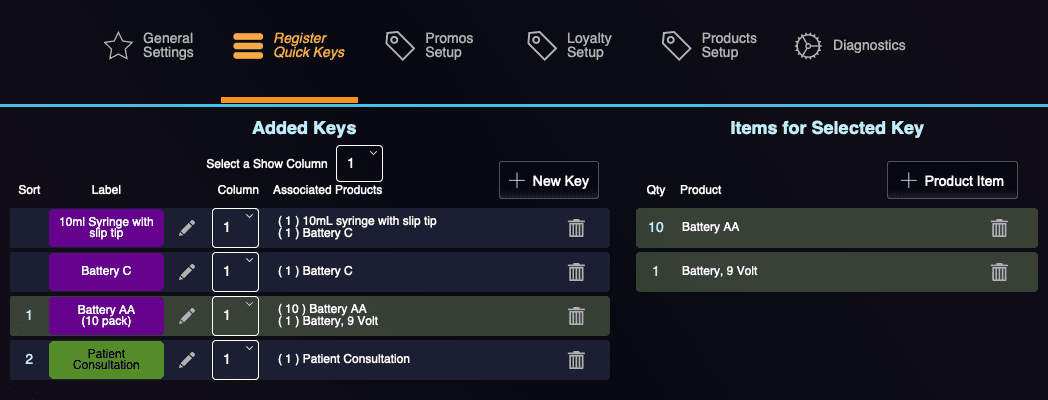
Register Quick Keys
-
+ Add Quick Key allows you to set up quick keys for one or more commonly sold products or services that have been added in the + Product Item section. These quick keys will appear on the home screen for easy access during transactions.
- Quick Key Label: Name of the quick key (e.g. "Consultation Fee", "CBD Oil 250mg", etc.)
- Background Color: Color of the quick key button on the home screen.
- Text Color: Color of the text on the quick key button.
- Show in Column: Specify which column the quick key will appear in.
-
+ Product Item allows you to set up quick keys for a commonly sold product or service within the SiCash app. These products can be used in combination with quick keys to streamline the transaction process.
Additional Settings (Future Development)
- Promos Setup
- Loyalty Setup
- Products Setup
- Diagnostics
- Used to test connected devices:
- Receipt printer
- Credit card terminal
- Includes:
- Test print confirmation
- Used to test connected devices:
Start Transaction
- Start Transaction
Becomes active after the register is opened and starting cash is entered. - First let's go through the whole transaction workflow, from prescription entry, possible compounding the product, putting together the order, and finalizing the transaction.
1. Prescription - Intake Process

Click the + New Rx button at the top of the screen.
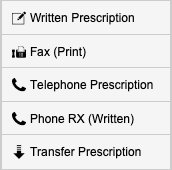
- Select Written Prescription
- Opens an Add Document window.
- Drag and drop any related documents.
- Choose document type and add a description.
- Click Save.
Prescription Form
- A new page opens with Prescription Number.
- Fields in Orange are Mandatory.
Key Fields

- Prescription Origin: Defaults to selected origin but can be changed via dropdown.
- Date Written: Use the calendar icon.
- Earliest Start Date and End Date Override: Enter manually or via calendar.
- Clinical Trial RX: Yes/No. If Yes, select Study Protocol.
- TeleHealth Prescription: Yes/No.
Patient and Provider Selection
-
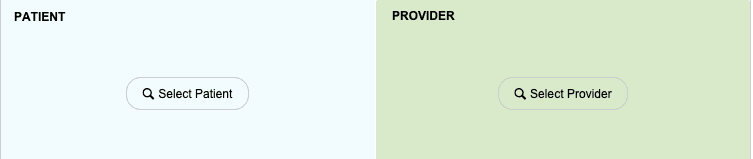
Patient: Click Select Patient → search by Name, Code, or DOB.
- If not found, click + New Patient. Step-by-Step: How do I add a New Patient?
-
Provider: Click Select Provider → search by Name.
- If not found, click + New Provider. Step-by-Step: How do I add a New Provider?
Select Prescription and Drug Type

-
Select Prescription Type from dropdown. Options include:
- 0 - Commercially Available Drug, 1 - Compounded, 2 - IV Admixture, 4 - Vitamin Mixture, 5. Vitamin Mixture (Volume priced), 6 - Clinical Trial Drug, 7 - Prescription Supply.
-
Select Drug Type from dropdown. Options include:
- Pharmacy Product: Search inventory for the desired product. If not found and can be compounded, click New Formula.
-
New Formula: Create from template or scratch.
- Start from a formula template for efficiency.
- Click the template to start or click New Formulation if no template is available. Enter the name of the drug ordered in the prescription (e.g., Testosterone 25mg/GM Cream) and click OK.
-
For TPN, options include:
- Start From TPN Formula Template
- Start From Prior Patient TPN Formula
Directions and Dosage
-
Enter Directions for Use in the text box.
-
Optional: Click Suggested SIG for pre-written directions.
-
For multiple instructions, click Multiple SIGs.
-
Enter:
- Qty
- Fill Days
- Refills (validated per DEA & State regulations)
- Authorized Dates
- Dispense As Written (DAW)
Additional Prescription Details
-
Priority: Yes/No
-
Payment Method: Choose from dropdown
-
Paid By: Dropdown
-
Institution Name: Select Practice/Facility if applicable
-
Notes, Delivery Requests and optional Appointment button for time sensitive Order deliveries.
-
Patient Diagnosis Provided in the Prescription Information? Yes/No options, and if Yes, select the + Diagnosis to add relevant diagnoses.
Submission Process

-
Prior to submission, you can click from the above Actions button to:
- Send to Clarification to clear something up before Submission.
- Request Change by Fax to request modifications via fax.
- Print Back Tag (Dymo) to print a back tag for the prescription.
-
Click the Go to > button above to navigate to different sections of the prescription for verification or changes in Patient, Provider, Master Formula, Inventory Product or Prescription View information.
-
It's not a bad idea to check Rx History just to be safe.
-
Before this prescription can move To Dispense in the Fulfilment Management process, it will need to be verified by a pharmacist (Needs Verification) message displays on top.
-
Click Verify Prescription from the Actions button to submit the prescription for pharmacist review.
-
Going back to the Intake Process queues in the Prescriptions module, the prescription will have moved from the In Process queue to the Verification queue waiting for pharmacist review.
-
The pharmacist will pick the prescription needed for review.
- Go through the Pre Verification Checklist one by one. If any items are not met, the pharmacist can click Send Back to Intake with a reason for why it is being sent back (e.g. Need More Info, Clarification, etc.). This will send the prescription back to the intake queues for follow-up action - or:
- The pharmacist can click the View Intake button to make any changes and then return to the verification process.
- If everything looks good, the pharmacist can click Verify All List Items to bypass checking each one. Notes can be added at this point.
- Also, if the pharmacist wants to add information to the DUR report, they can click DUR Check to add any necessary information before finalizing the verification. In settings, there is an option to require DUR checks before verification and also final checks.
- Once everything looks good, click Verify Prescription to finalize and submit the prescription for fulfillment.
- The prescription will now move to the To Dispense queue in the Fulfillment Management process.
Rx Fulfillment Management

- To Dispensed Progress bar shows prescriptions waiting to be dispensed; may require additional info.
- Select the Prescription record to view details and proceed with fulfillment.
- Click + Dispense button to move the prescription to the next step. This will create a new Order.
2. Orders - Fulfillment Process

Dispensed (Today)
-
The Dispensed Order is in this queue waiting on required information before entering the pharmacy workflow.
- Click the Order to view details and add required information.
- Click Edit to add required information for fulfillment:
- Priority can be assigned to this order by selecting the Priority checkbox. This will flag the order as a priority order and it will be highlighted in red in the queue.

- Prescription Drugs, OTC Drugs, and Supplies can be added by clicking the respective buttons. This will open a new window where you can search for the items by name or NDC and add them to the order.
- Priority can be assigned to this order by selecting the Priority checkbox. This will flag the order as a priority order and it will be highlighted in red in the queue.
Adding Prescription Drugs to your Order
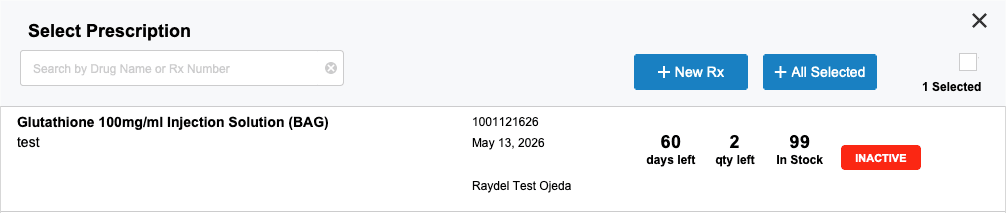
- Click + Prescription Drug
- Select Prescription window opens
- Choose from existing patient prescriptions or click + New RX (add link to New Rx guide)
- Search by Drug Name or Rx Number and then select items using checkboxes
- Click + All Selected to add to order
- Close window using X in upper-right corner
Adding OTC Drugs to your Order

- Click + OTC Drug
- Search by Product Name or NDC
- Click + To List to add to order
- Click + Add Selected Items
- Remove items with X if needed
- Close window using X in upper-right corner
Adding Supplies to your Order

- Click + Supply
- Search by Name or NDC
- Filter Active | Inactive | All
- Click + To List
- Click + Add Selected Items
- Close window using X when finished
Shipping
Order Delivery Information
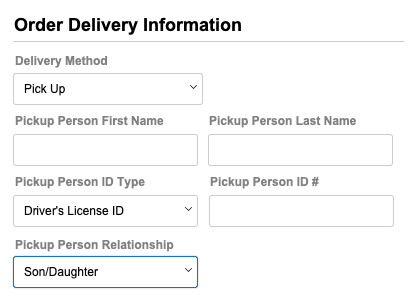
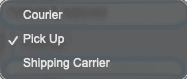
- Delivery Method - select Pickup from dropdown menu for POS transactions.
- Pickup Person First and Last Name
- Pickup Person ID Type
- Pickup Person Id #
- Pickup Person Relationship to Patient
Payment Information
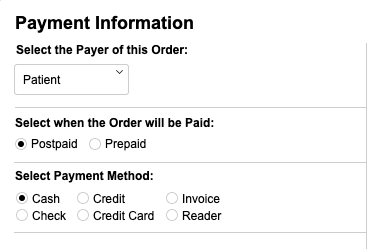
- Select the Payer of this order, Patient, Physician, Institution, or Study Sponsor
- Select when the Order will be paid: Postpaid (POS) or Prepaid
- Select Payment Method for this order: Cash, Check, Credit, Credit Card, Invoice, or Reader
Communications
- Report OOS Event - If there are any Out of Stock items in the order, click this button to report the OOS event. This will open a new window where you can select the OOS items, provide details about the event, and submit the report.
See: Step-by-Step: How to Report an Out of Stock Event
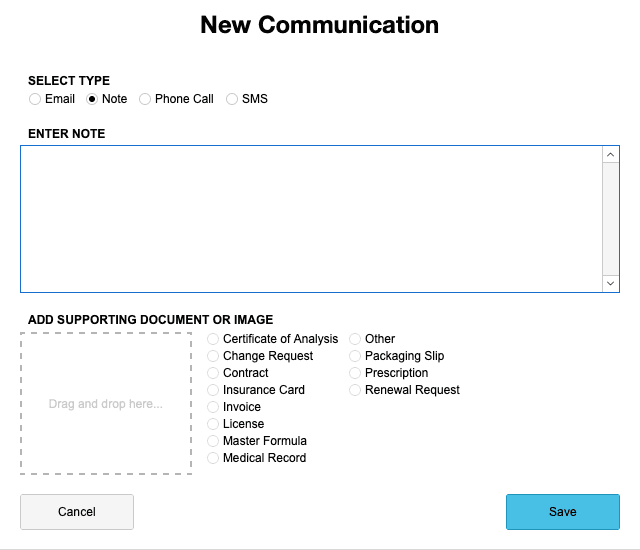
- + Note - Click this button to add any internal notes related to the order. This will open a New Communications window where you can enter the note details and save it to the order.
- Edit - Click this button to create or modify an existing Highlight Note.
- Highlight Note - This note will be highlighted in red on the order and will also trigger a red flag on the fulfillment queue to alert staff of important information related to this order.
- Pick Sheet Notes - This note will appear on the pick sheet for the order, providing additional instructions or information for the staff preparing the order.
- Billing Notes - This note will appear on the invoice for the order, providing additional information for the billing team or the customer.
- Order Notes - This note will be attached to the order and can be viewed by anyone with access to the order details.
- Edit - Click this button to create or modify an existing Highlight Note.
Order in Pharmacy
- Prior to a POS Transaction, you can click from the above Actions button to:
- Send to Pharmacy to move the order to the pharmacy fulfillment queue.
- If any of the Drugs need to be Compounded, a compounding log will be created automatically in Compounding and the order will be sent to the New Compounding queue in the Lab Management process.
- Compounding or stock has been verified and the order is ready for Final Check - click the Dispense √ Mark.
- Your DUR Report may auto open to review any potential drug interactions or other warnings. If there are any issues that need to be resolved, you can click Send Back for Corretion to send the order back to the previous queue for follow-up action, otherwise:
- Select the Verify and Dispense button to submit the order in the Actions dropdown for pharmacist review and final check before moving to the Ready to Pack queue.
- Select the Set as Ready to Pack button in the Actions dropdown. Can be disabled in Settings if you want to require pharmacist review before moving to Ready to Pack. If selected, the order will bypass pharmacist review and move directly to the Ready to Pack queue.
- Select the Set as Ready to Pick-up button in the Actions dropdown. Now we're ready to process this order as a POS transaction, so if this button is selected, the order will bypass pharmacist review and move directly to the Ready to Pick-up queue. This will make the order available for selection at the register when processing the POS transaction.
Recipient Address
- Select Address button:
- Choose from Patient, Physician, Institution, or Study Sponsor
- Select an address below and click Apply or click + New Address
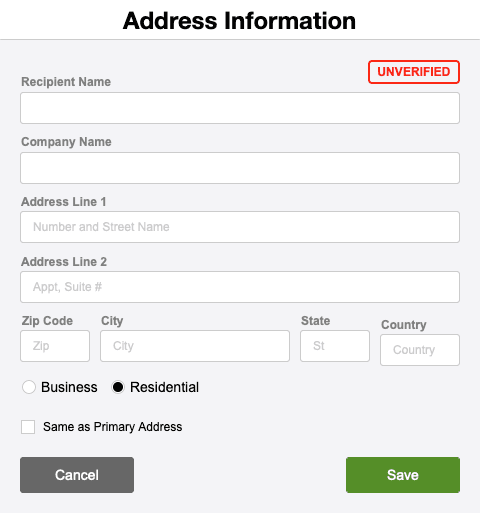 Required fields:
 - Recipient Name
- Company Name
- Address Line 1 & 2
- City, State, Zip, Country
- Business or Residential
- ☐ Same as Primary Address
- Click Save
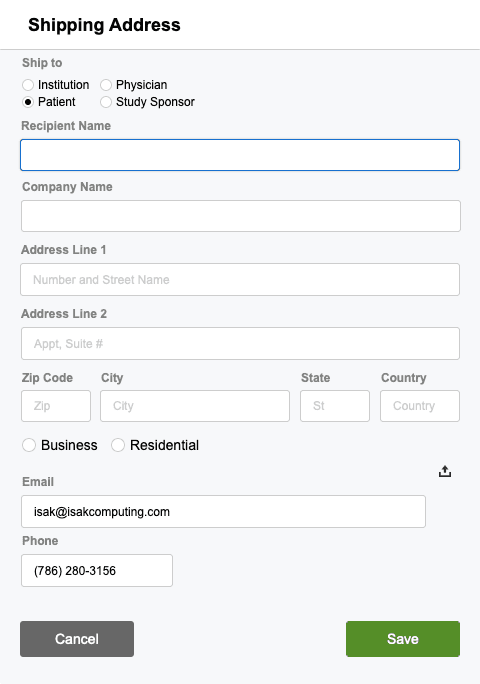
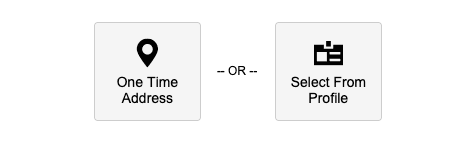 One Time Address - Required fields: Screenshot of One Time Address form
Shipping Summary
- Shipping Service Rate
- Shipping Extras
- Shipping Override (
0= free shipping)- Use this field to override the system calculated value for shipping price.
- Enter
0in the Shipping Override field to not charge for shipping.
- Subtotal Shipping
- Other Orders in this Shipment - Click + Link to include additional orders in the same shipment. Click Close when complete.
- Monitoring Devices - Click + Device to add any monitoring devices included in the order. Search by Name or NDC, filter Active/Inactive/All, verify stock availability, click + To List, then click + Add Selected Items. Close window using X when finished.
Order Review for POS Transaction
- Check shipping information, and prescription information to ensure everything is correct before finalizing the transaction in the POS system.
- Take one more look at the Fulfillment Management queues, by clicking the Orders button in the leftside menu bar.
In Pharmacy
- Displays a progress bar
- Shows the number of orders currently in pharmacy per hour
- Orders that have passed “Send to Pharmacy” verification
Ready to Pack
- Orders are complete and ready for packaging (POS transaction can be finalized at this stage)
Shipped / Pickup (Dispensed)
- Orders have left the facility
- Final fulfillment status
Start POS Transaction
- Click Start Transaction.
- Scan:

- UPC barcode
- Order QR code
- Prescription
- Or click the Search for Patient button:
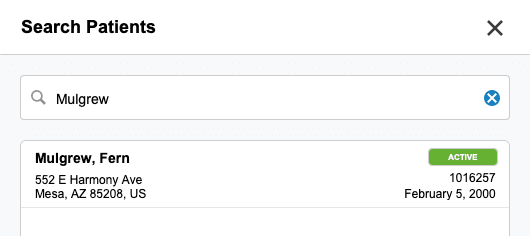
- Name
- Date of birth
- Phone number
- Select the patient from the search list and click Select Patient.
- POS Details opens: This will bring up the patient's available orders for selection in the transaction workflow.
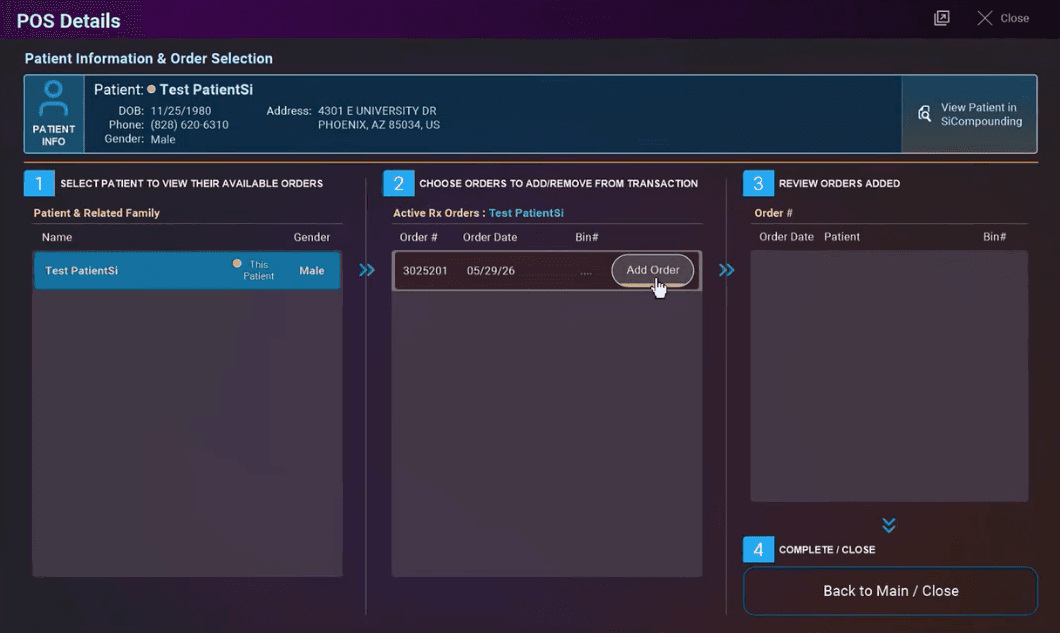
- If the patient has an order that is in the Ready to Pack queue, it will be available for selection in the transaction workflow.
- Click the Add Order button for each order to include it in the transaction.
- After adding all desired orders, click Back to Main / Close.
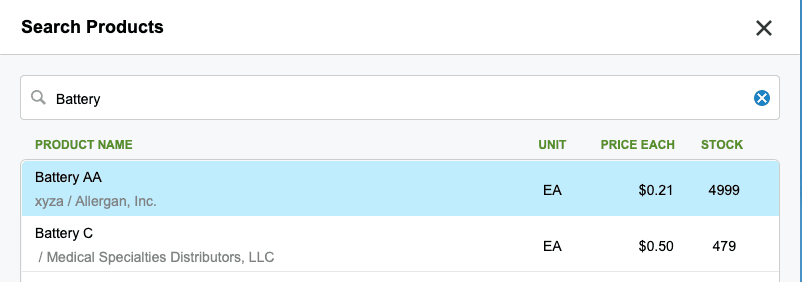
- If the patient needs other products or supplies that are not included in the order, you can add those during the transaction workflow by clicking the Products button.
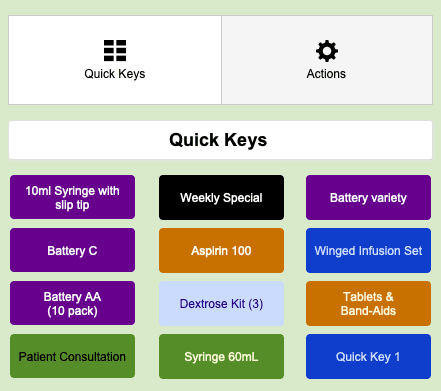
- An item can be selected from the display of Quick Keys. Click the product button to add it to the transaction.
- Now with the Order being complete, you can proceed to click Finalize Transaction.

-
- The transaction is displayed to the customer on the customer-facing screen to Confirm patient information, and a series of confirmation questions will be asked to the customer before processing the payment and printing the receipt.
-
- Confirm you are receiving all listed medications and products, and click Confirm. Note: button to show or hide Drug Names.
-
- Does the patient require consultation from the pharmacist? Accept or Decline.
-
- Capture signature from the customer on the customer-facing screen.
-
- Choose payment method, process Amount Remitted and click Process Payment Note: handles split payments. Click Complete Transaction to finalize the transaction, print the receipt, and process the order for fulfillment.
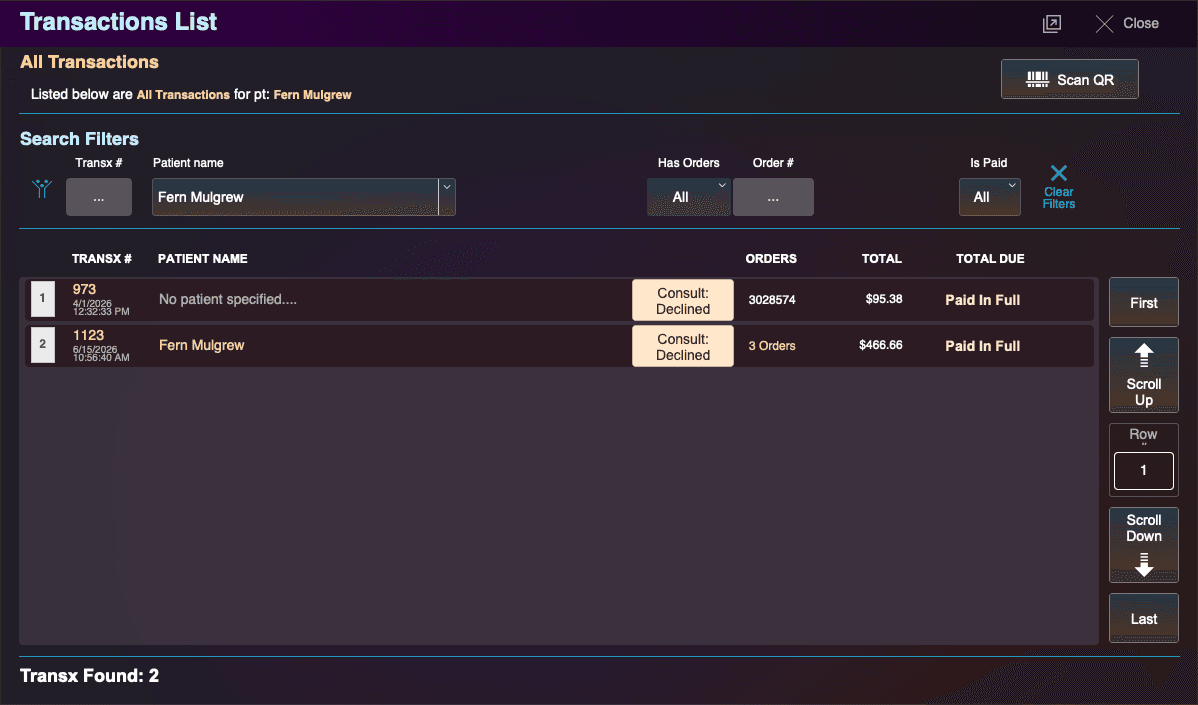
Search Transactions

- Click Search Transactions to view past transactions and search by:
- Transaction #
- Scan Order QR Code
- Select Patient Name from dropdown list.
- Filter transactions by:
- Has Orders: All | No | Yes
- Is Paid: All | No | Yes
- Enter Order # to locate
- Use navigation buttons to move through long lists of transactions.
Registry Reports
- Click Registry Reports.
- View a complete log of Register Openings and Closings.
- Register Log Details
- Register number
- Opener and closer
- Date and time opened/closed
- Register Status (e.g. Open, Closed, Credit Card Only, etc.)
- Total Sales and Cash Deposits
Register Shift Details
Includes:
-
Shift details
- Cash count
- Payments by:
- Cash
- Check
- Gift Card
- Credit Card
- Credit
- HSA
- Total transactions
Additional options:
- Mark register as Credit Card Only
- Confirm cash count accuracy
- Verify:
- Cash reserve for next opening
- Difference from expected cash count
Completion
This concludes the step-by-step guide for navigating and using SiCash.