
Formulations
What Reports are Included in Formulations?
Step-by-step guide for accessing and navigating Formulations reports in SiCompounding.
Overview
This guide covers how to access Formulations reports within SiCompounding. Reports provide insights into formulas, ingredients, QA, and other formulation-related data.
Accessing Formulations Reports
- Click the FileMaker Pro icon to open the application.
- When FileMaker opens, locate the large menu bar on the left side of the window.
- Click SiCompounding (near the top of the menu).
- In the next window, click Pharmacy from the icons across the middle of the screen to open the Dashboard.
- In the blue sidebar menu on the left, click Formulations.
- At the top of the Formulations window, click the Reports button.
A popup list will appear with the available Formulations report options.
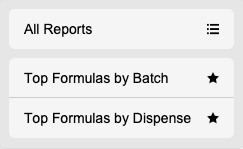
Formulations Report Options
All Reports
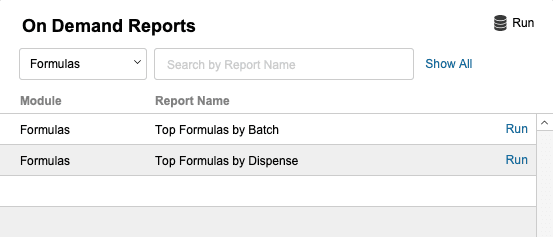
- Selecting All Reports opens the On-Demand Reports window.
- The Formulations module is selected by default.
Top Formulas by Batch
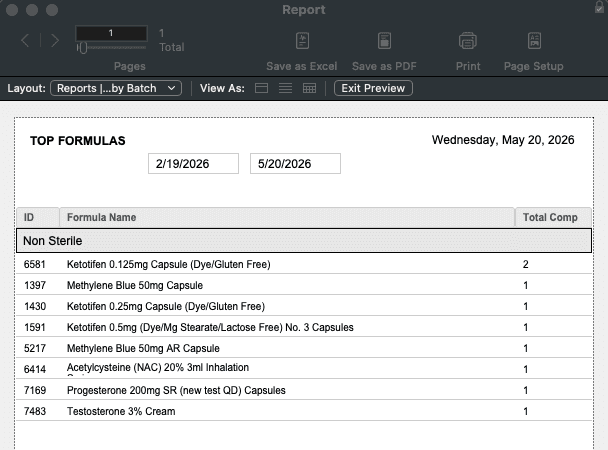
- Select Top Formulas by Batch.
- A dialog appears prompting you to Select a date range entered below.
- Enter a Start Date and End Date.
- Enter Type if applicable choose between Sterile or Non-Sterile.
- Enter Product Type if applicable choose from the available options dropdown.
- Click Print to process the report or Cancel to exit.
- A report is generated and is displayed in a new window.
- Click the Save as Excel button to download the report as an Excel file.
- Select the Save as PDF button to download the report as a PDF file.
- Use the Print button to print the report directly from the application.
Top Formulas by Dispense
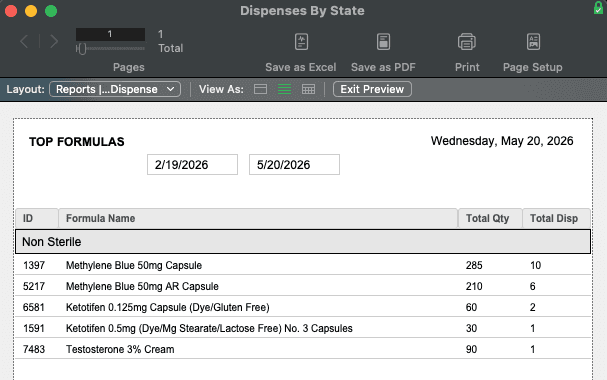
- Select Top Formulas by Dispense.
- A dialog appears prompting you to Select a date range entered below.
- Enter a Start Date and End Date.
- Enter State if applicable choose from the available options dropdown.
- Enter Type if applicable choose between Sterile or Non-Sterile.
- Enter Product Type if applicable choose from the available options dropdown.
- Click Print to process the report or Cancel to exit.
- A report is generated and is displayed in a new window.
- Click the Save as Excel button to download the report as an Excel file.
- Select the Save as PDF button to download the report as a PDF file.
- Use the Print button to print the report directly from the application.
✅ This completes the step-by-step process for What Reports are Included in Formulations in SiCompounding.