
Creating a New Formula?
Step-by-step guide for creating a new formulation in SiCompounding.
Overview
Formulations define how compounded medications are prepared, including ingredients, packaging, instructions, quality assurance, pricing, and controls.
This guide walks through the complete process of creating a new formula in SiCompounding, from initial setup to final activation.
Access the Formulations Module
- Click the FileMaker Pro icon to open FileMaker.
- From the left-side menu, click SiCompounding.
- Select Pharmacy to open the Dashboard.
- In the blue sidebar menu, click Formulations.
- Click + New Formula.

New Formula Creation
Enter the following information in the New Formula Creation popup window:
Step 1 Formula Detail

- Formula Name - it's best to use a descriptive name that includes key details (e.g., "Progesterone 60mg E4M Capsule").
- Strength - Strength of the final product without units. For Aliquat/triturate formulas, put the ratio here. Example: 1:100, 1:1000, etc.
- Strength Units
- Formula Type - Select from dropdown (e.g., Capsule, Cream, Solution, etc.)
- Dosage Form - Select from dropdown list
- Route of Administration - Select from dropdown (e.g., Oral, Topical, etc.)
- Speed Code
- Final Units
- Package (Y|N)
- Select Yes if you'd like this medication to be tracked as a single package (i.e., one bottle of eyedrops instead of 5ml of eye drops).
- Extra / Waste Per Batch
- Choose Quantity or Percent, then enter a value.
- Overfill Each
- Appears when Package = Yes
Step 2: Ingredients

Active ingredients, excipients, or bases belong in this section.
Note: Empty capsule shells must be entered under Packaging Supplies, not Ingredients.
- Click + Ingredient.
- Search by Product Name or NDC using filters:
- Active | Inactive | All
- Select products and click + To List, then Add Selected Items.
Ingredient Configuration
- Ingredient Type (dropdown)
- Strength per CAP (percent auto-calculates)
- Quantity Driven (optional) - Select " Quantity Driven" If you already know how much of each ingredient you want to use and don't need SiCompounding to assist in the calculation.
- Take a Photo of All Ingredients (required) - At least one photo will be required that shows all ingredients within the photo. *this setting is separate from the 'Photo' checkbox on the individual ingredients.
Ingredient Flags
- SC – Salt Conversion
- QS – Quantity Sufficient
- Opt – Optional
- Lbl – Label modification
- Photo – Verification photo (separate from ingredient photo)
- Wt – Requires weight
Ingredient Info (ⓘ Icon)
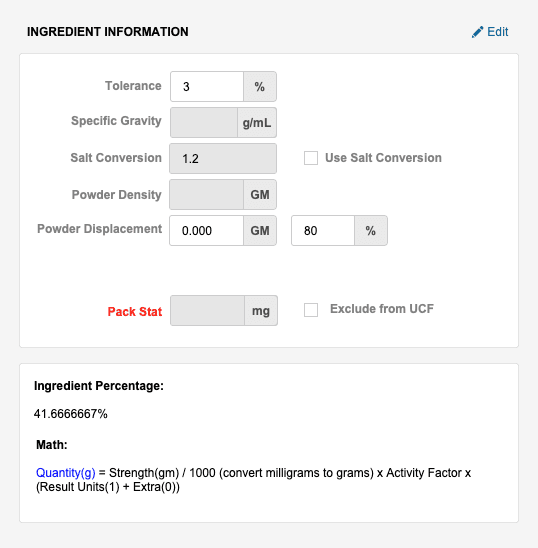
- Tolerance
- Specific Gravity
- Salt Conversion + Use Salt Conversion
- Powder Density & Displacement
- Exclude from UCF (auto-calculated math)
Ingredient Actions (⋮)
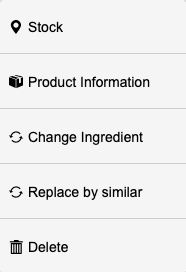
- Stock
- Product Information
- Change Ingredient
- Replace by Similar
- Delete
Calculated Fields

- Total Displacement of Powders
- Total Weight of Liquids
- Active / Excipient Weights
- Theoretical Capsule Weight
- Cost of Drugs (total & per CAP)
Step 3: Packaging Supplies

Used for packaging the final product.
Note: Empty capsules belong here.
- Click + Item.
- Search and add supplies.
Packaging Options
- Quantity
- Exclude from UCF
- Exclude from Cost
- Do Not Prorate
Packaging Actions
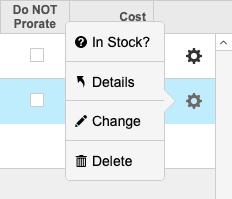
- In Stock? - check to see current inventory levels and adjust as needed
- Details - view detailed information about the packaging item
- Change - modify the packaging item
- Delete - remove the packaging item
Step 4: Preparation Supplies
 Supplies used during preparation (e.g., weigh boats, syringes).
Options
- Quantity
- Reusable
- Exclude from UCF
- Exclude from Cost
- Do Not Prorate
Preparation Actions
- In Stock? - check to see current inventory levels and adjust as needed
- Details - view detailed information about the preparation supply item
- Change - modify the preparation supply item
- Delete - remove the preparation supply item
Step 5: Instructions
Instruction-Driven Compounding
- Requires technicians to acknowledge each step.
Data Migration Instructions
Convert free-text instructions using <INS> tags:
- Insert Start Tag
- Insert End Tag
- Define numbering format
- Click Convert Instructions
Import Instructions
- Import from:
- Existing formulas
- Instruction templates
Workflow Assignment
Assign instructions to:
- Start
- Components
- Mix Preparation (Non-Sterile)
- Quality Checks
- Release
Verification Requirements
- ACK (Acknowledgment)
- VER (Verification)
- Photo
Step 6: Additional Considerations
Displayed when selected:
- Preparation Considerations
- Compatibility
- Loss on Drying / Assay
- Physical Description
- Math Considerations
- Tools & Supplies
- Notes & References
Documents
- Upload files (drag & drop)
- Add description
- View or delete documents
Step 7: BUD by Storage Conditions

- Time Sensitive BUD (Y|N)
- Storage Requirement
- USP BUD (Days)
- BUD to Use (Hours)
- Rationale & References
- Notes & Documents
Step 8: Formulation Quality Assurance
Add QA tests:
- Test Name
- Per Batch
- Quarantine Required
- Cost
- Date Performed
- Notes & Documentation
Step 9: Preparation Controls
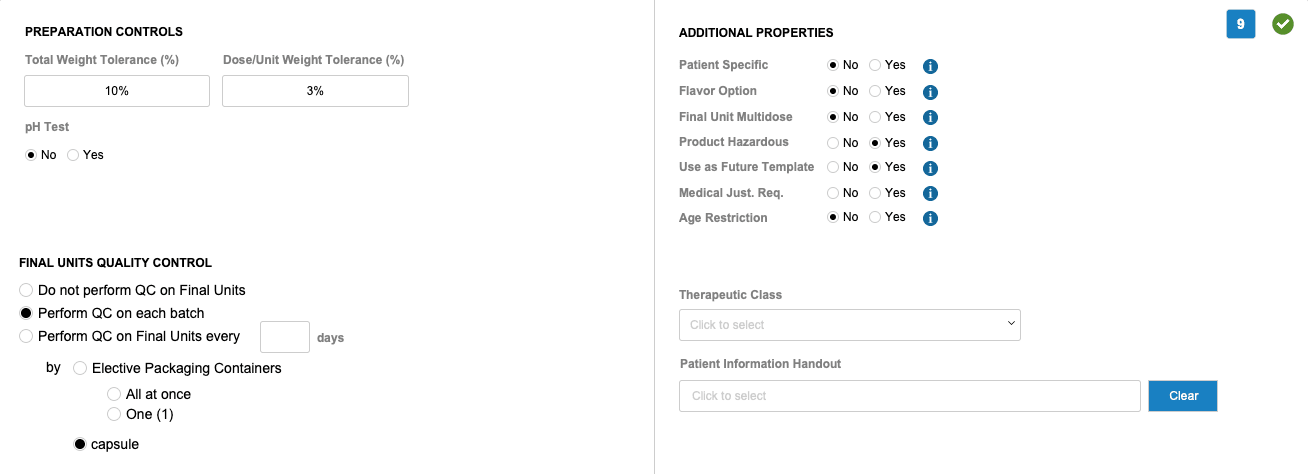
Controls
- Weight Tolerance (%)
- Dose/Unit Tolerance (%)
- pH Testing
- Bubble Point Testing
- Final Unit QC Rules
Additional Properties
- Patient Specific
- Flavor Option
- Multidose
- Hazardous Product
- Future Template
- Medical Justification
- Age Restriction
- Therapeutic Class
--
Release Verification List
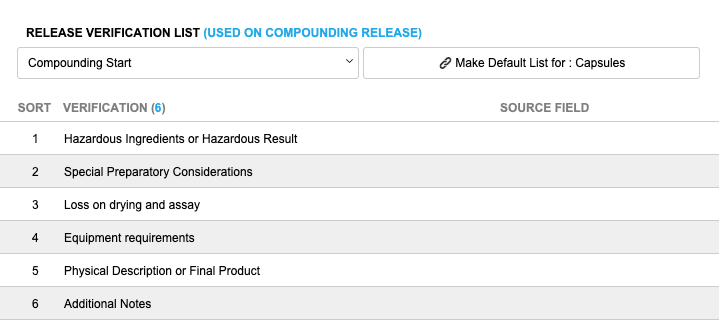
- Select Verification List… (dropdown). Click on the Make Default List for : Injections button - appears for selected dropdown verifications.
Labels & Equipment
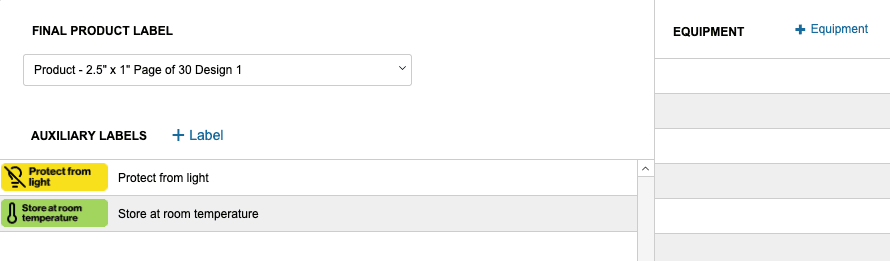
- Final Product Label
- Auxiliary Labels
- Equipment Assignment
Cost Calculations
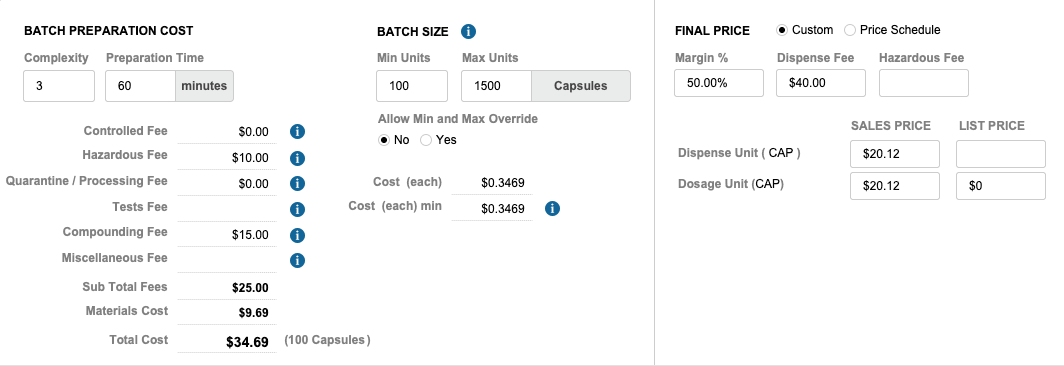
- Batch Preparation Cost
- Complexity and Preparation Time
- Set Batch Size (Min/Max)
- Minimum Units: Set a minimum number of units to produce based on inventory limits or cost effectiveness.
- Maximum Units: Set a maximum number of units to produce based on inventory production capacity.
- Leave the field empty to not set a minimum or maximum.
- Allow Min and Max Override Y|N
- Cost (each) - Final Price (each)
- Cost (each) Min - Final Price (each) Min
- Controlled Fee:
- Controlled Substance Fee: It only applies when there is one or multiple Controlled Substances ingredients in the Formulation.
- This is a preset Fee under Settings / Finances / Costs and Fees / Pharmacy Fees.
- Hazardous Fee: It only applies when there is one or multiple Hazardous ingredients in the Formulation.
- This is a preset Fee under Settings / Finances / Costs and Fees / Pharmacy Fees.
- Quarantine / Processing Fee:
- It only applies for formulations that requires a Quarantine process or post release quality assurance tests.
- This is a preset Fee under Settings / Finances / Costs and Fees / Pharmacy Fees.
- Tests Fee:
- Is the total cost of all the tests to perform per batch, selected in the Quality Assurance section.
- Compounding Fee:
- Complexity(3) x Complexity Fee ($5) + Preparation Time (60 minutes = 1 Hour(s)) x Pharmacy Hour Fee ($0)
- Miscellaneous Fee:
- Include here all other compounding cost you are not tracking during the prparation process. Ex: Wipes, Weigh Boats, Spatulas, etc.
- Sub Total Fees:
- Materials Cost:
- Total Cost:
Pricing
- Final Price Select one - Custom or Price Schedule
- Set the following data based on the selected Final Price option:
- Margin %
- Dispense Fee
- Hazardous Fee
Clinical Data
- ICD-10 Diagnosis - click + Condition to add ICD-10 codes relevant to this formulation.
- SOP Assignment - click + SOP to add SOPs relevant to this formulation.
Default Compounding & Storage Areas
- Default Areas
Final Actions
- Data Migration Instructions (if needed)
- Set as Inactive
- Submit for Approval
- Save and Complete Later
Completion
✅ You have successfully completed the process for Creating a New Formula in SiCompounding.