
Formulations
Formulating Process for the Trifecta?
Step-by-step guide for navigating formulations, inventory, and compounding in SiCompounding.
Overview
Formulations are essential for creating compounds, and Inventory management is critical for ensuring that ingredients, supplies, and other materials are properly set up. This guide covers the three-module process—Formulas, Inventory, and Compounding—so that products can be compounded efficiently for orders.
Tip: Start with a verified formula and ensure all ingredients are properly set up in Inventory.
Step-by-Step Instructions
1. Open FileMaker Pro and Navigate to SiCompounding
- Click the FileMaker Pro icon to launch the application.
- From the menu bar on the left, select SiCompounding.
- In the middle window, click Pharmacy to access the Dashboard.
- In the blue sidebar menu, click Formulations.
2. Search and Open a Verified Formula
- Click the Search button next to the Formulations heading.
- Enter the formula name in the search bar and select a verified formula from the results.
- Click the Components button to review or update the chemical ingredients.

3. Update Ingredients in Inventory (if needed)
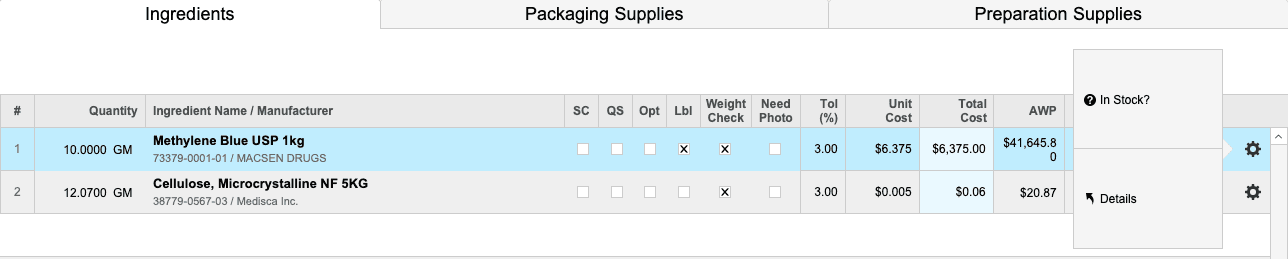
- Check Cost of Stock for each ingredient. If missing or incorrect, update the chemical:
- Click the Gear icon → Details for the ingredient.
- Open the Drug Information window by clicking Edit at the top of the screen.
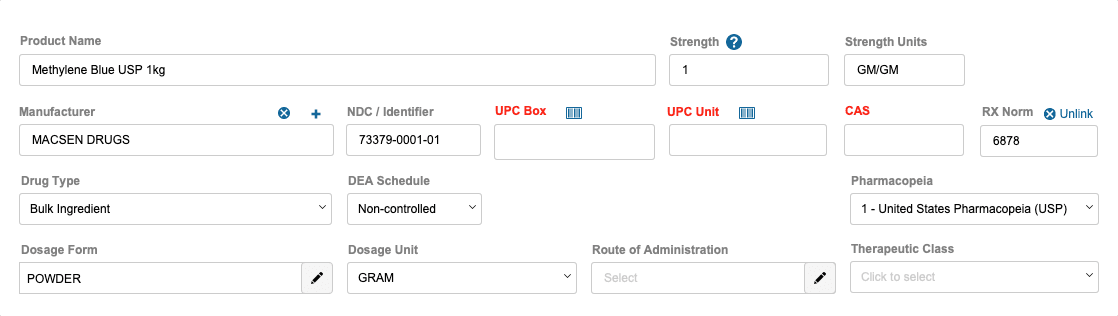
- Confirm and update the following:
- Product Name & Manufacturer
- RxNorm Link
- Drug Type: Bulk Ingredient
- DEA Schedule (Non-controlled, Schedule I–V)
- Dosage Form & Unit
- Complete Purchase Package Information:
- Purchase Unit & Note (e.g., Each Bottle)
- Package Description, Type, Quantity, Dosage Unit
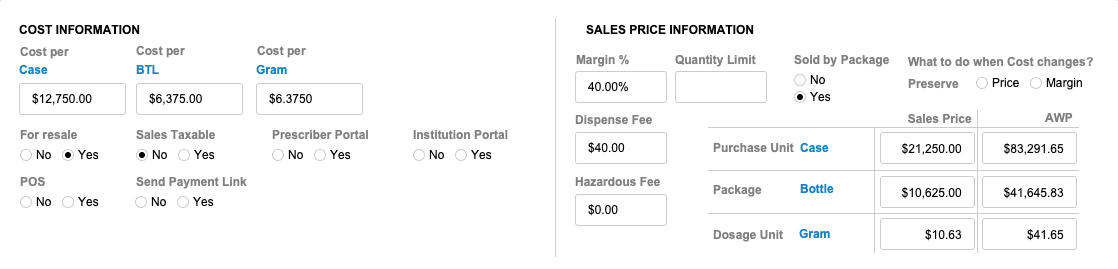
- Complete Cost Information:
- Cost per Purchase Unit, Package, Dosage Unit
- Resale, Sales Taxable, Prescriber & Institution Portal, etc.
- Complete Sales Price Information:
- Margin %, Dispense Fee, Hazardous Fee
- Prices by Package, Purchase Unit, Dosage Unit
- Set Drug Demographics:
- Sterile? Multidose? Hazardous? Category (API, Base, Diluent, Excipient)
- Enter Powder Density, Displacement, Salt Conversion

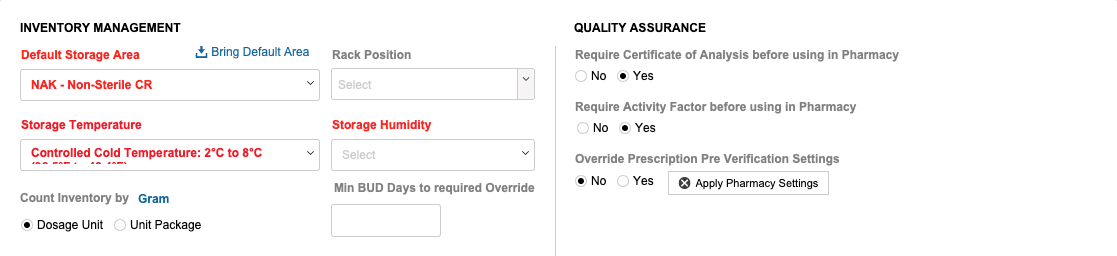
- Set Inventory Management: Storage Area, Temperature, Humidity, Count Unit
- Configure Quality Assurance: COA required, Activity Factor, Override Prescription Verification
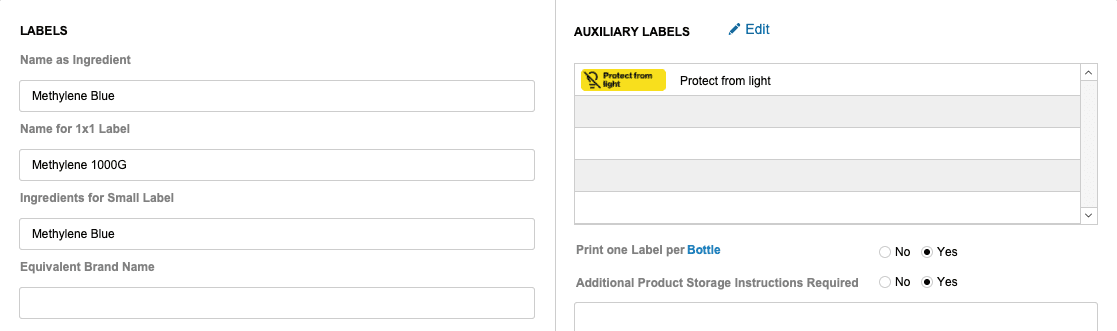
- Set Labels: Name as Ingredient, Name for 1x1 Label, Ingredients for Small Label, Equivalent Brand Name
- Add Auxiliary Labels: click Edit to configure. Print one Label per Bottle Y|N. Additional Product Storage Instructions Required Y|N, if Yes, enter instructions in the text box.
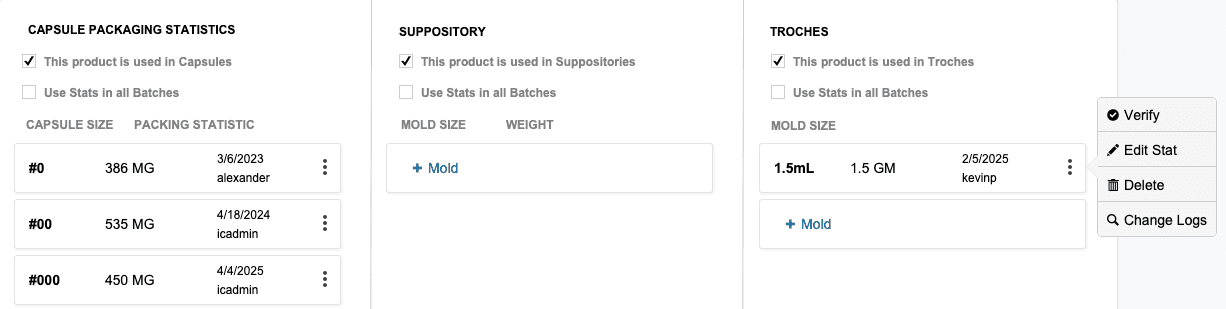
- Capsule Packaging Statistics: (√box) This product is used in Capsules. (√box) Use Stats in all Batches. Click + Capsule to add record. At the end of each record, click the Action Icon to Verify, Edit Stat, Delete, view Change Log.
- Suppository: (√box) This product is used in Suppositories. Click + Mold to add record. (√box) Use Stats in all Batches. At the end of each record, click the Action Icon to Verify, Edit Stat, Delete, view Change Log.
- Troches: (√box) This product is used in Troches. Click + Mold to add record. (√box) Use Stats in all Batches. At the end of each record, click the Action Icon to Verify, Edit Stat, Delete, view Change Log.
- Click the Gear icon → Details for the ingredient.
Repeat for each ingredient requiring updates before proceeding to the Master Formula.
4. Update Master Formula
- Click Edit Formula at the top of the Formula window.
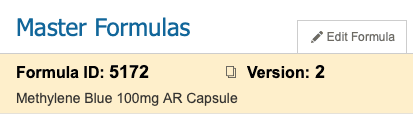
- Verify Formula Name, Type, Dosage Form, Route of Administration, Final Units, Package.
- Enter Extra/Waste per batch if applicable.
- Click Quantity Driven for ingredients and define:
- Type: Active, Excipient, Base
- Weight (Wt), Photo, Label (Lbl), Optional (Opt), QS, Salt Conversion (SC)
5. Manage Packaging and Preparation Supplies
- Packaging Supplies: Capsules, syringes, molds, etc.
- Preparation Supplies: Weigh boats, tubing, syringes, etc.
- Track Inventory line items and ensure purchases, lot numbers, and stock info are accurate.
6. Instructions and Workflow Assignment
- Use Instruction Driven Compounding (Y/N) to enforce step verification.
- Import Instructions or Templates as needed.
- Assign instructions to Workflow Tabs: Start, Components, Mix Preparation, Quality Checks, Release.
- Mark steps for Acknowledgment (ACK), Verification (VER), Photo.
- Delete unnecessary steps via the icon at the end of each row.
7. Additional Considerations
- Add Notes, References, and Documents used during formulation.
- Configure BUD by Storage Conditions (time-sensitive, storage requirements, notes).
- Complete Formulation Quality Assurance, Preparation Controls, and Final Units QC.
- Assign Additional Properties: Patient Specific, Flavor Options, Multidose, Hazardous, Medical Justification, Therapeutic Class.
8. Labels, Equipment, and Batch Preparation
- Add Final Product Label, Auxiliary Labels, Equipment.
- Configure Batch Preparation Costs, Batch Size, Final Price, and Fees.
- Submit formula for Approval and verify all components are correct.
9. Product and Vendor Information
- Click Product Information to review NDC, Drug Type, DEA Schedule, Dosage Form, Cost, and Sales Prices.
- Update or add Vendors as needed.
- Maintain Inventory, including Batches, Items, Usage, Settings, and Minimum Stock levels.
10. Verify Master Formula
- Click Submit for Approval.
- Review all fields and update as needed: Product, Pricing, Inventory, QA, Patient Info, Diagnosis (ICD-10), SOPs, Default Areas.
- Ensure Final Verification and Release by the pharmacist.
11. Priority Tasks
- Print Chemical Labels from Inventory for each ingredient.
- Update Provider State Licenses as needed.
- Update Patient Records (e.g., veterinary patients, shipping info, credit card info).
✅ This completes the step-by-step guide on Formulating Process for the Trifecta.