
Formulations
Adding a New Formula from a Template?
Step-by-step guide for creating a new formulation in SiCompounding using an existing template.
Overview
Creating a new formula from a template in SiCompounding allows pharmacists and technicians to leverage pre-existing formulation structures, saving time and reducing errors in data entry. Templates can include:
- Formula ingredients
- Packaging supplies
- Preparation instructions
- Quality assurance and workflow assignments
Step-by-Step Instructions
-
Open FileMaker Pro
- Click the FileMaker Pro icon to launch the application.
-
Navigate to SiCompounding
- From the large menu bar on the left, click SiCompounding near the top.
-
Access the Pharmacy Dashboard
- In the middle window, click the Pharmacy icon to open the Dashboard.
-
Open Formulations
- Use the blue sidebar menu on the left and click Formulations.
-
New from Template

- Click the + New from Template button to create a formula based on an existing template.
-
Master Formula Selection
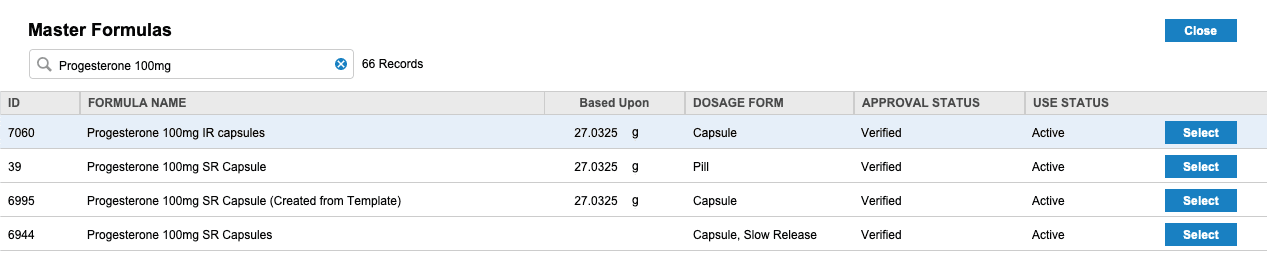
- Select the Master Formula you want to use as a template for your new formula.
- Click Select to proceed with the template-based formula creation.
-
Follow the New Formula Creation Steps | + New Formula | Create a new formula | Step-by-step: How to Create a New Formula? |
- Make any changes to the formula details, ingredients, instructions, QA, and other fields as needed.
- Ensure to review, update and then verify all relevant information to fit the specific requirements of the new formula from template.
Notes
- Using templates ensures consistency across compounded formulas.
- Templates help maintain regulatory compliance by standardizing ingredients, instructions, and quality checks.
- Future updates will include instructions for:
- Selecting a template
- Customizing ingredients or instructions
- Assigning workflows and verification steps
✅ This completes the step-by-step guide for adding a new formula from a template.