
Facility User Access Setup: How It Works?
How user access, permissions, and system components are managed in SiKore
Overview
Facility User Access Setup defines how administrators control user permissions and access across all SiKore System Components.
This setup is critical for staffing the facility, streamlining workflows, maintaining operational efficiency, and ensuring compliance within the highly regulated pharmaceutical industry.
User Access configuration is performed within Facility Setup and is restricted to administrative users.
Purpose of User Access Setup
User Access Setup allows administrators to:
- Grant or restrict access to system components
- Assign privilege sets to staff
- Control actions available within each module
- Track access, changes, and communication logs
- Maintain compliance and audit readiness
Prerequisites
Before proceeding, ensure:
- FileMaker Pro is installed
- You have valid Username and Password
- You have Admin access to Facility Setup
Ready to Start...
- Click the FileMaker Pro icon on your computer.
- In the system selection window, click the K or System icon.
- A login window appears with fields for Username and Password.
Enter your credentials and click Sign In. - The SiKore system window opens, displaying:
- My Modules
- A To Do List on the right
Step-by-Step: Access User Access Setup
Open Facility Setup

- Scroll below the listed modules.
- Click Facility Setup
Admin access only
User Access Window Overview

The User Access window opens with:
- A blue navigation sidebar on the left
- A System Components list on the right
- A menu bar specific to each system component
Each section in the sidebar has its own configuration and a corresponding How-To page.
Top-Right Menu Buttons

At the top-right of the User Access window are the following buttons:
Print Profiles / Permissions (sample image below shows SiCompounding)
- Opens the Permissions window
- By Action
Displays permissions by in this order:
- System Component
- Action Access Areas
- Privilege Sets
- By Profile
Displays permissions by in this order:
- System Component
- Privilege Sets
- Action Access Areas
Go Back and Help are General Features
– Step-by-Step: General Features of SiCompounding?
System Components
Administrators can grant access to the following System Components:
- SiKore
- SiCompounding
- SiMonitoring
- SiEquipment
- SiTraining
- SiSterile
- SiCash
- SiTimeClock
Access is initially assigned during Staff creation, then refined here through privilege sets and action permissions.
Component Menu Structure
Each System Component contains the same menu bar:
- Users
- Actions / Access
- Communications
- Documents
- Actions
The example below uses SiCompounding, as it is the most commonly used component.
Managing Users (SiCompounding)
Step 1: Select SiCompounding

- Under System Components, click SiCompounding.
Step 2: Open Users
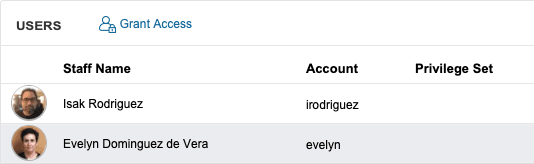
- Select Users from the menu bar.
- A list of active staff appears.
Search Options

- Search by Name or Privilege Set
- Use the Search bar (upper-right) and press Enter
Step 3: Grant Access

- Click Grant Access above the staff list.
Access for SiCompounding Window
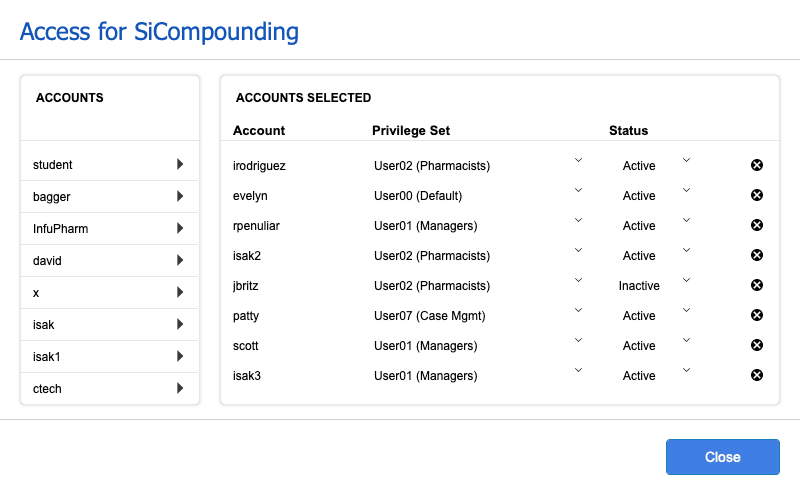
This window contains two sections:
- Accounts
Users without access - Accounts Selected
Users with access
Grant Access
- Click the pointer icon next to an account to move it to Accounts Selected
Modify Access
- Change Privilege Set via dropdown
- Toggle Status (Active / Inactive)
- Click the X icon to remove access
Click Close when finished.
Managing Actions / Access
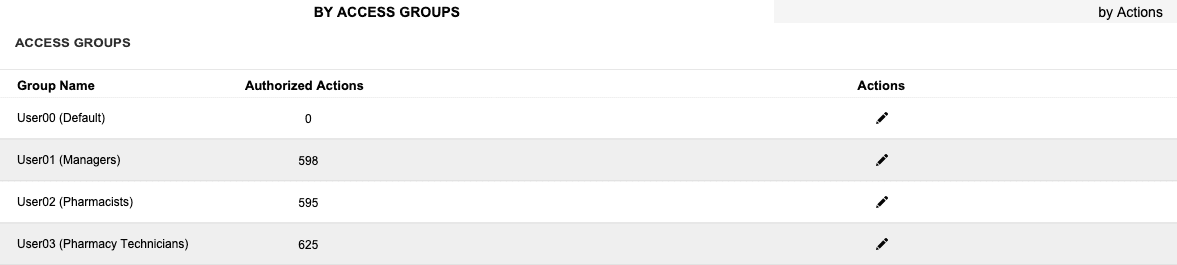
Select Actions / Access from the menu bar.
By Access Groups
- Displays Privilege Sets with authorized actions
- Search by Action or Authorized Name
Edit a Privilege Set
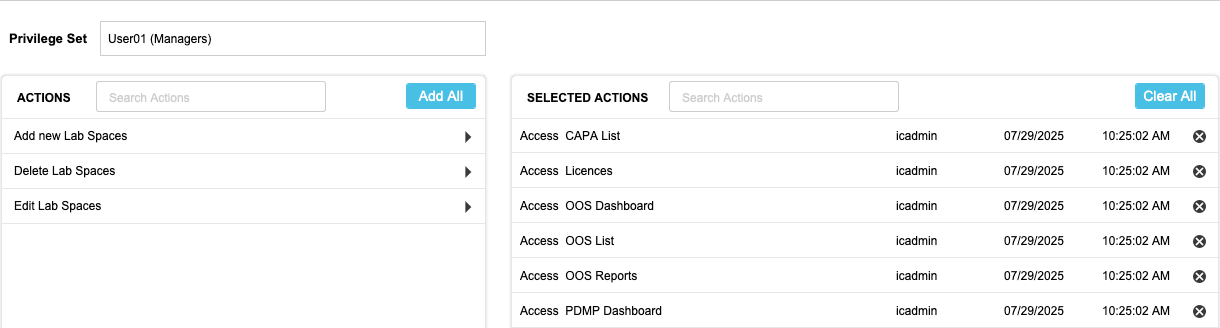
- Click the pencil icon next to a group (e.g., User01 – Managers)
- Selected Actions appear on the right
- Available Actions appear on the left
Example: Remove Settings Actions
- Search “settings” under Selected Actions
- Click the X to remove individual actions
or - Click Clear All
Add Actions Back
- Search “settings” under Available Actions
- Click Add All or select individually
- Click Close to exit.
By Actions
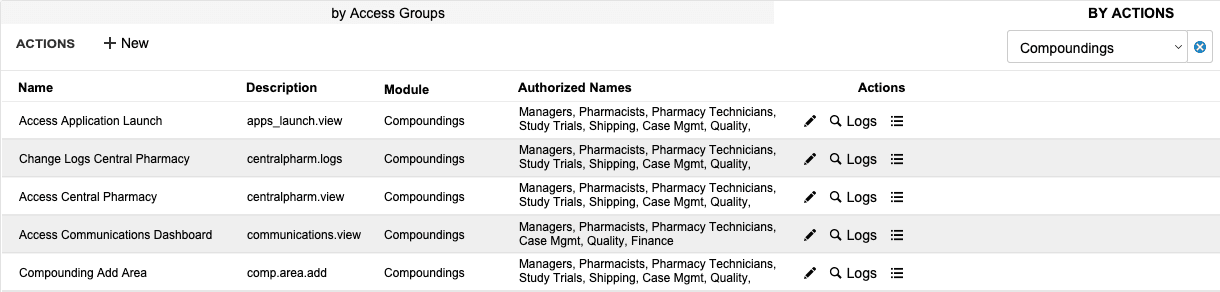
- Click By Actions
- Select a Module (e.g., Compoundings)
The Actions list displays:
- Action Name
- Description
- Module
- Authorized Privilege Sets
Action Icons
- Pencil – Edit Action → Click Save
- Magnifier – View Modification Logs
- List – Add or remove Privilege Sets
Click Close to exit each window.
Communications
- Select Communications
- Click + Note
- In the New Communication window:
- Select Type
- Enter Note
- Attach documents or images (drag & drop)
- Click Save
Documents
- Select Documents
- Search by Filename if needed
- Click + Document
- Drag and drop a document
- Select document type
- Enter a description
- Click Save
Actions (Reports)
Select Actions to access:
Print Profiles / Permissions
- By Action – Permissions by action
- By Profile – Permissions by privilege set
Return to SiKore
- Click the SiKore icon above the User Access button to return to the main system window.
Completion
You have successfully completed the overview of:
Facility User Access Setup: How It Works
This process ensures secure, compliant, and efficient access management across all SiKore system components.