
Walk Through the Shipping Manifest?
Understand how to view and interpret the status of orders currently in the shipping workflow.
Overview
The Orders view within the Shipping module provides a clear, structured way to monitor the status of orders as they move through the shipping process. This guide explains how to access the Orders screen and describes the columns displayed, helping users quickly understand where each order stands.
Accessing Order Status in Shipping
- Click the FileMaker Pro icon to open FileMaker.
- When FileMaker opens, locate the large menu bar on the left side of the window.
- Click SiCompounding (near the top of the menu).
- In the next window, several module icons appear across the center of the screen.
- Click Shipping to open the Orders window.
- In the blue sidebar menu on the left, click the Manifests button.
Step-by-Step Instructions
Manifests Shipments
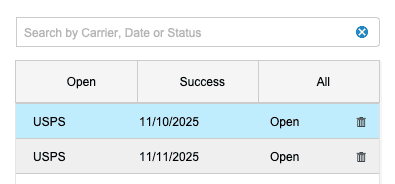
-
The Manifests screen provides filters accross the top and when clicked will find shipments by Open, Success, or All.
-
The Manifests screen displays a list view of order transactions shipped along with key details showing fulfillment:
- Ship Date → The date the order was shipped.
- Tracking Number → A unique identifier for the shipment.
- Order Number → A unique identifier for the order.
- Ship To → The name of the individual or entity receiving the shipment.
- Shipping Service → The carrier or delivery service selected for the order.
-
Search
Used to quickly locate shipments by Carrier, Date, or Status.Shipment Transactions, Documents, and Actions
- First select a Manifest in the Manifests list below.
- Transactions will be displayed in the Shipment Transactions section after selecting the Manifest.
- Close Manifest → Closes the manifest and prevents any further orders from being added to the manifest.
- Search Transactions → in the search bar to quickly locate specific transactions by Tracking Number, or Product.
- Documents related to the manifest can be found in the Documents section.
- Use the search bar to quickly locate specific documents by name.
- Actions include:
- View Document → Opens the document.
- Delete Document → Deletes the document from the manifest.
- Additional actions related to the manifest can be found in the Actions dropdown menu.
General Features
Includes quick-access tools available across the system at the top of the screen:
- Lookup
- < Go Back
- Help
See: Step-by-Step: General Features of SiCompounding?
Purpose and Usage
The Manifests list allows users to:
- Quickly determine the current shipping status of an order
- Verify dispensing and shipping details at a glance
- Identify manifests that may require follow-up or action
Summary
By using the Manifests view within the Shipping module, users can efficiently monitor and manage orders throughout the shipping lifecycle. The clear column layout ensures transparency and supports timely fulfillment.
✅ This completes the step-by-step guide on Status of Orders in Process of Shipping.