
Status of Orders in Process of Shipping?
Understand how to view and interpret the status of orders currently in the shipping workflow.
Overview
The Orders view within the Shipping module provides a clear, structured way to monitor the status of orders as they move through the shipping process. This guide explains how to access the Orders screen and describes the columns displayed, helping users quickly understand where each order stands.
Accessing Order Status in Shipping
- Click the FileMaker Pro icon to open FileMaker.
- When FileMaker opens, locate the large menu bar on the left side of the window.
- Click SiCompounding (near the top of the menu).
- In the next window, several module icons appear across the center of the screen.
- Click Shipping to open the Orders window.
- In the blue sidebar menu on the left, click the Orders button.
Step-by-Step Instructions
Orders Screen Overview (In List View with Columns)
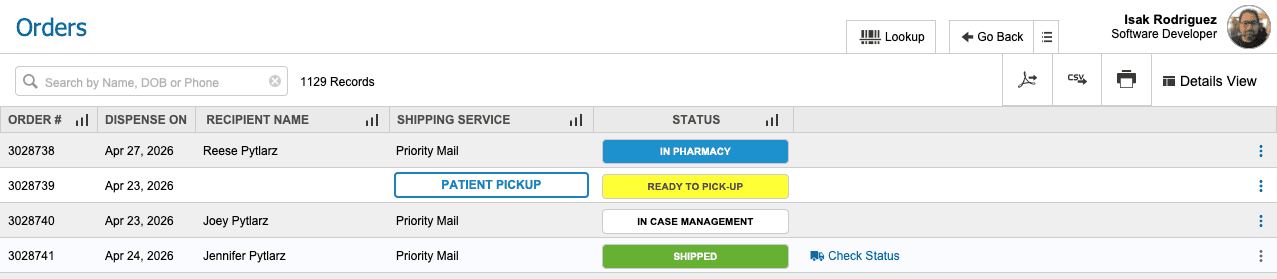
The Orders screen displays a list view of shipping-related orders along with key details needed to track progress and fulfillment.
- Search
Used to quickly locate orders by order number, recipient name, DO, or phone number.
Generating Reports from a Found Set
- Review the found set.
- On the right side of the menu bar, choose one of the report icons:
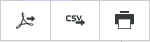
PDF Report
- Confirms export of the found set to a PDF on the desktop.
- Click OK to generate and open the PDF.
CSV Report
- Confirm export to CSV.
- Select columns in Select The Columns You Want To Include.
- Use:
- Clear
- Select All
- Set as Custom
- Use Custom
- Choose export option:
- Stop and Close
- Export and No Wait
- Export and Wait
- Download and save using Export Field to File.
Printed Report
- Confirms export to a printer.
- Select printer, presets, copies, and pages.
- Click Print.
Displayed Columns
Each row represents a single order and includes the following columns:
-
Order Number
A unique identifier assigned to each order. -
Dispensed On
The date the order was dispensed. -
Recipient Name
The individual or entity receiving the shipment. -
Shipping Service Used
The carrier or delivery service selected for the order. -
Status of Order
The current stage of the order in the shipping process (for example: pending, ready to ship, shipped).
Selected Order Overview (In Detail View)

Sections related to this specific order include:
Summary Section
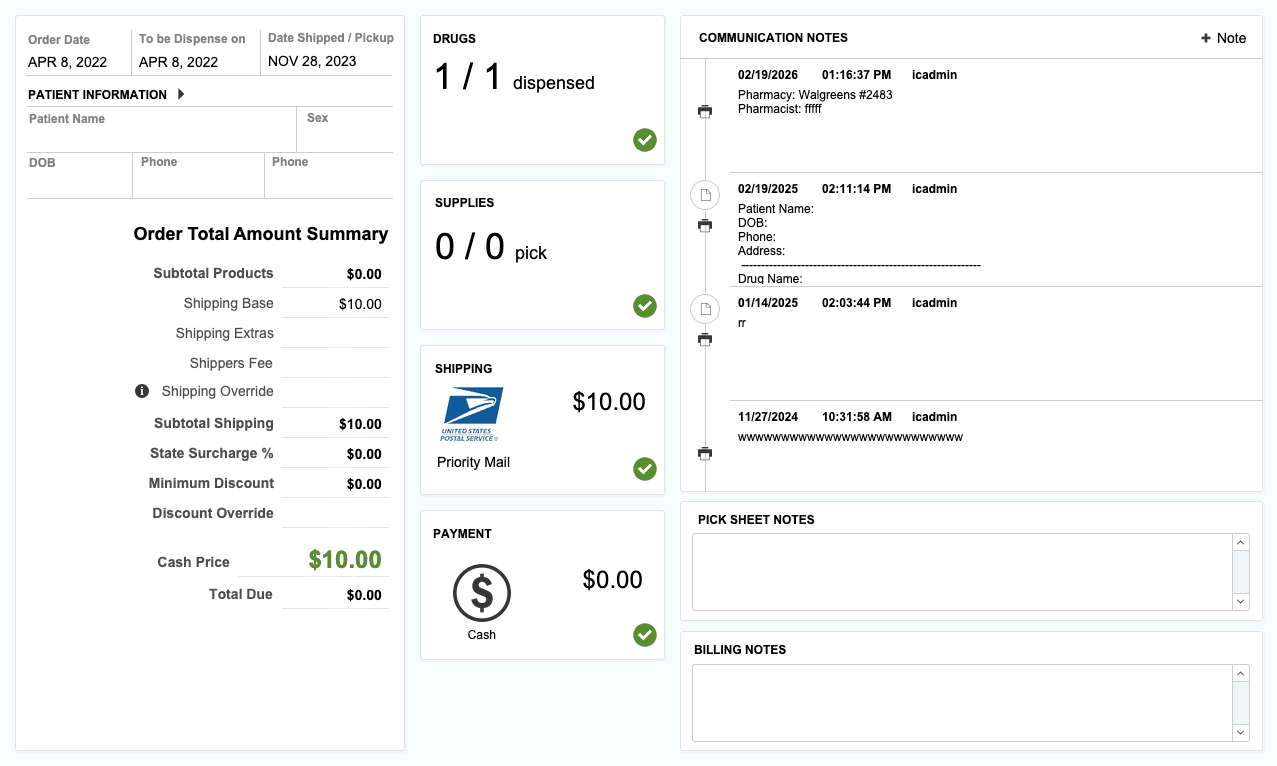 Provides a snapshot of the order's key details, including:
-
Information about the order, including order number, recipient name, and shipping service used.
-
Order Date, Dispensed On, and Shipped On or Picked Up dates.
-
Patient information, including name and phone number with link to the patient record.
-
Order Total Amount Summary with details on the order total, shipping costs, and balance due.
-
Four quick reference widgets:
- Drugs
- Supplies
- Shipping
- Payments Each widget provides a quick glance summary and clickable links to the related section for more details.
-
Notes:
- Communication Notes → Visible only to pharmacy staff.
- Pick Sheet Notes → Visible to both pharmacy staff and the recipient of the order.
- Billing Notes → Visible to both pharmacy staff and the recipient of the order.
Drugs Section

Provides a list view of the drugs included in the order, including the following information:
-
Quantity, Unit, Drug Ordered, Patient Name, Lot Number, Dispense Status, Scanned(if checked), and Actions.
-
Actions include:
- Drug Information → Opens the related Drug Information record in list view.
- Print Universal Claim Form → Prints the Universal Claim Form for the drug.
-
Scan Rx to Verify → To verify the Order's prescriptions.
Supplies Section

Provides a list view of the supplies included in the order, including the following information:
-
Item Name, UOM, Qty Order, Qty Picked, and Lot Number.
-
Select Area → Choose the area the supplies are located from the available options in the dropdown.
Shipping Section
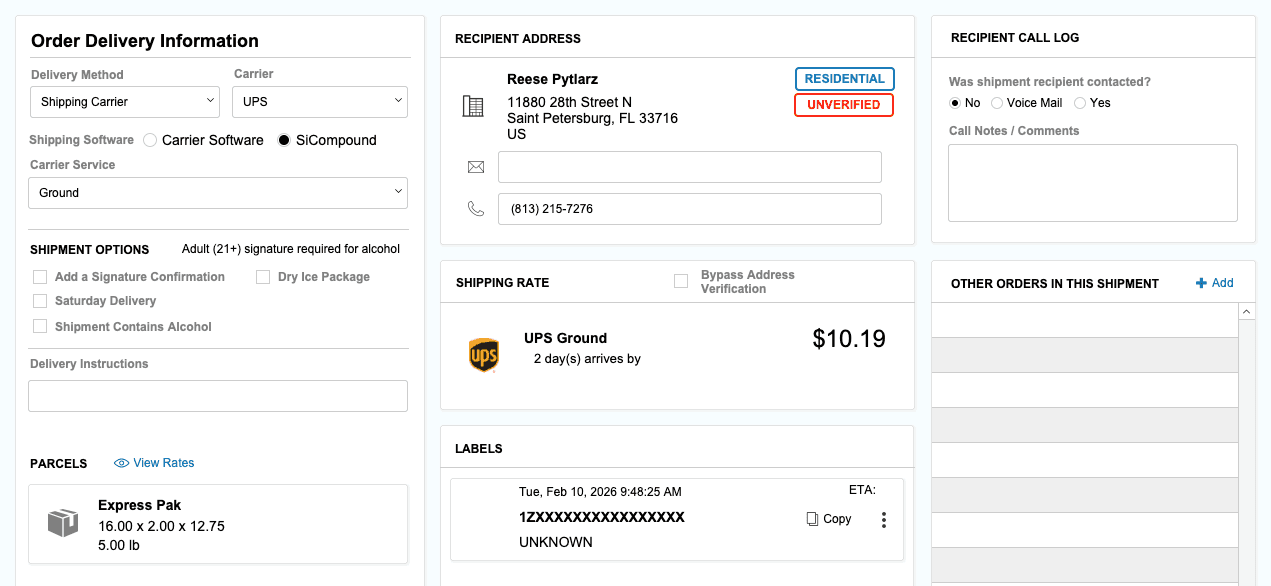
Order Delivery Information - Provides a detailed view of the shipping details for the order, including the following information:
-
Delivery Method (dropdown), Carrier (dropdown)Shipping Software (select one), and Carrier Service (dropdown).
-
Shipping checkbox options include:
- Add a Signature Confirmation
- Dry Ice Package
- Saturday Delivery
- Shipment Contains Alcohol → Note: Adult (21+) signature required for alcohol.
- Delivery Instructions → Enter any special instructions for the delivery of the order.
-
Parcels
- Click the button View Rates for a sample listing in the Shipping Rates window (X to close).
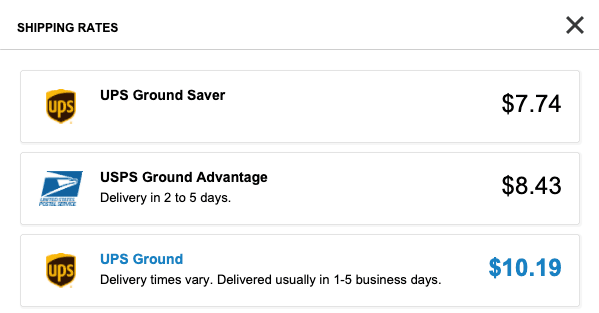
- Click the button View Rates for a sample listing in the Shipping Rates window (X to close).
-
Recipient Address
- Add Email Address and Phone Number for the recipient of the order.
- Bypass Address Verification → by selecting the checkbox for the order.
-
View Shipping Rate → Shows the selected shipping rate for the order.
-
Labels → Ability to Copy if needed.
- Actions → Click the icon for the following options:
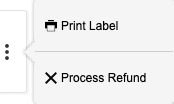
- Print Shipping Label → Prints the shipping label for the order.
- Process a Refund → Processes a refund for the order.
- Actions → Click the icon for the following options:
-
Recipient Call Log
- Was shipment recipient contacted? Options: Yes/No or Voicemail.
- Call Notes / Comments → Enter any notes or comments related to the call.
-
Other Orders in This Shipment → Displays any other orders included in the same shipment by clicking + Add. (sample orders to be linked).

- In the Link Same Day Orders window, select orders to be included in the shipment by clicking Link. (X to close).
- Orders linked can be unlinked by clicking the circled X icon.
Payment Information
Provides the following information:
- Select the Payer of this Order → options (choose one): Institution, Patient, Physician, or Study Sponsor.
- Select when the Order will be Paid → options: Either Postpaid or Prepaid.
- Select Payment Method → options (choose one): Cash, Check, Credit, Credit Card, Invoice, or Reader.
- Click Apply Payment → processes the payment for the order with the selected options.
Order Total Summary
- Subtotal Products → Total cost of the products included in the order.
- Shipping Base → Total cost of shipping for the order.
- Shipping Extras → Additional cost for Extras.
- Shipper Fee → selected Shipper's fee.
- Shipping Override → Use this field to override the system calculated value for shipping price. To don't charge for shipping enter "0" as Override value.
- Print Order → Click button to view the order as printed, then click Print.
- Print Receipt → Click button to view two options, Print 8.5 x 11 Receipt or Print Thermal Receipt, then click Print.
Payments History
-
The following columns are displayed in a listview of Payment History:
- Date, Time, Type, Amount, Description / Notes, Transaction ID, Created By, and Status.
- Total Paid → Will be displayed at the bottom of the listview.
Documents Section
Section provided for any documents related to the order.
-
Click + Document to open the drag and drop Add Document window.
-
Find a document in the list by using the search bar and / or filter by Document Name.
-
The data columns displayed in the list view of documents include:
- Filename, Description, Created By, and Created On.
-
Actions include:
- View Document → Opens the document.
- Delete Document → Deletes the document from the order.
Actions Section
Section provided for any actions related to the order.
- Click the button Actions to display a dropdown list of available actions for the order, including:
- Order Details → Opens the Order Details window to view detailed information about the order within the Orders Module.
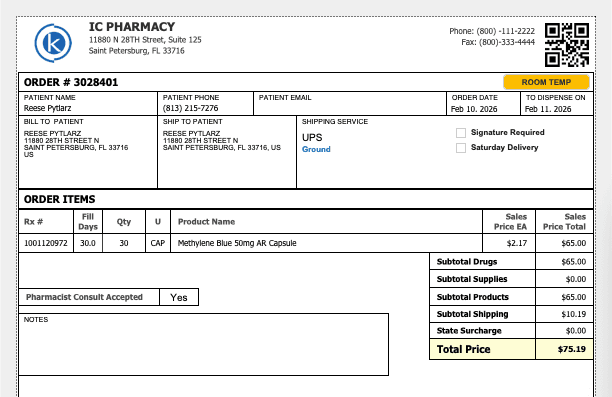
- Print Order →
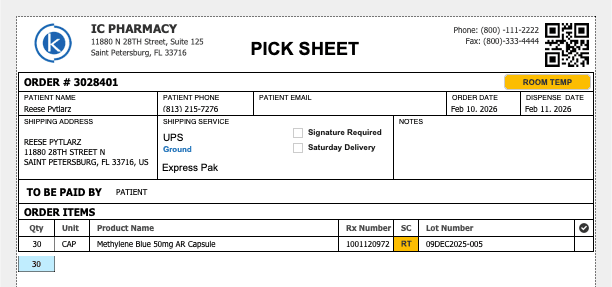
- Print Pick Sheet →
- Print Order Label →
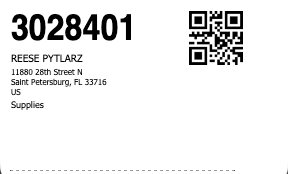
- Print → Opens the Print Order Documents window. More Docs???
- Print Order Documents → Select the document to be printed for the order, including:
- Dispense → Prints the Dispense Record for the order???.
- Drug Info → Prints the Drug Information for the order.
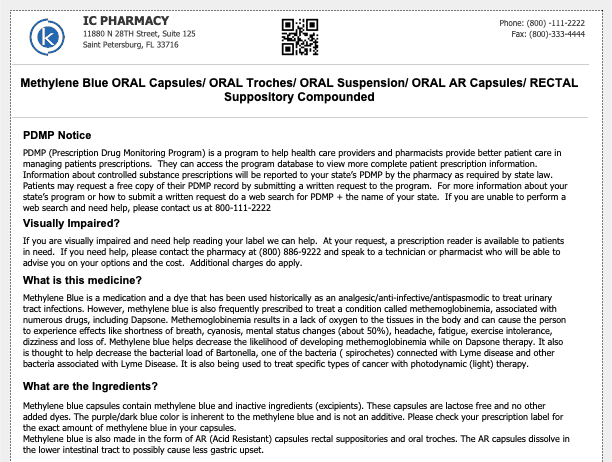
- Rx Label → Prints the Rx Label for the order.
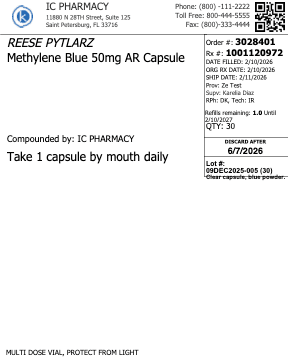
- Print Order Documents → Select the document to be printed for the order, including:
- Print Drug Information → Prints the Drug Information for the order.
- Access Logs →
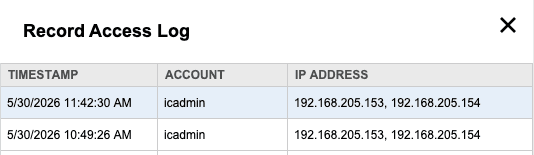
- Change Logs → Opens the Order Change Logs window.

- Progress Log → Opens the Order Progress Logs window.
- Print Log → Opens the Print Log window which shows the print history for the order.
General Features
Includes quick-access tools available across the system at the top of the screen:
- Lookup
- < Go Back
- Help
See: Step-by-Step: General Features of SiCompounding?
Purpose and Usage
The Orders list allows users to:
- Quickly determine the current shipping status of an order
- Verify dispensing and shipping details at a glance
- Track which shipping services are being used
- Identify orders that may require follow-up or action
Summary
By using the Orders view within the Shipping module, users can efficiently monitor and manage orders throughout the shipping lifecycle. The clear column layout ensures transparency and supports timely fulfillment.
✅ This completes the step-by-step guide on Status of Orders in Process of Shipping.
Navigating Through Order Shipping?
Learn how to access and navigate the Order Shipping module, including the main menu and dashboard widgets used to manage shipping workflows.
Walk Through the Shipping Manifest?
Understand how to view and interpret the status of orders currently in the shipping workflow.