Set Up DYMO LabelWriter 450 / 550 Driver?
Step-by-step instructions for configuring DYMO LabelWriter 450 and 550 printer drivers on Windows
Overview
This guide explains how to verify and configure the DYMO LabelWriter 450 or 550 printer driver on Windows systems.
The printer driver is required to correctly send print data from your software to the label printer.
The DYMO driver is normally installed automatically with the DYMO software, but it may need to be verified or reconfigured if it was changed or removed.
Verify Driver Installation (Windows)
- Open the Start Menu.
- Select Printers and Faxes.
- Locate your DYMO LabelWriter printer.
- Right-click the printer icon and select Properties.
- Confirm the Driver is set to:
- DYMO LabelWriter 450 or
- DYMO LabelWriter 550
Access Advanced Printer Settings
- In the Properties window, click Printing Preferences.
- In the Preferences window, click Advanced.
- The Advanced Settings dialog will open.
DYMO LabelWriter 450 – Advanced Settings
Paper / Output
- Paper Size:
30252 Address
Graphic
- Print Quality:
300 x 300 dots per inch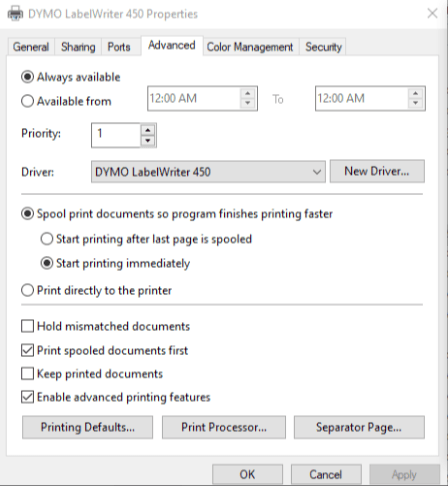
Document Options
- Advanced Printing Features:
Disabled - Color Printing Mode:
Enhanced - Halftoning:
Photo Quality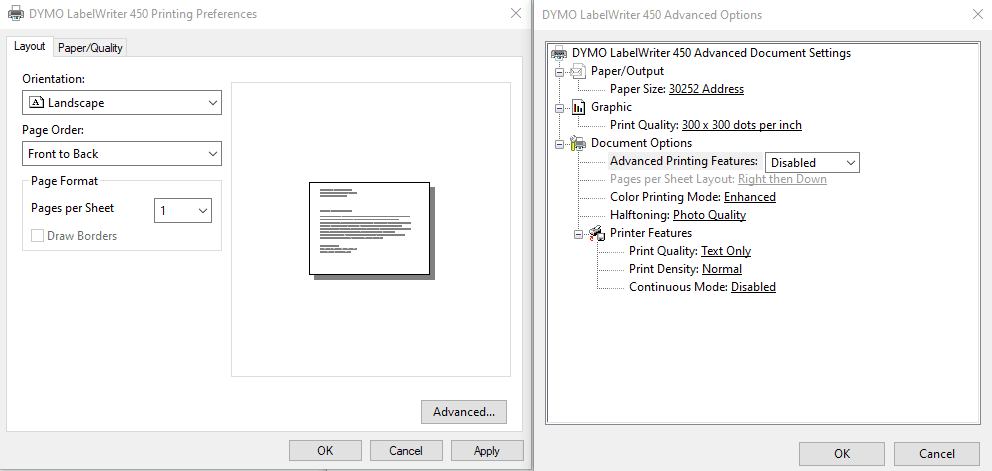
Printer Features
- Print Quality:
Text Only - Print Density:
Normal - Continuous Mode:
Disabled
DYMO LabelWriter 550 – Advanced Settings
Paper / Output
- Paper Size:
30252 Address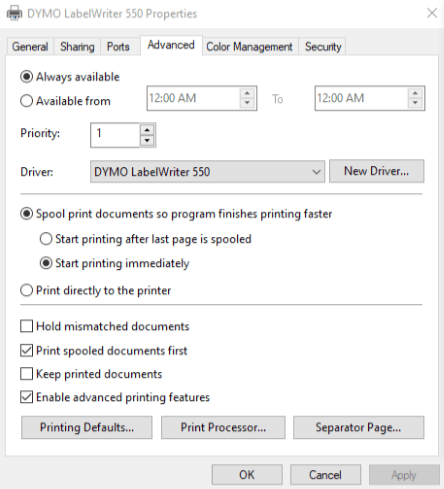
Document Options
- Advanced Printing Features:
Disabled - Color Printing Mode:
Enhanced - Halftoning:
Photo Quality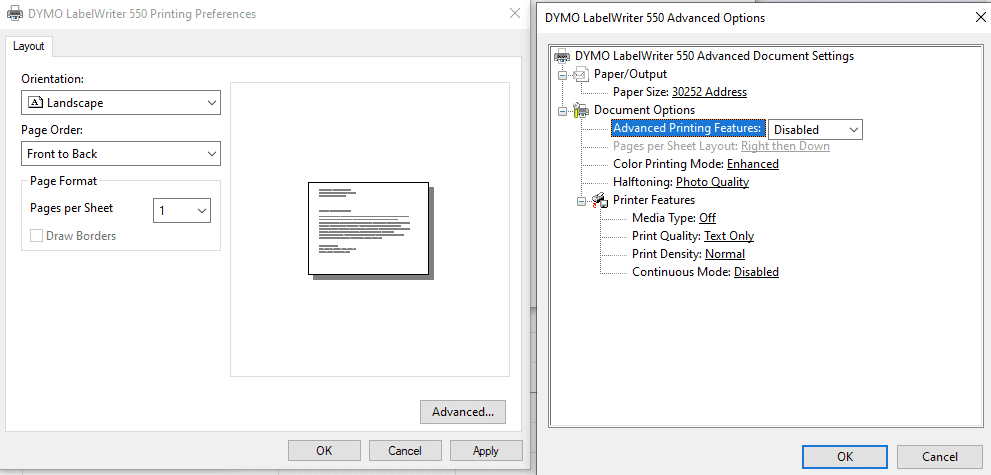
Printer Features
- Media Type:
Off - Print Quality:
Text Only - Print Density:
Normal - Continuous Mode:
Disabled
Completion
Once these settings are confirmed and saved, your DYMO LabelWriter 450 or 550 should be properly configured for label printing.
If labels do not print correctly, recheck the paper size and print quality settings or reinstall the DYMO driver software.