
Navigating Through the Verification Station?
Learn how to access and navigate the Verification Station, including the main menu and dashboard widgets used during the verification process.
Overview
The Verification Station is used to review, validate, and approve compounding-related records before they are released or dispensed. It provides structured visibility into pre-verification, final verification, formula review, and release readiness.
This guide explains how to access the Verification Station and understand its primary navigation and dashboard widgets.
Accessing the Verification Station
- Click the FileMaker Pro icon to open FileMaker.
- When FileMaker opens, locate the large menu bar on the left side of the window.
- Click SiCompounding (near the top of the menu).
- In the next window, several module icons appear across the center.
- Click Verification Station to open the Verification Station module.
Main Menu
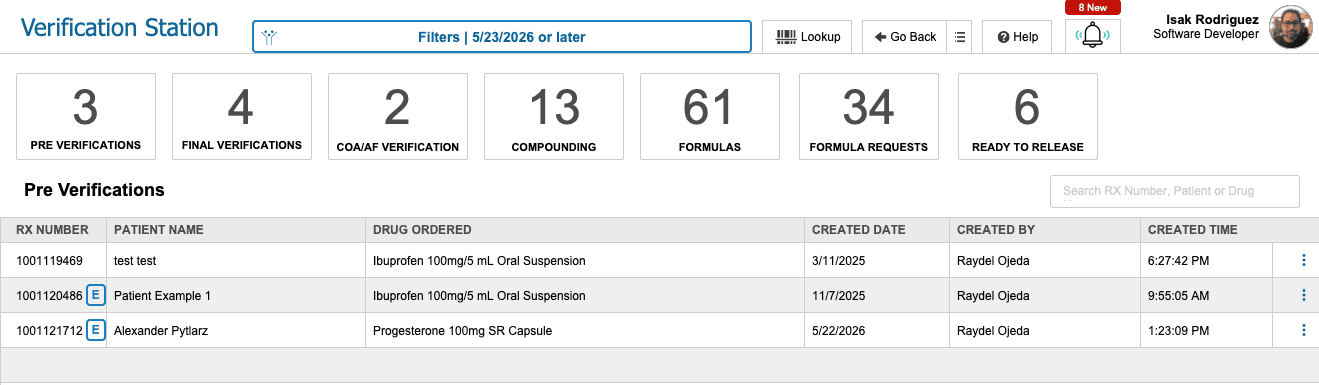
At the top of the Verification Station window is the Main Menu, which is consistent across all SiCompounding modules.
General Features
Includes quick-access tools available across the system at the top of the screen:
- Lookup
- < Go Back
- Help
See: Step-by-Step: General Features of SiCompounding?
Step-by-Step Instructions
Dashboard Widgets

The dashboard widgets provide quick access to records at various stages of the verification workflow. Each widget opens records in List View.
Pre Verifications
- List View of all new compounding orders that have not yet been submitted for verification.
- Includes:
- View All button
- Opens the oldest unsubmitted order.
- Search Bar
- Allows you to find a specific unsubmitted purchase order.
- View All button
Final Verifications

- The Final Verifications Time Bar provides visibility into records that are ready for final verification.
- List View of compounding records that are ready for final verification.
- Ensures all requirements have been met before release.
COA / AF Verifications

- List View of Certificates of Analysis (COA) and Analysis Forms (AF) awaiting verification.
- Used to confirm documentation accuracy and compliance.
- Batch Info button opens the Inventory Batch Information related to the COA or AF record for review.
- Action Icon button opens the COA or AF document for review, editing, printing, or approval.
Compounding
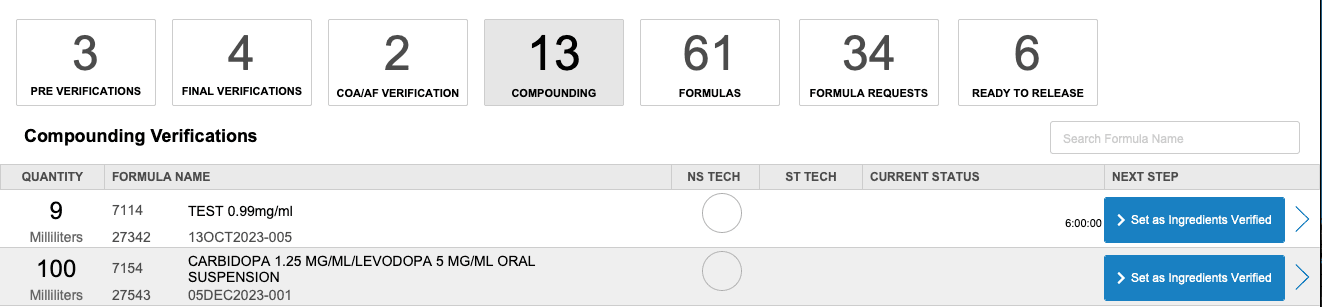
- List View of compounding records that are In Progress or Under Review.
- Click on a record - Provides visibility into active compounding workflows.
- Set as Ingredients Verified button opens the Inventory Batch Information related to the COA or AF record for review.
Formulas Verifications

- List View of Formulas Pending Verification or Review.
- Ensures formulas meet approval and compliance standards.
- Click Active or on a record to review the formula details and documentation.
Formula Requests

- List View of New or Updated Formula Requests awaiting review.
- Supports controlled formula creation and modification.
- Click on a record to review the formula details and documentation and submit for approval.
Ready To Release
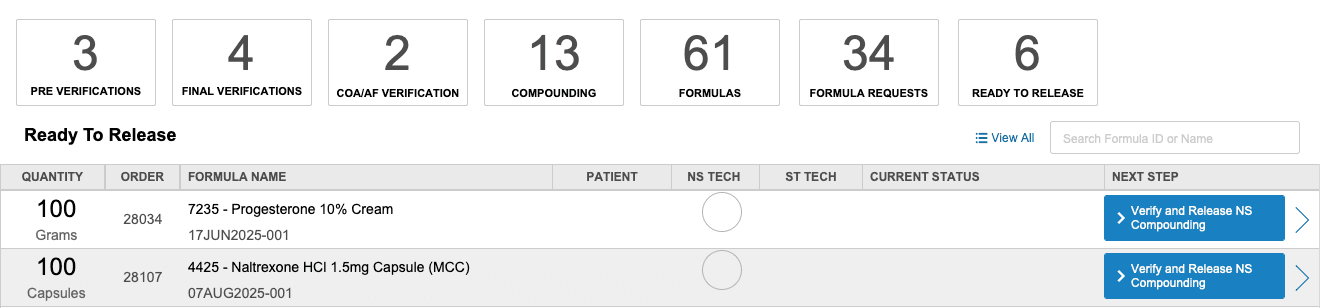
- List View of records that have successfully passed verification.
- These records are ready to move forward for release or dispensing.
- Verify and Release NS Compounding button opens Compounding workflow for Final Release.
Summary
The Verification Station centralizes all verification activities, allowing users to:
- Track records through pre and final verification stages
- Review compounding documentation and formulas
- Verify COA and AF documentation
- Identify items ready for release
✅ This completes the step-by-step guide on Navigating the Verification Station.
Navigating Through the Fill Station?
Learn how to access and navigate the Fill Station, including the main menu and dashboard widgets.
Navigating Through Order Shipping?
Learn how to access and navigate the Order Shipping module, including the main menu and dashboard widgets used to manage shipping workflows.