
ToolsDrug information
Navigating Through Drug Information?
Step-by-step instructions for accessing and using the Drug Information module in SiCompounding.
Overview
Drug Information provides critical patient-specific and pharmaceutical data necessary for safe and effective medication management. This includes details about a drug’s purpose, dosage, potential side effects, storage requirements, and related resources such as FDA-approved labeling, Medication Guides, and patient-specific information sheets.
Step-by-Step Instructions
Accessing Drug Information
- Click the FileMaker Pro icon to open FileMaker.
- In the next window, locate the large menu bar on the left side and click SiCompounding (near the top).
- Across the middle of the window, several icons appear.
Under Tools, click Drug Information.
This opens the Patient Drug Information window.
Using the Patient Drug Information Window
Reports
- Click the Reports button to access the following report options:
- Drug Information by Status → Generates a Drug Information report with detailed information by Drug Status.
- Pending Link to Product → Generates a report of drugs pending linkage to products.
Adding a New Drug
- Click the + New Drug button to create a new drug record.

- Enter Drug name, choose Default text or Document, Compounded or Manufactured, and check the box next to Verified if applicable.
- Enter the required information in the fields provided below if applicable.
- Click Save to exit after adding the new drug.
Search Drug List
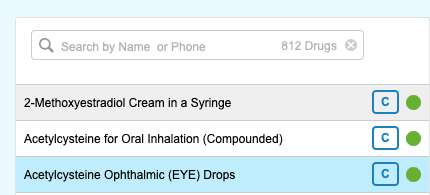
- Enter a Drug Name or Phone Number in the search bar and press
Enter/Return. - Results display as a column of drug names with the following indicators:
- C | M → Compounded | Manufactured
- Green → Verified
- Red → Not Verified
Drug Information

- Selecting a drug and then selecting the Drug Information tab displays detailed information about the drug.
- Click Edit to update details of the selected patient drug.
- Click Save to exit after making changes.
Products
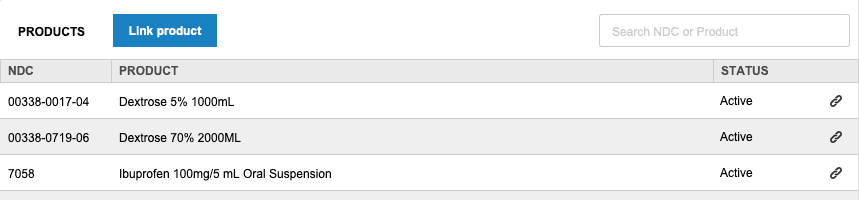
- Click the Link Product button to open the Products window.
- Search by Product Name or NDC and filter by Active | Inactive | All.
- Select active products and click Add Selected Items to link them to inventory for quick access.
Instruction Document
- Click the Document tab to open the drag and drop Add Document window.
- Here you can drag and drop a file or click to browse for a file to upload as an instruction document for the selected drug.
Actions
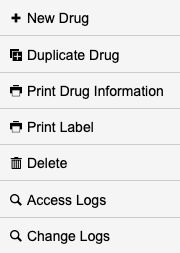
- + New Drug → Create a new drug record.
- Duplicate Drug → Duplicate an existing drug record.
- Print Drug Information → Print details of the selected drug.
- Print Label → Print a drug label.
- Delete → Remove the drug record.
- Access Logs → Open the Record Access Log; close by clicking X.
- Change Logs → Open the Change Log; close by clicking X.
Summary
Following these steps allows users to efficiently search, update, and manage patient drug information, products, and related databases. This ensures compliance, patient safety, and accurate inventory management.
✅ This completes the step-by-step guide on Patient Drug Information.